It’s close to ten years since I last dipped my toes into the world of Intel vPro® features and functionality. I was responsible for managing the EUC estate in a large Global enterprise – at which we had users in really remote locations, working out of small offices, with poor connections and very little local IT support.
For those who’ve done their time and come up through the ranks, you’ll be very familiar with the likes of HP iLO. HP iLO, or Integrated Lights-Out, is Hewlett Packard Enterprise’s proprietary technology for remote server management. It allows administrators to securely monitor, manage, and troubleshoot servers, including those that are powered off, via a dedicated network connection. Key functions include remote console access, system health monitoring, power control, and simplified server setup and updates… As someone who spent many an hour/day/week connected to iLO in my early career, I’d often wanted and yearned for an EUC equivalent.
I’m not sure which came first, IP KVM’s or Intel vPro®, but both massively helped me and the team out during my time in that role. The problem I encountered at the time, was that almost our entire fleet of equipment had been customised to order without Intel vPro® capabilities – because at this time, you could save a few English pounds by electing to forgo the Intel vPro® capabilities. And I mention IP KVM’s specifically as they helped me justify the inclusion of Intel vPro® within the newly revamped Hardware Catalog that I put together, in which it had persona-based equipment and most importantly, Intel vPro® capabilities across the board.
If I think back to Intel vPro® of yesteryear and ensuring devices were sufficiently configured, using Intel vPro® Fleet Services took approximately 10 minutes to not only get the platform up and running, but also, my first devices enrolled. – James Vincent
So, I’m not lying when I say I was and have always been a huge fan of Intel vPro®. However, I would be lying if I said Intel vPro®, back then, was nice to administer, support and even configure, setting up the environment for Intel® Active Management Technology (AMT) was a bit of a struggle. It’s been so long that I cannot even recall any specifics, but I know that finding this image of Mesh Commander was enough to make me feel unwell.

That said, when the hardware from our shiny new catalog was correctly specified and everything within the infrastructure was correctly configured, we were able to provide a much better user experience, offering an increased level of support to those users in need, in far out locations and all in a relatively stress-free manner. The ability to instruct a user to simply connect their device to the network and go and make a cup of coffee, really helped bridge the gap of having no local IT support, and I guess to a certain extent, even allowed us to break down language barriers.
All this helped improve the SLA offered by the team, improve our first time fixes and reduce user downtime, by being able to have users up and running much more quickly. An actual real-world experience of Intel vPro® benefits.
But whilst that’s a whistle stop tour into the past, and my past experience with Intel vPro®, it has, to this day, bemused me as to why Intel vPro® remains underutilised. Today I find myself as a solution architect who lives and breathes EUC, and yet, I find it quite shocking and upsetting how few people know about Intel vPro®. Although being honest, I’d almost assumed that with the lack of knowledge, usage and information that was around that it was possibly technology that was heading for the scrap heap.
That was until a few weeks ago, and my ears pricked, when I caught wind of Intel vPro® Fleet Services.
What is Intel vPro® Fleet Services?
Intel vPro® Fleet Services is a cloud-based Intel-delivered service that simplifies the remote management of a of Intel vPro®-enabled PCs. It helps IT departments remotely activate and manage devices, even when they are powered off or the operating system is unresponsive, through a streamlined process that can be integrated with other management tools like Microsoft Intune. This enables fast remote support, system recovery, and software deployment, reducing costs and downtime for businesses.
Intel vPro Fleet Services delivers an easy-to-use solution for managing devices built on Intel vPro®, providing a simpler activation process and ongoing fleet control.
Key features and benefits:
- Simplified Activation: Reduces the complex activation of Intel® Active Management Technology (AMT) to a simple six-step process through a cloud portal.
- Remote Management: Provides remote hardware-based control, including remote KVM (keyboard, video, mouse), power control, and the ability to install software or updates remotely.
- Out-of-Band Access: Allows IT to manage devices even if they are powered off or the operating system is not responding, ensuring support for remote workers.
- Cost-effective: Available at no additional cost, eliminating the need for costly third-party licensing fees for basic activation.
- Increased Resilience: Enhances support capabilities for distributed workforces and hybrid environments, minimizing downtime and improving productivity.
- Integration: Integrates with other IT management solutions, such as Microsoft Intune, for more comprehensive management.
And here’s a link to the white paper published by Intel that goes into more detail around those benefits. Simpler IT Management with Intel vPro Fleet Services
Remember. Intel vPro® Fleet Services is available at no additional cost, as long as your hardware supports Intel vPro.
So that’s nice and all that, but how much simpler is it to get up and running with Intel vPro® Fleet Services, how does it integrate with Intune and how close does it align with the Intel defined primary goal of “… ensuring that activating and utilizing the Intel® AMT out-of-band features is as seamless as possible.”?
Let’s see…
How to integrate Intel vPro® Fleet Services with Microsoft Intune
Right now, Intel vPro® Fleet Services is in early access/preview mode. However, the process described within is unlikely to change, and… the good news is, it’s really simple. Infact, in production, the process is likely even simpler as it just relies on having your EntraID email address registered in the Intel vPro® Fleet Services console.
Prerequisites
- Hardware with Intel vPro®
- User account in Intel vPro® Fleet Services console that matches that of a user in EntraID (matched on email)
- Intel Management Engine installed (min. v2507.7.10.0)
- Intel wireless driver installed (min. v23.120.0)
Method
Login to Intel vPro® Fleet Services
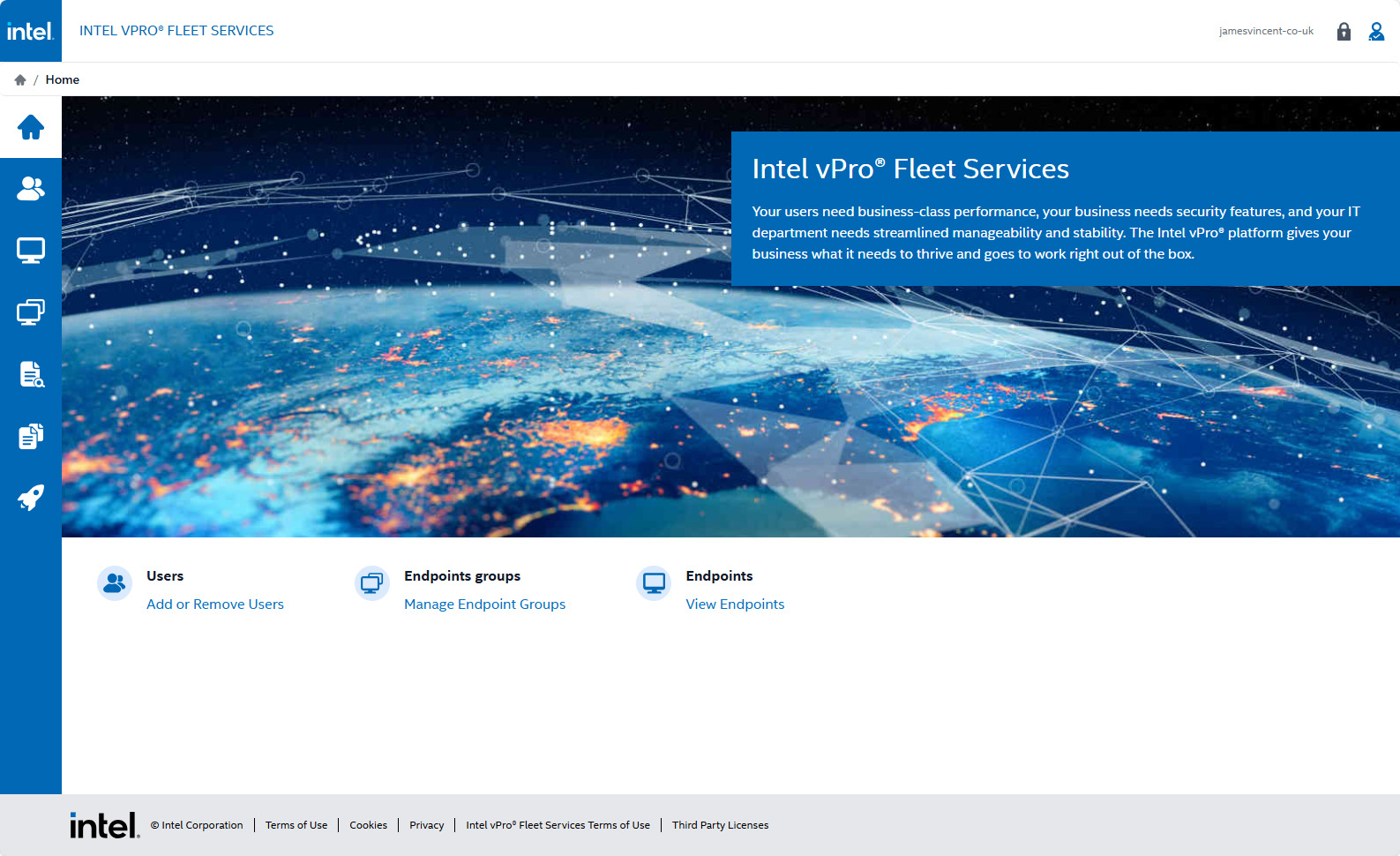
Ensure that you have a User with either Tenant Administrator or Endpoint Operator rights created within the Intel vPro® Fleet Services platform, that has the email address of an Intune Administrator from the EntraID environment. Put simply, if you have an Intune Administrator named Dave Jones, with the email address Dave.Jones@contoso.com, then you must have a user in the Intel vPro® Fleet Services console with the same Dave.Jones@contoso.com email address.
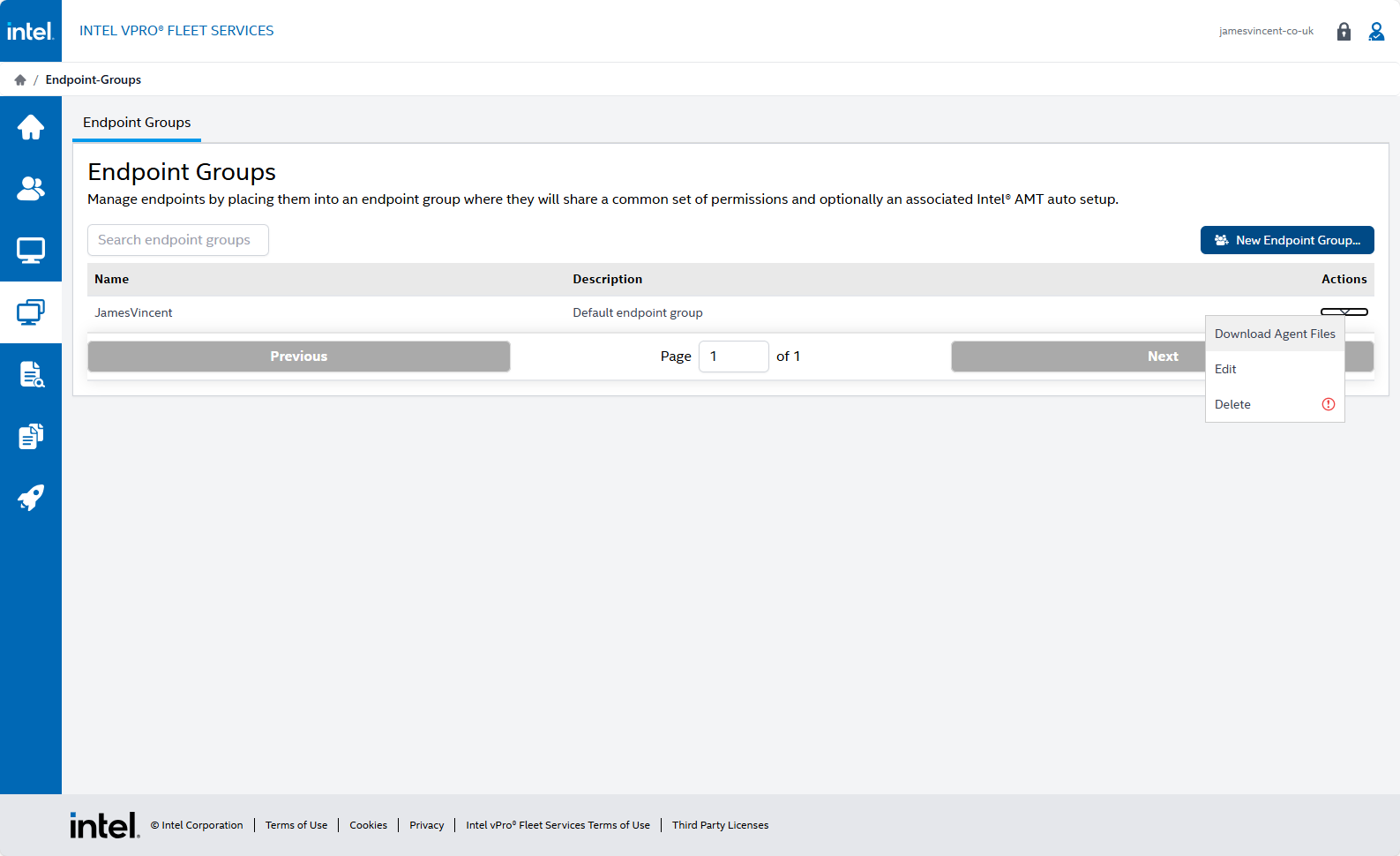
With your users created, go down to Endpoint Groups, out of the box, you will have a Default group. This can be renamed by selecting Edit. Whilst not very clear (at this moment in time), click the little arrow under the Actions heading and select Download Agent Files.
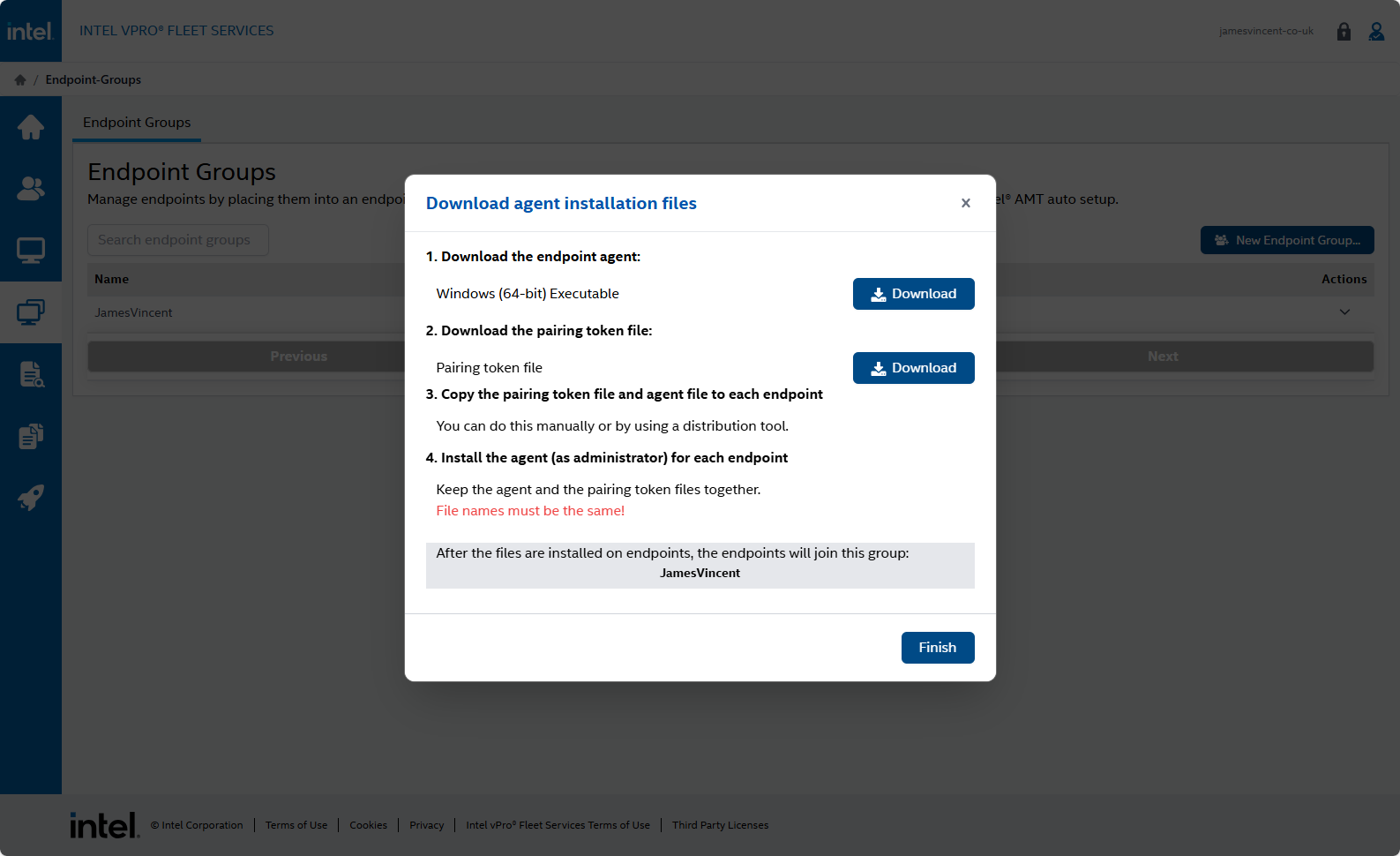
The Endpoint Agent is an MSI Installer. Alongside this, is a pairing token file, i.e. a token which links the MSI Installer back to your Intel vPro® Fleet Services console. Just ensure the token lives in the same directory as the MSI and all the magic will happen automatically.
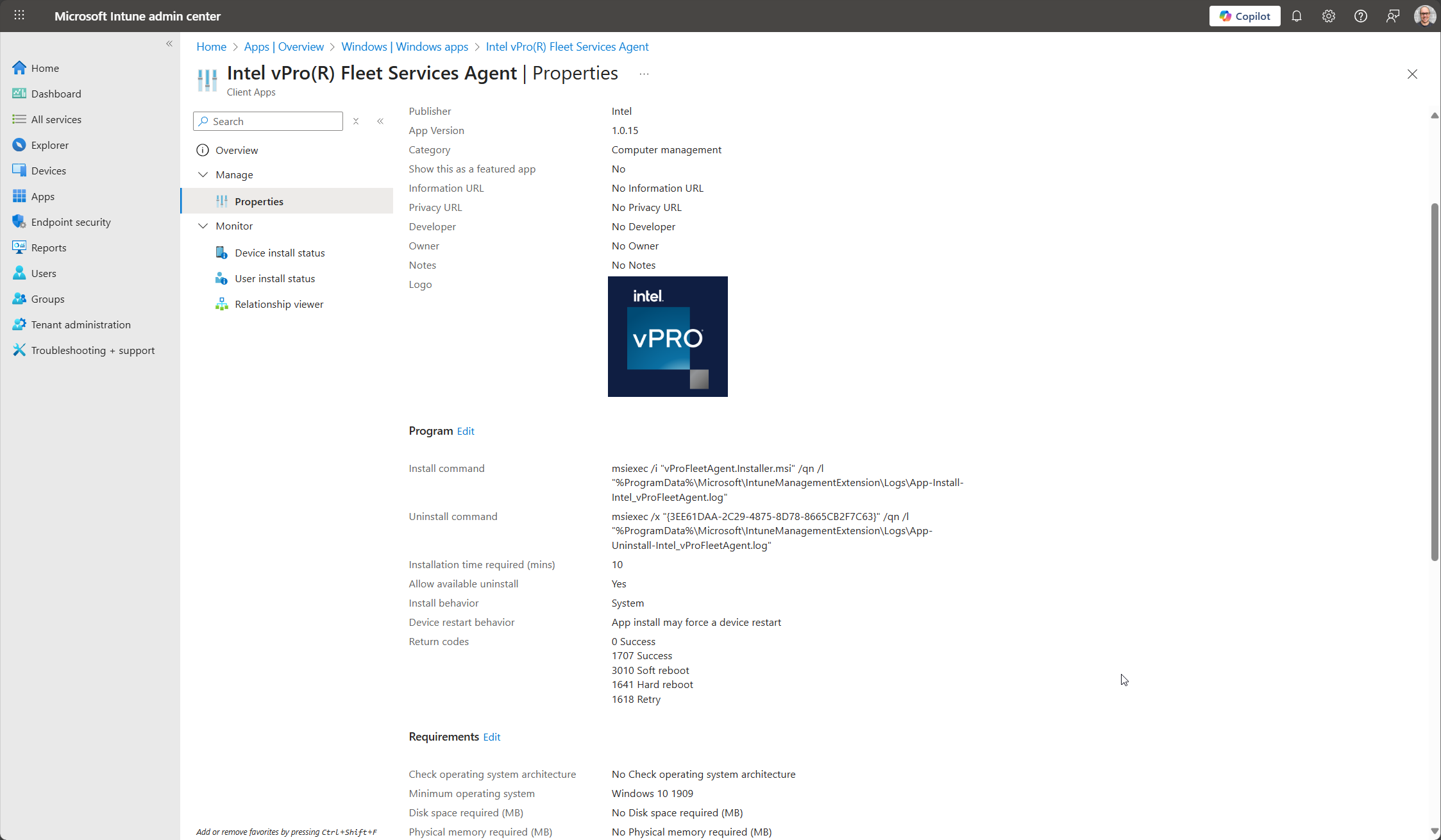
As “living together”, and “install as Administrator” are the only prerequisites for this token file, I took it upon myself to wrap the two files into a Win32 App for deployment via Intune. Ticking both boxes, whilst being able to deploy at scale.
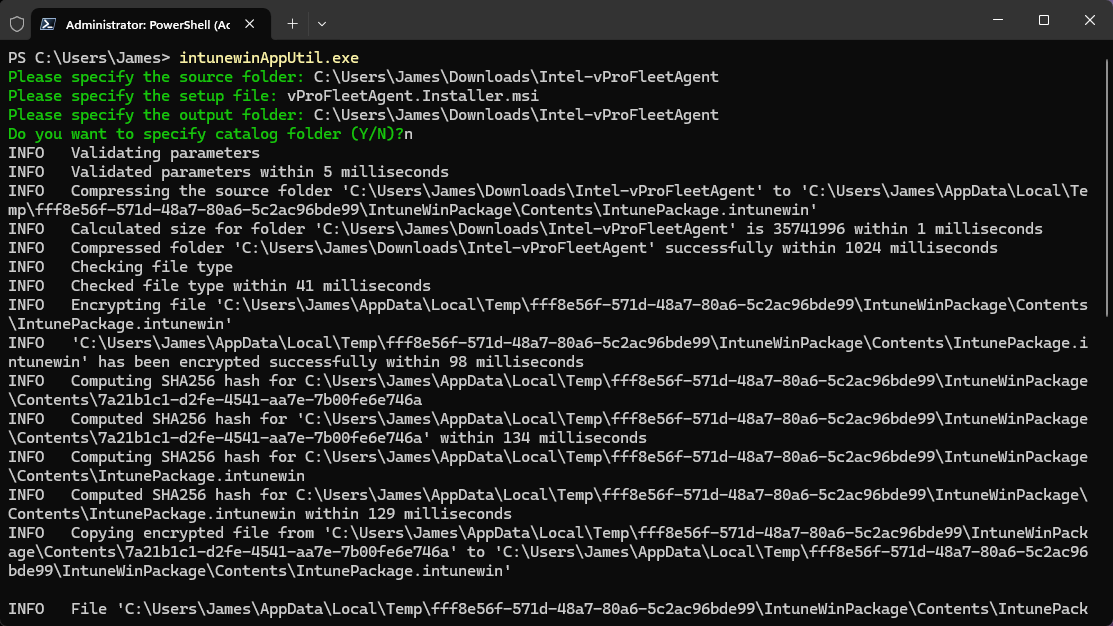
The Win32 App was added to Intune as you normally would, utilising the MSI GUID as the detection method and the app was assigned to my devices (as a requirement).
Shortly after the Agent was assigned and deployed, my devices started to appear within the Intel vPro® Fleet Services console.
If I think back to Intel vPro® of yesteryear and ensuring devices were sufficiently configured, using Intel vPro® Fleet Services took approximately 10 minutes to not only get the platform up and running, but also, my first devices enrolled.
Now what?
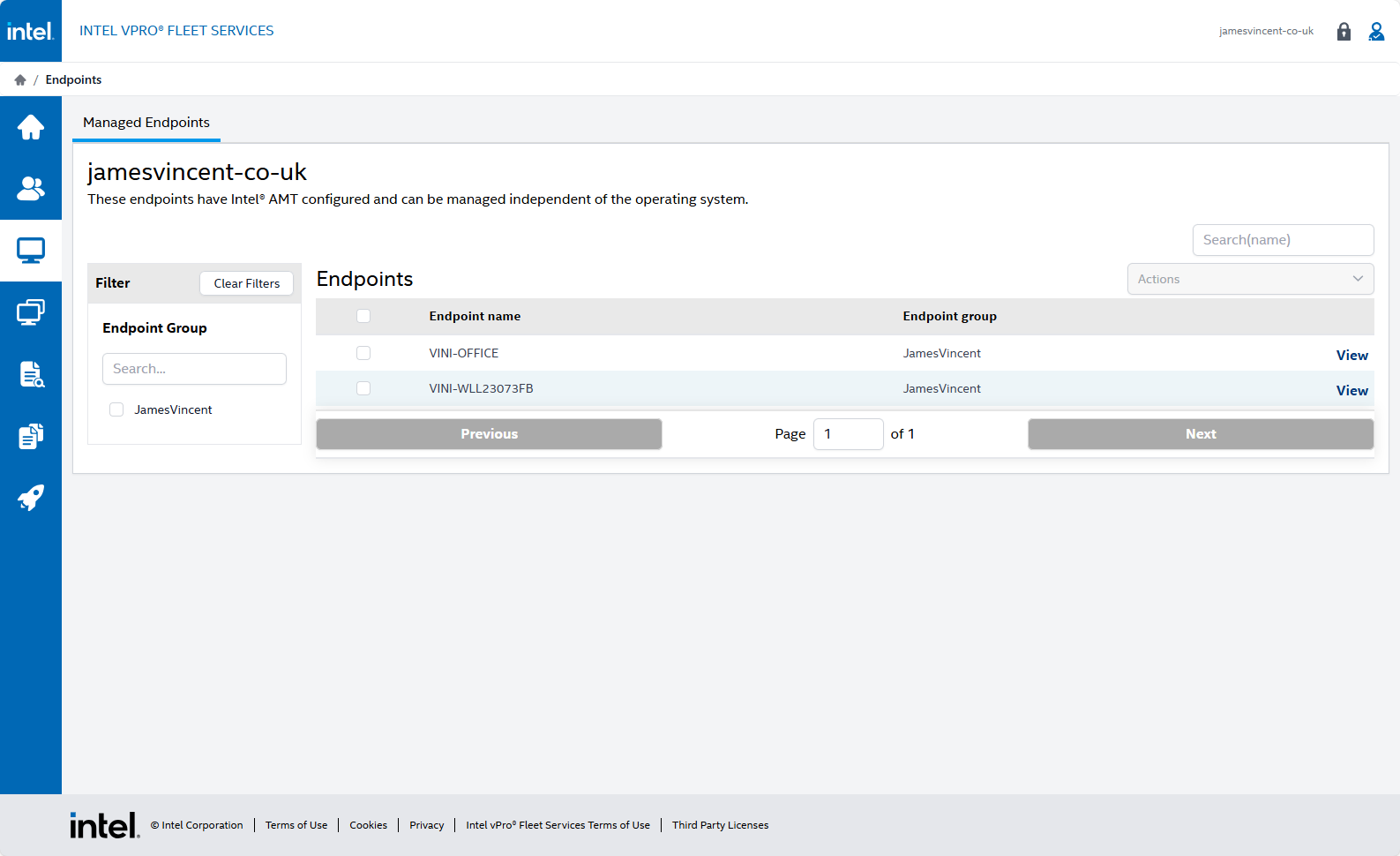
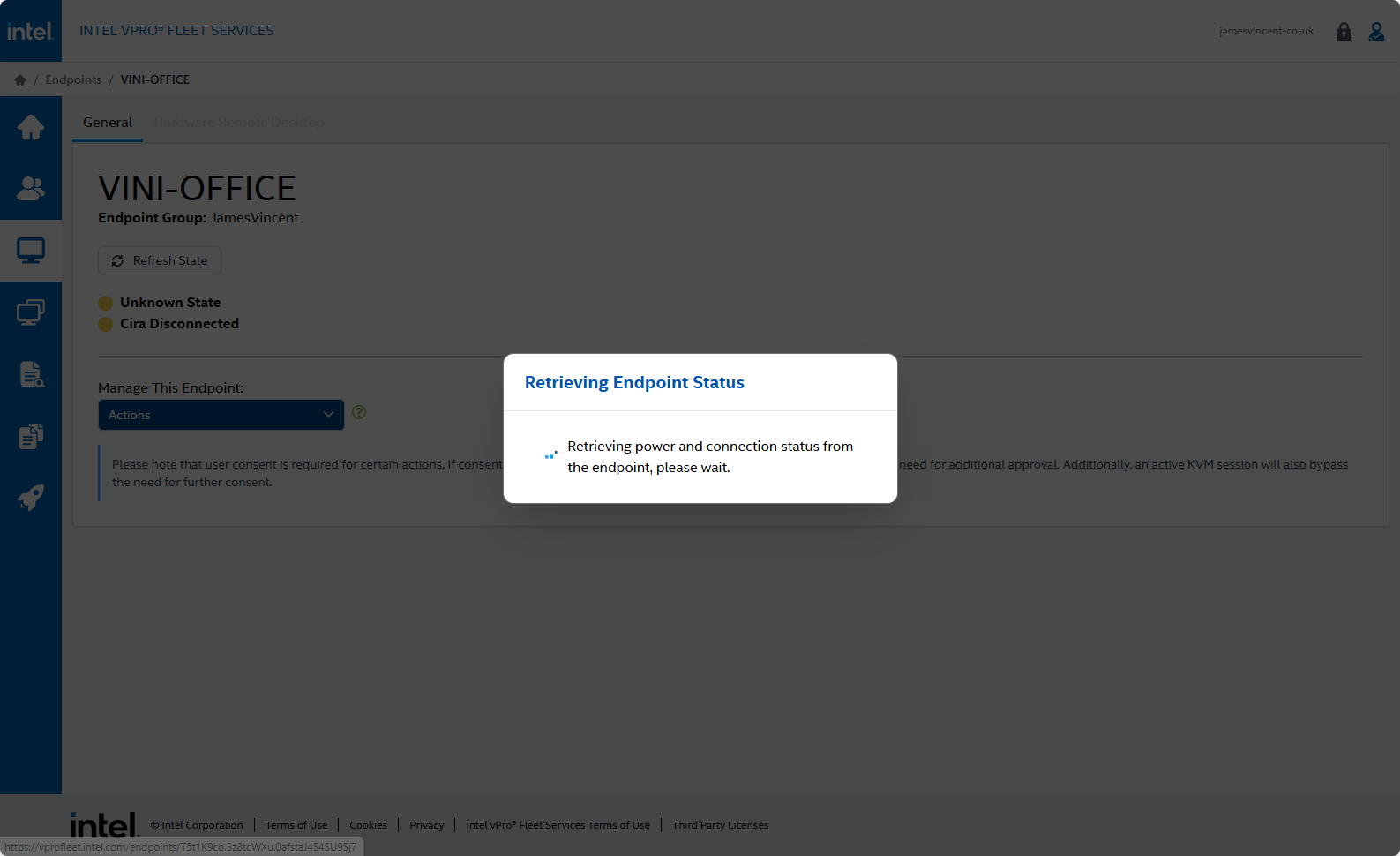
From the console, you simply select the Device you want to interact with and click View on the right-hand side.
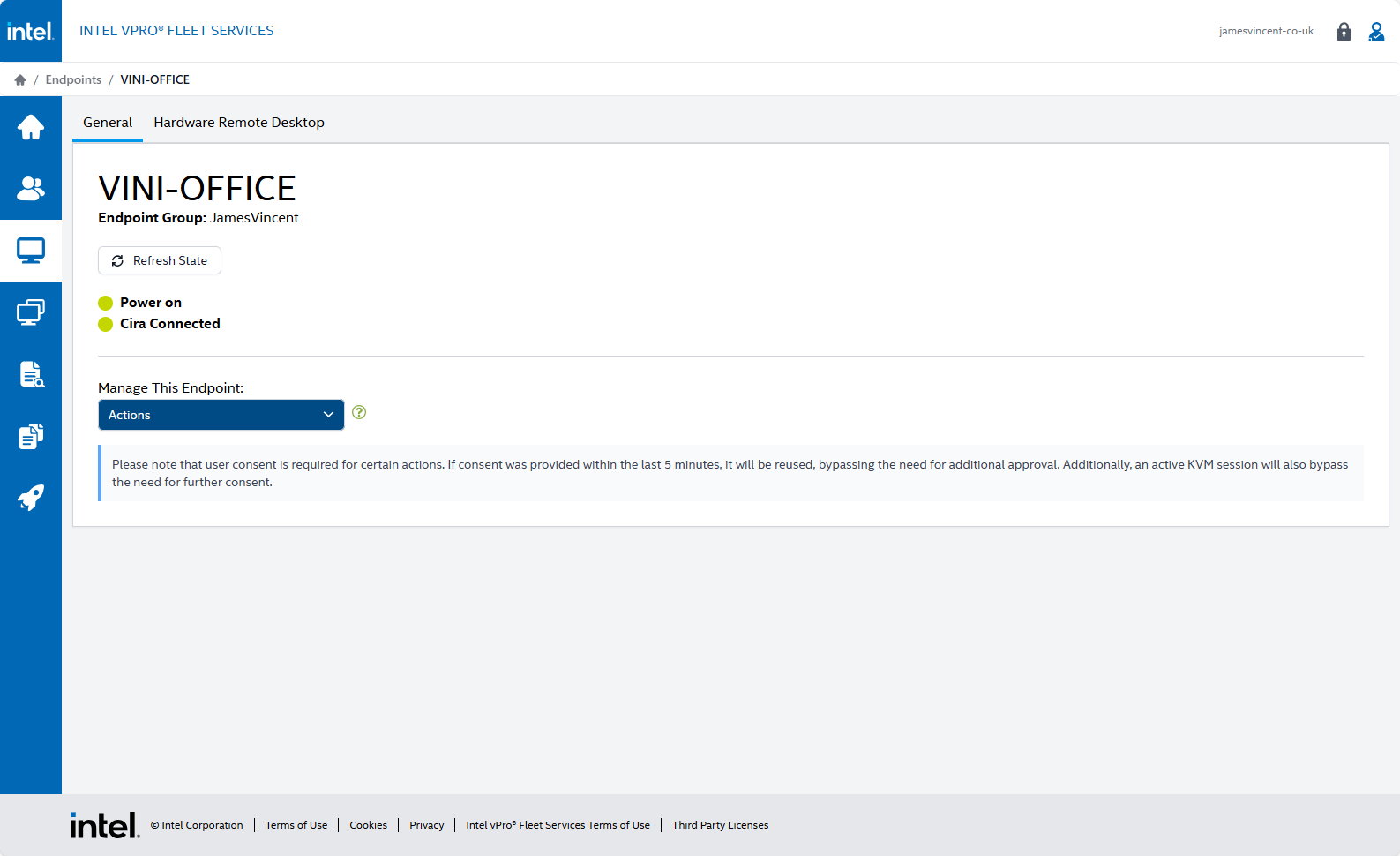
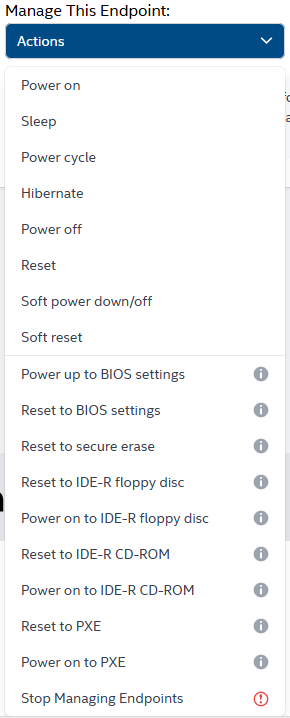
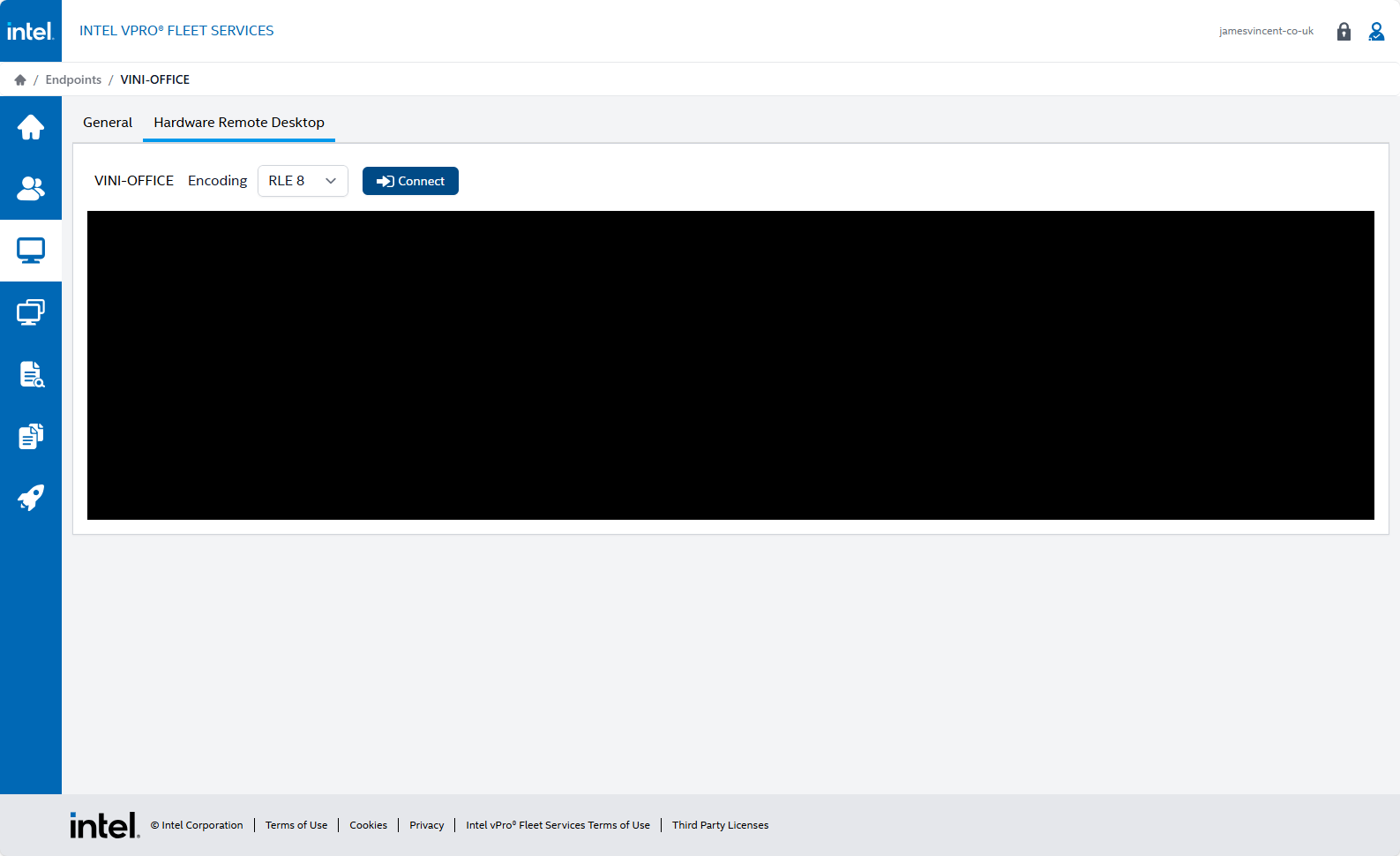
On the Endpoint page, you’re given the system status, a drop down to manage the Endpoint, and a tab called “Hardware Remote Desktop”.
These are the options available within the Actions drop down menu.
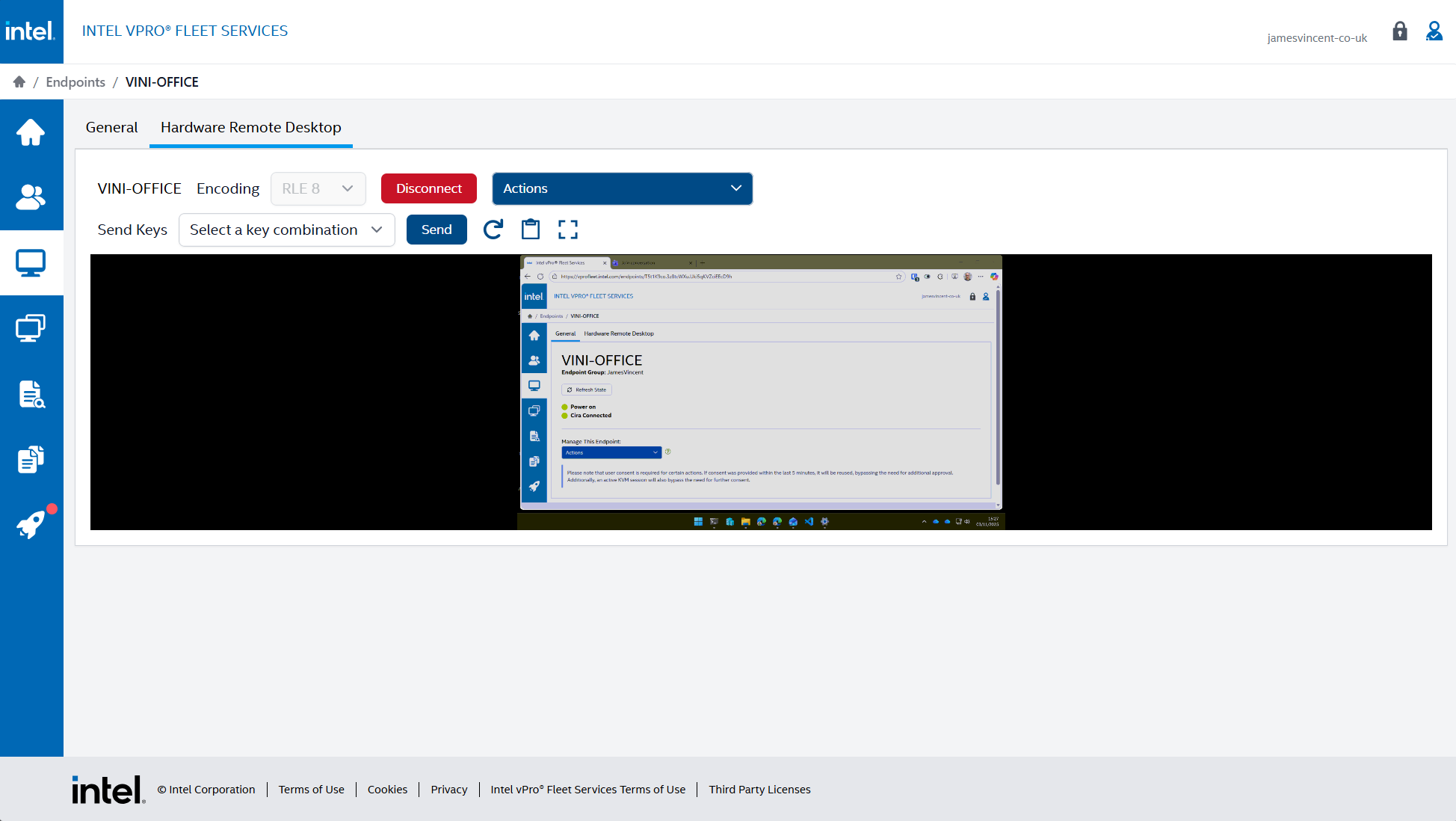
And this is what you see within the Hardware Remote Desktop tab.
Once you click Connect, the device on which you’re attempting to connect to will display a code.
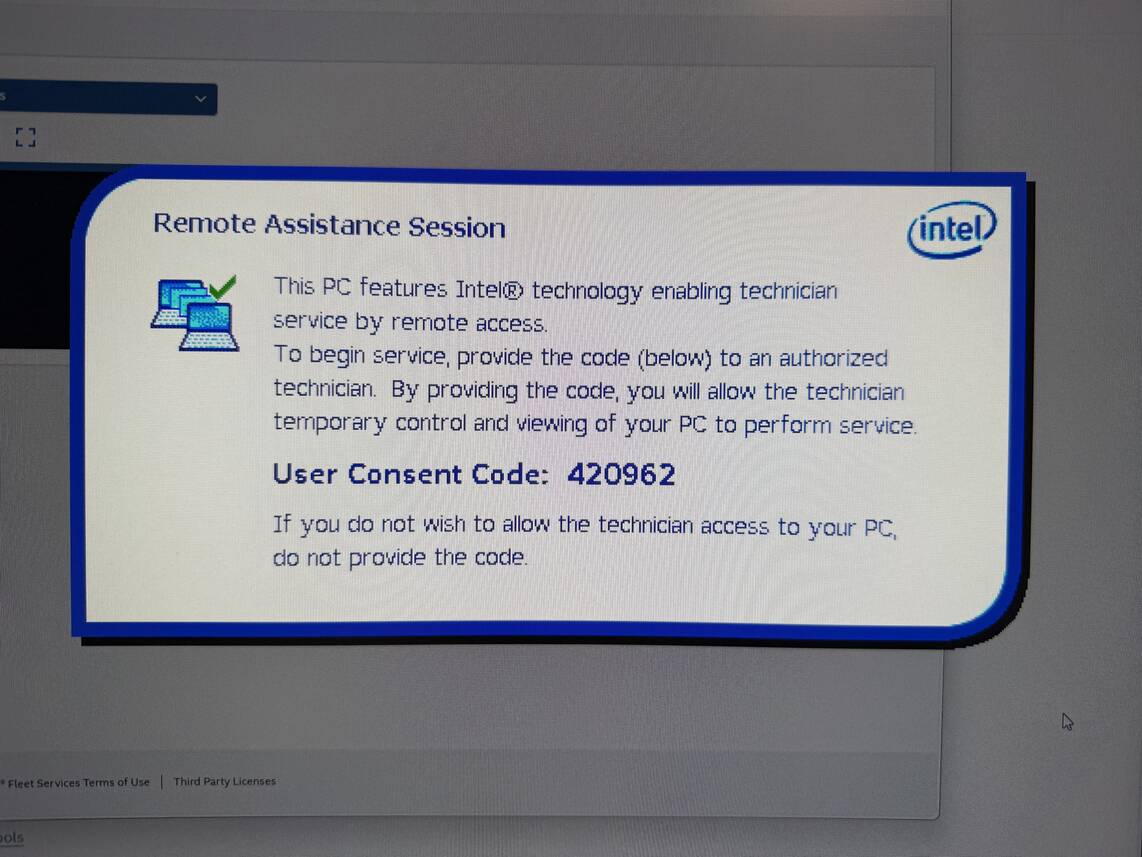
For now, the code has to be issued to the Remote Support Agent, for them to input into their device. In future releases, it will be possible to configure devices to utilise “Admin Control Mode (ACM)”, which will negate the need for this user input.
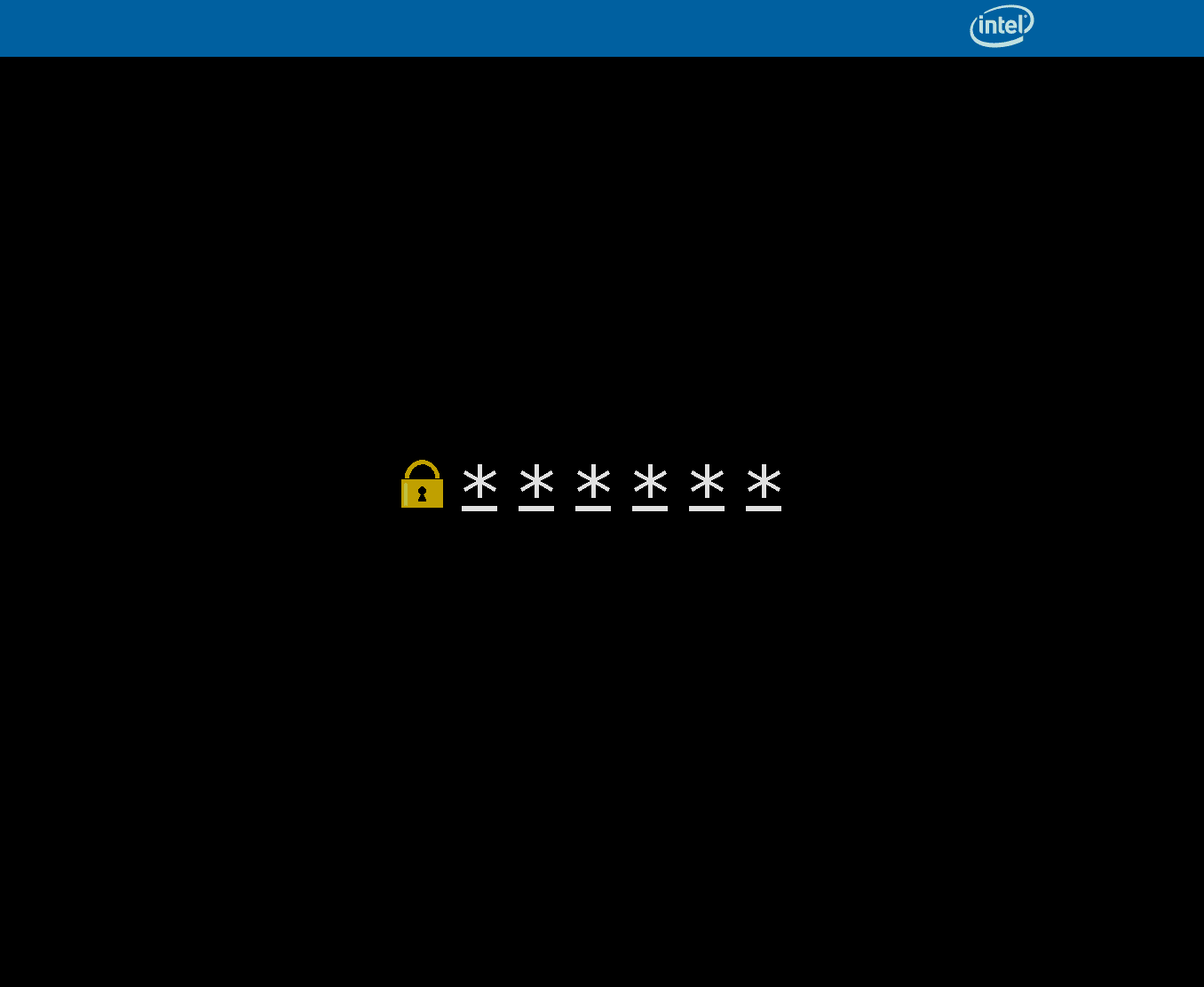
And that’s that, in terms of “Remote Control”… you’ve got BIOS level access and control, within no time at all. Perfect for being able to support your fleet when out and about.
So where does the Intune integration come into play?
Well, as long as there’s a User within the Intel vPro® Fleet Services console that has the same email address as that of your EntraID account, that you use to administer Intune, you simply browse to Devices from the Intune portal, click on Partner Portals towards the bottom of the menu, and click on Intel vPro® Fleet Services. A B2C connection will automagically be made, taking you directly into the Intel vPro® Fleet Services console.
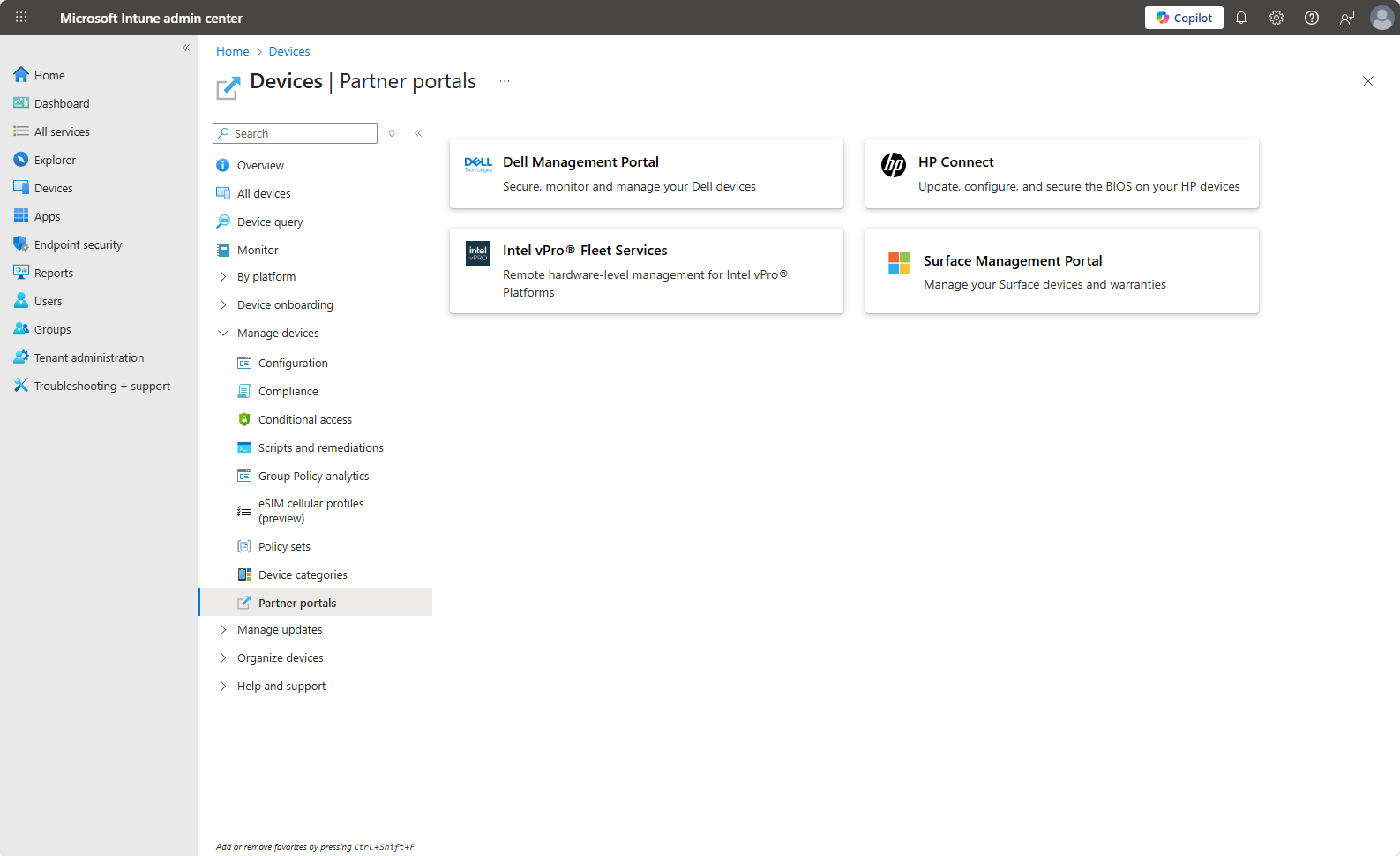
I’m going to hazard a guess, or would like to think, that further future integration capabilities would be on the roadmap. For instance, having the ability to perform the Hardware Remote Desktop directly from the Intune Device Object would be a nice improvement on the User Experience…
To summarise, Intel vPro® Fleet Services offers a straightforward, modern setup experience, insanely quick device onboarding, and promising integration with Intune. While still in preview, its efficiency and simplicity signal a significant advancement over older vPro® workflows – which is absolutely brilliant. I look forward to continuing to promote Intel vPro® and I look forward to seeing how the new Intel vPro® Fleet Services grows to support modern management habits.
Footnote.
During the creation of this article, I experienced issues with the AMT KVM whereby I would receive a white screen when trying to connect. After liaising with Intel, it transpires that due to my device being older, it has less support for modern displays. For example, I’m using an 8th Gen CPU, but with an ultrawide monitor (5120×1440). By reducing the resolution, I was able to utilise the KVM.
The reality is, that in Enterprise settings, this is unlikely to be an issue as the hardware is likely to be <3 years old, but alas, this is worthwhile knowing and being aware of. Intel have kindly advised the following.
- Intel AMT 11.0 = 8.8M pixels — Intel Q170, Q150, С232, CM236, C236 chipsets.
- Intel AMT 11.5 = 8.8M pixels — Intel Q270, CM238, CM248 chipsets.
- Intel AMT 12.0 = 8.8M pixels — Intel Q370 chipset.
- Intel AMT 14.0 = 8.8M pixels — Intel Q470 and W480 chipsets.
- Intel AMT 15.0 = 9.2M pixels — Intel Q570 and W580 chipsets.
- Intel AMT 16.0 = 9.2M pixels — Intel Q670 and W680 chipsets.
- Intel AMT 16.1 = 35.4M pixels — Intel H610, B660, H670, Z690, B760, H770, Z790 chipsets.
- Intel AMT 18+ = 35.4M pixels — 15th Gen CPUs and newer.
Ultimately, the newer the hardware, the better the support will be for the likes of ultrawide monitors etc.

Leave a Reply