Recently Merill Fernando announced an update to Microsoft’s Zero Trust Assessment script. The script/tool checks your tenant configuration and recommends ways to improve security.
I’ve had a play with this to see how easy it is to run, and what the outputs look like. There’s good news ahead.
Prerequisites
- PowerShell 7.
- To connect and consent to the required permissions the first time, you need to be a Global Administrator.
- Subsequent runs can use the Global Reader role.
- If you installed a previous version of the Zero Trust Assessment, uninstall it before continuing.
Install the PowerShell modules
Open a PowerShell 7 prompt and run; Install-Module ZeroTrustAssessment -Scope CurrentUser
Afterwhich, run Connect-ZtAssessment. Depending on your level of Graph Powershell access, you may be required to consent to some app permissions. This is a one-time configuration, and future connections will connect without requesting consent.

After granting the necessary Microsoft Graph PowerShell permissions, you’ll need to authenticate against your Azure platform. Once connected, simply run Invoke-ZtAssessment (You can specify the path to which the output will be recorded if you wish, Invoke-ZtAssessment -Path C:\Temp\MyZTAssessment)
The script will then run, and depending on the size of the estate could take some time.

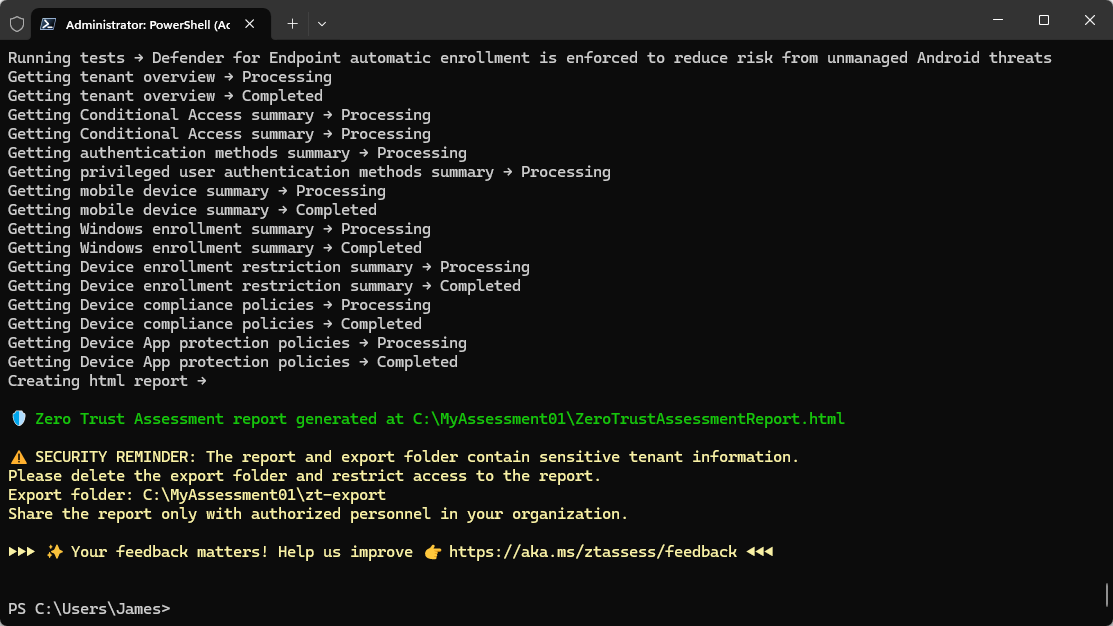
After the export completes, you’ll be presented with a beautiful looking report, which is high level enough to present to execs, but also, contains detail for your IT colleagues to take actions from.

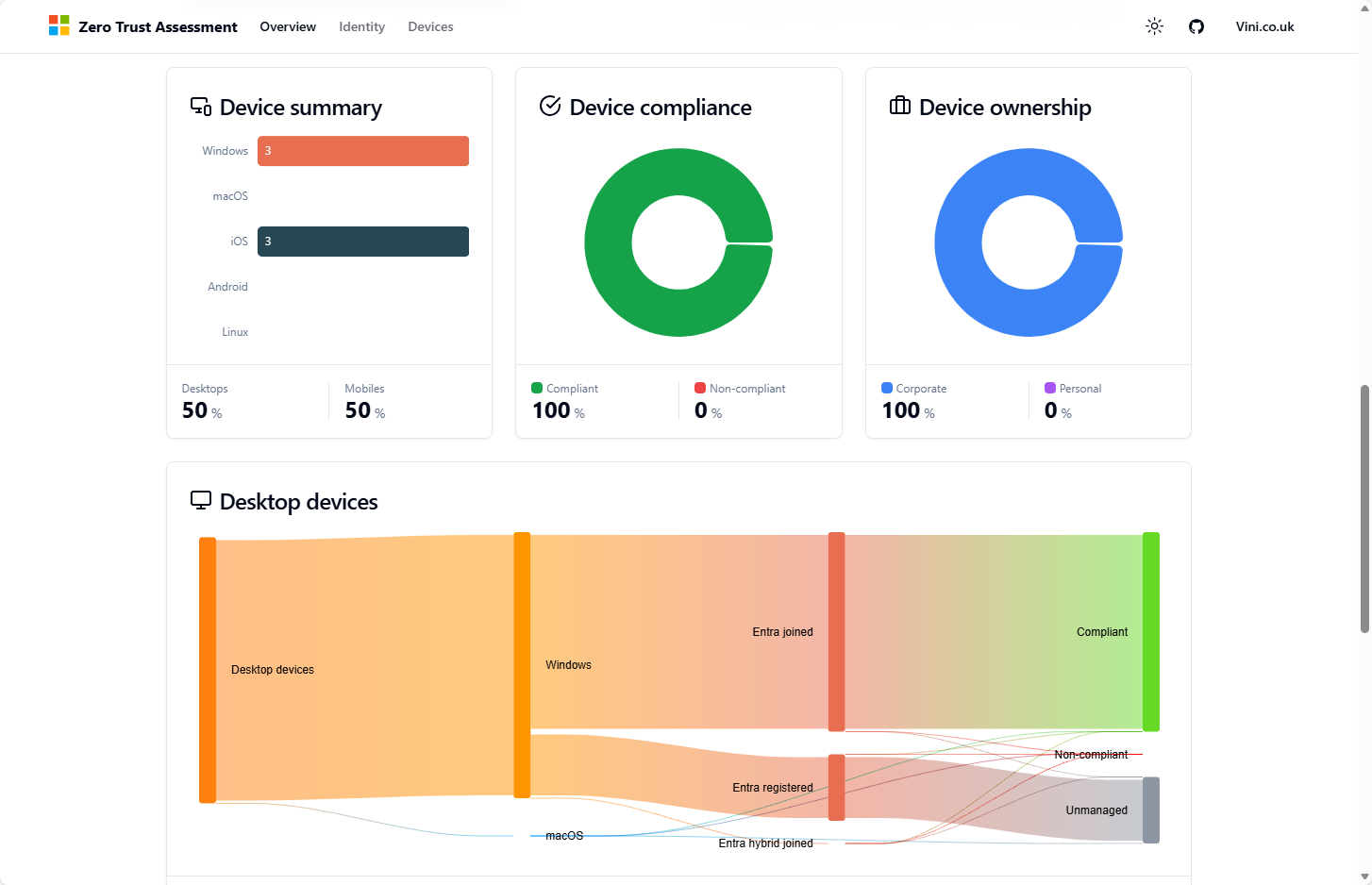

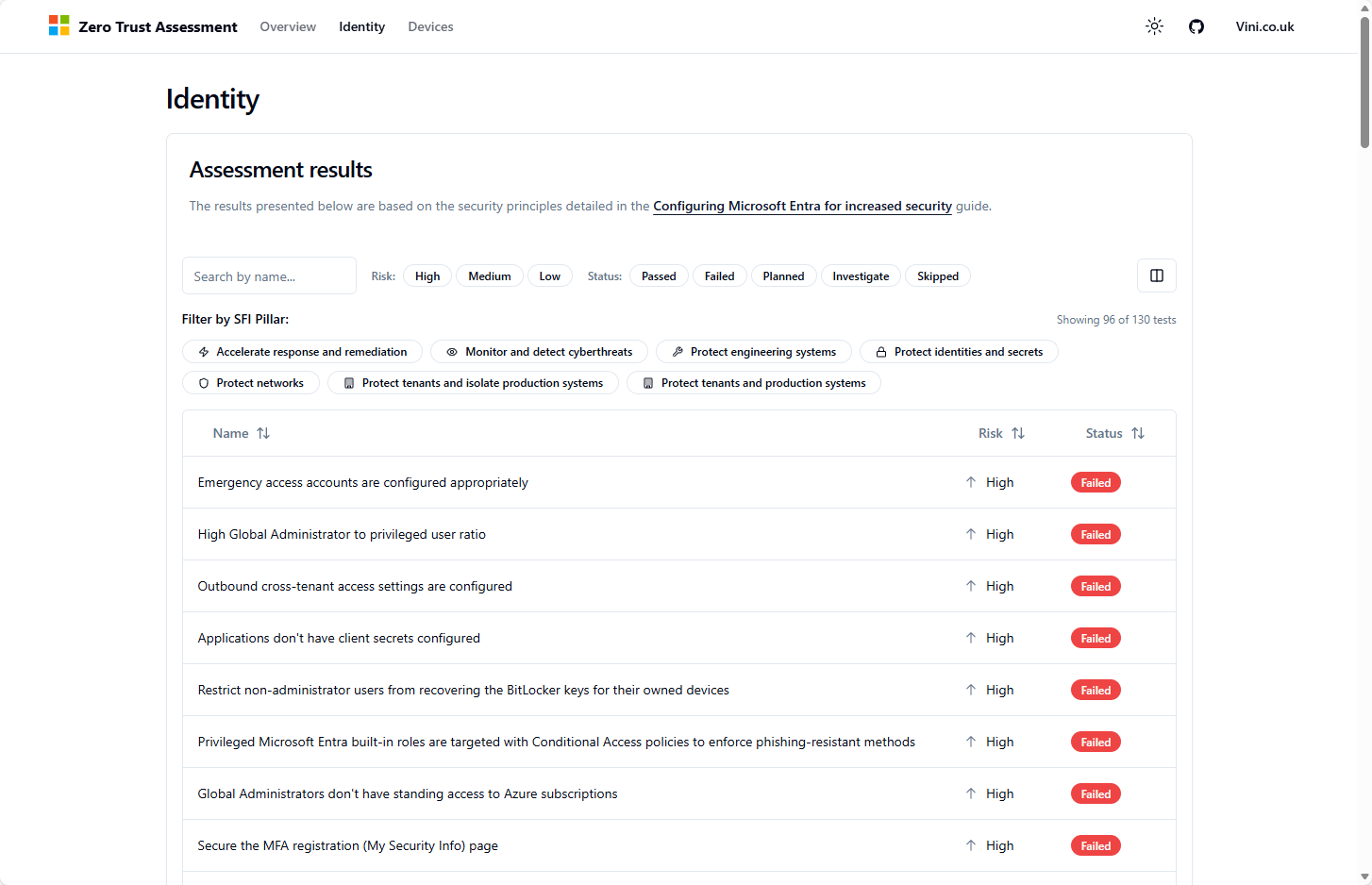
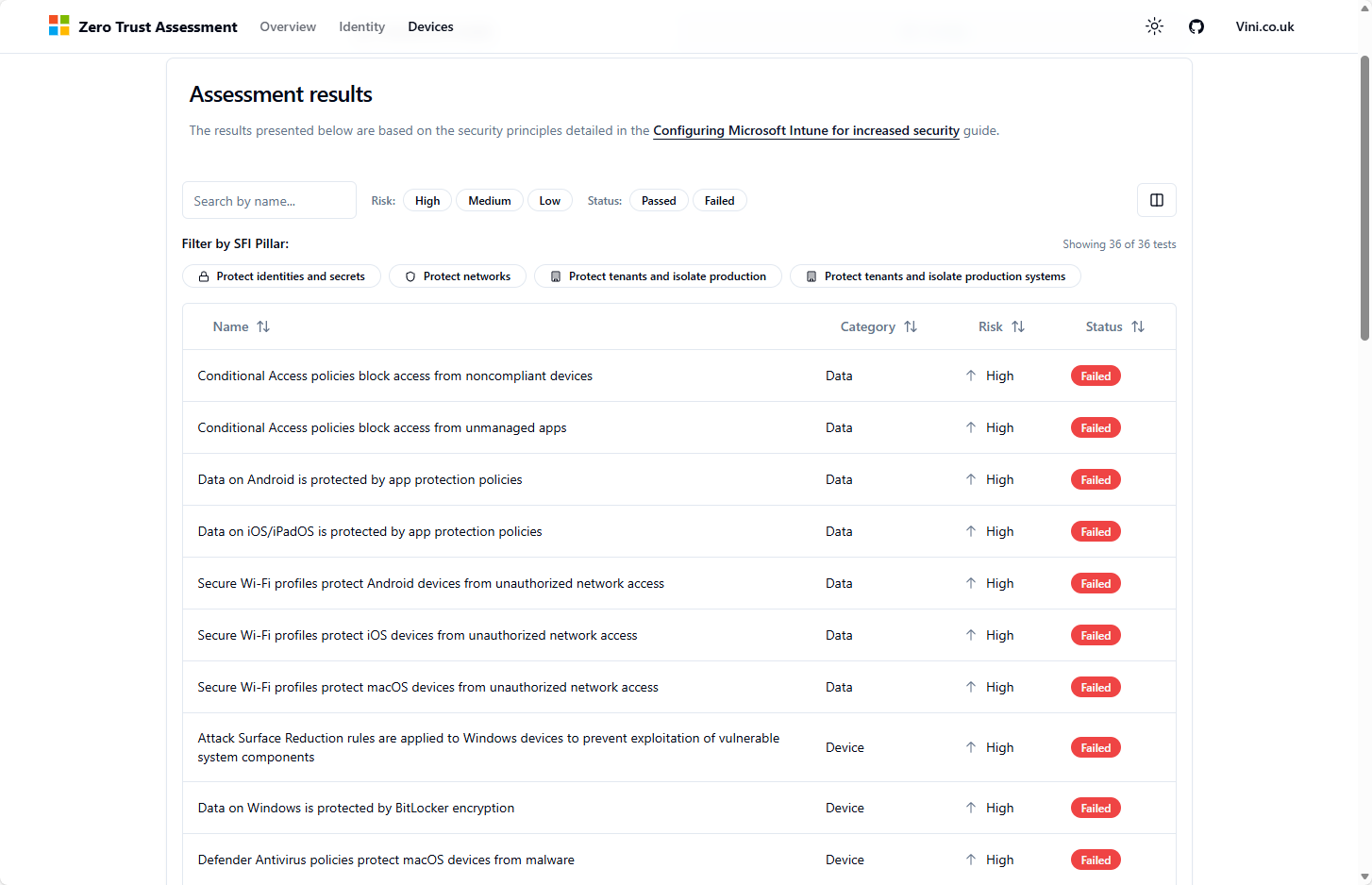
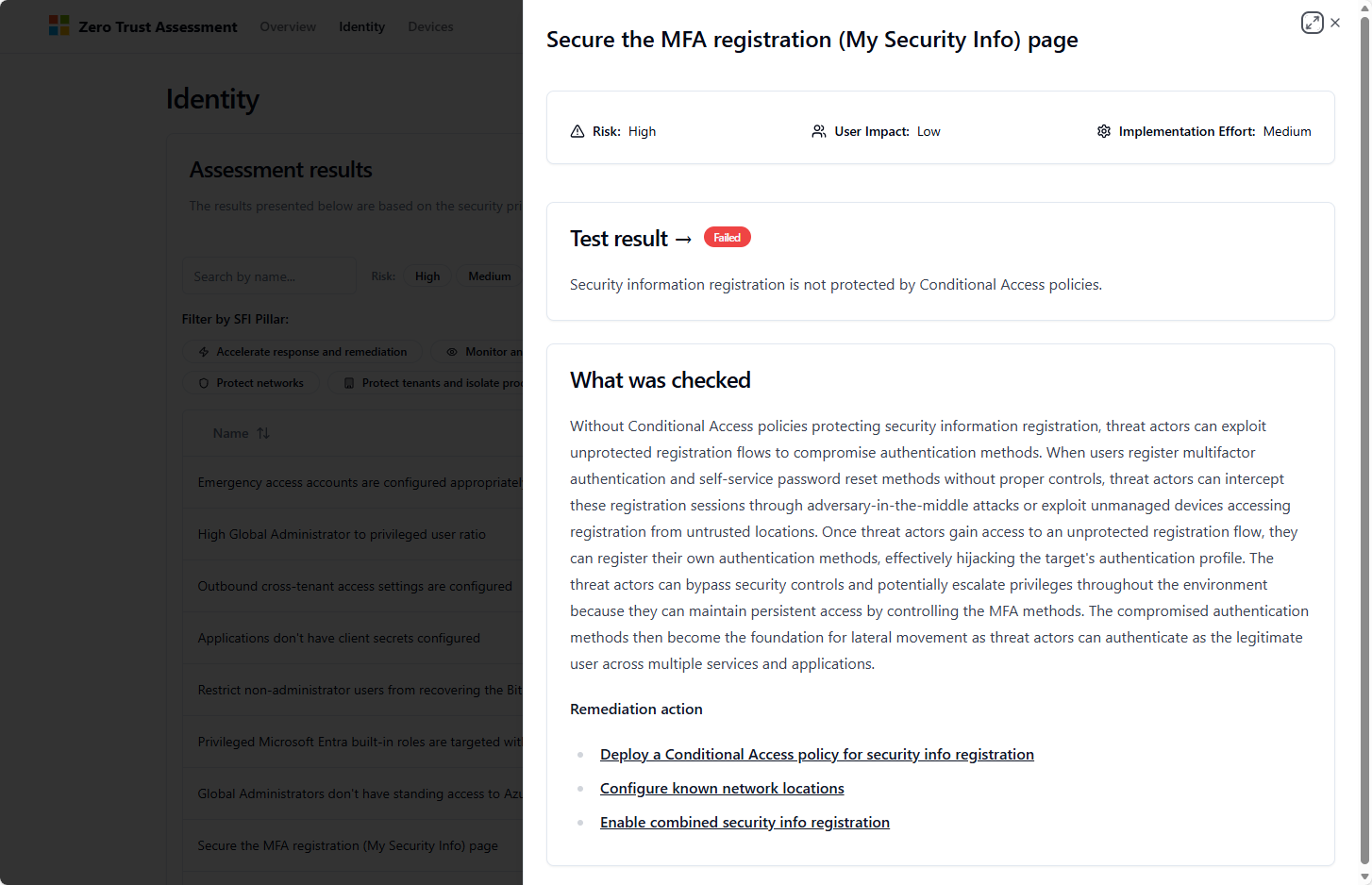
Each of these actions within the results table, is clickable, and will provide you with remediation actions (if required). Much like those in Security Center and the likes.
So, with all that, I would say, presuming you have permission to do so. Run this against your environment and see what comes back.

Leave a Reply