I’ve ended up down a bit of a rabbit hole here. I’ve reset my iPad (so that I could enrol and manage it via Intune) and when doing so, I chose not to restore from backup (my iPad is somewhat disposable in this sense, it’s a work tool and that’s about it – my documents are stored in the cloud already).
What this did mean, however disposable it is, is that I had the arduous task of downloading all the store apps again. Sure, going into App Store and finding your purchase history and ticking each app one by one isn’t that tricky. But… going into Intune and trying to add each app to Company Portal – is.
More-so, due to the nature of my iPad being disposable/managed and my “test device”. Having the apps within Intune, would mean I can theoretically wipe & reset the device at any moment, and have it back up and running with all the apps – quick sharp, without needing to restore a backup (which, when managed, can be a bit of a nightmare – as per my other posts!).
As such, and more of a challenge to myself like so many of the things on this site, I set about creating a PowerShell script that;
- Takes a list of applications specified in an array
- Performs a lookup against the (public) App Store for metadata/icons etc
- Publishes the App in Intune
- Automatically assigns the application as specified
Why? As above. A challenge to myself… but maybe, this could actually be beneficial to someone hydrating a new environment, migrating from one tenant to another, or even one MDM to another. Sure, the majority of the time in these situations, apps will come from VPP or Developers, but in almost every engagement I’ve had the pleasure of working with, there’s often a number of iOS Store Apps that find there way into the environment.
So whether this has a large scale purpose or not, it was fun to educate myself with.
$ErrorActionPreference = "Stop"
# ================================
# Information
# ================================
# This script will add iOS Store Applications to Intune using metadata from the iOS store
# The Applications will then be assigned to the Security Group as specified within $TargetGroupName & $AssignmentIntent
# James Vincent - January 2026

# ================================
# Configuration
# ================================
# Enter your App Registration credentials as per;
# https://jamesvincent.co.uk/2025/01/16/connecting-to-microsoft-graph-api-through-powershell-via-an-app-registration/
$AppId = ''
$TenantId = ''
$Secret = ''

# Security Group to which the apps should be assigned
$TargetGroupName = "Managed iOS Devices - James"

# Assignment Intent, this can be required|available|uninstall|availableWithoutEnrollment
$AssignmentIntent = "required"

# AppStore location (gb|us|es|fr etc)
$Country = "gb"

# List of Apps to publish and assign
$iOSApps = @(
    "Microsoft Outlook",
    "Microsoft Teams"
)

# Logging location
$LogFile = "$env:TEMP\iOSAppDeployment.log"

# ================================
# NOTHING TO EDIT BELOW HERE
# ================================
#
#
#
#
#
#
#
#
#
#
#
#
#
#
#
#
#
#
#
#
#
#
#
#
#
#
#
#
#
#
#
# ================================
# Logging Function
# ================================
function Write-Log {
    param (
        [string]$Message,
        [string]$Level = "INFO"
    )

    $Timestamp = Get-Date -Format "dd-MM-yyyy HH:mm:ss"
    $LogMessage = "[$Timestamp][$Level] $Message"
    Write-Host $LogMessage -ForegroundColor ($Level -eq "ERROR" ? "Red" : ($Level -eq "WARN" ? "Yellow" : "Green"))
    Add-Content -Path $LogFile -Value $LogMessage
}

Write-Log "Starting iOS app deployment script"

# ================================
# Connect to Microsoft Graph
# ================================

try {
    $SecureSecret = ConvertTo-SecureString -String $Secret -AsPlainText -Force
    $Cred = New-Object -TypeName System.Management.Automation.PSCredential -ArgumentList $AppId, $SecureSecret
    Connect-MgGraph -TenantId $TenantId -ClientSecretCredential $Cred -NoWelcome
    Write-Log "Connected to Microsoft Graph"
} catch {
    Write-Log "Failed to connect to Microsoft Graph: $_" "ERROR"
    throw
}

# ================================
# Get Target Group
# ================================
try {
    $TargetGroup = Get-MgGroup -Filter "displayName eq '$TargetGroupName'"
    if (-not $TargetGroup) { throw "Security group '$TargetGroupName' not found." }
    Write-Log "Using target group: $($TargetGroup.DisplayName)"
} catch {
    Write-Log $_ "ERROR"
    throw
}

# ================================
# Create and Assign Apps
# ================================
foreach ($AppName in $iOSApps) {
    Write-Log "Processing app: $AppName"

    # ================================
    # Lookup App Store metadata
    # ================================
    $EncodedName = [System.Web.HttpUtility]::UrlEncode($AppName)
    $Uri = "https://itunes.apple.com/search?term=$EncodedName&country=$Country&entity=software&limit=1"

    try {
        $Response = Invoke-RestMethod -Uri $Uri -Method Get -ErrorAction Stop
        if ($Response.resultCount -eq 0) {
            Write-Log "No results found for '$AppName'" "WARN"
            continue
        }
        $App = $Response.results[0]
        Write-Log "Found App Store metadata for '$($App.trackName)'"
    } catch {
        Write-Log "Failed to query App Store for '$AppName': $_" "ERROR"
        continue
    }

    # ================================
    # Download App Icon and Prepare
    # ================================

    $RandomFileName = [System.IO.Path]::GetRandomFileName() -replace '\.', ''
    $TempFile = Join-Path $env:TEMP "$RandomFileName.tmp"
    $PngPath  = Join-Path $env:TEMP "$RandomFileName.png"

    Invoke-WebRequest -Uri $App.artworkUrl512 -OutFile $TempFile -UseBasicParsing
    Write-Log "Downloaded app icon to $TempFile"

    Add-Type -AssemblyName System.Drawing
    $Image = [System.Drawing.Image]::FromFile($TempFile)
    $PngPath = "$env:TEMP\$($App.trackName)-AppIcon-512.png"
    $Image.Save($PngPath, [System.Drawing.Imaging.ImageFormat]::Png)
    $Image.Dispose()
    Write-Log "Converted logo to PNG: $PngPath"

    $LogoBytes = [System.IO.File]::ReadAllBytes($PngPath)

    # ================================
    # Create iOS App in Intune
    # ================================
    $AppBody = @{
        "@odata.type" = "#microsoft.graph.iosStoreApp"
        displayName   = $App.trackName
        description   = $App.description
        publisher     = $App.sellerName
        appStoreUrl   = $App.trackViewUrl
        bundleId      = $App.bundleId
        developer     = $App.artistName
        notes         = $App.releaseNotes
        applicableDeviceType = @{
            iPad = $true
            iPhoneAndIPod = $true
        }
        minimumSupportedOperatingSystem = @{
            v10_0 = $true
        }
        largeIcon = @{
            "@odata.type" = "microsoft.graph.mimeContent"
            type = "image/png"
            value = $LogoBytes
        }
    }

    try {
        $CreatedApp = New-MgDeviceAppManagementMobileApp -BodyParameter $AppBody
        Write-Log "Created iOS App: $($App.trackName)"
    } catch {
        Write-Log "Failed to create app '$($App.trackName)': $_" "ERROR"
        continue
    }

    # ================================
    # Wait for App to be published - can't assign an app that doesn't exist
    # ================================
    $MaxTimeSec = 60
    $IntervalSec = 15
    $Elapsed = 0
    $AppPublished = $false

    while ($Elapsed -lt $MaxTimeSec) {
        try {
            $Result = Get-MgDeviceAppManagementMobileApp -MobileAppId $CreatedApp.Id
            Write-Log "Checking if '$($App.trackName)' is published..."
            Start-Sleep 5
            if ($Result) {
                Write-Log "'$($App.trackName)' is published. Assigning to group..."
                $AppPublished = $true
                break
            }
        } catch {
            Write-Log "Error checking publication status: $_" "WARN"
        }
        Start-Sleep -Seconds $IntervalSec
        $Elapsed += $IntervalSec
    }

    if (-not $AppPublished) {
        Write-Log "'$($App.trackName)' not published in time." "ERROR"
        continue
    }

    # ================================
    # Assign App to Target Group
    # ================================
    try {
        $AssignmentBody = @{
            mobileAppAssignments = @(
                @{
                    "@odata.type" = "#microsoft.graph.mobileAppAssignment"
                    intent = "$AssignmentIntent"
                    target = @{
                        "@odata.type" = "#microsoft.graph.groupAssignmentTarget"
                        groupId = $TargetGroup.Id
                    }
                }
            )
        }

        Invoke-MgGraphRequest -Method POST `
            -Uri "https://graph.microsoft.com/beta/deviceAppManagement/mobileApps/$($CreatedApp.Id)/assign" `
            -Body ($AssignmentBody | ConvertTo-Json -Depth 10) `
            -ContentType "application/json"

        Write-Log "Assigned '$($App.trackName)' to '$($TargetGroup.DisplayName)'"
    } catch {
        Write-Log "Failed to assign app '$($App.trackName)': $_" "ERROR"
        continue
    }

    Write-Log "Processing completed for app: $AppName"
}

Write-Log "All applications processed successfully" "INFO"With the script, I was able to add a heap load of App Store applications to Intune that were automatically assigned. Then within seconds, they were downloading to my iPad.
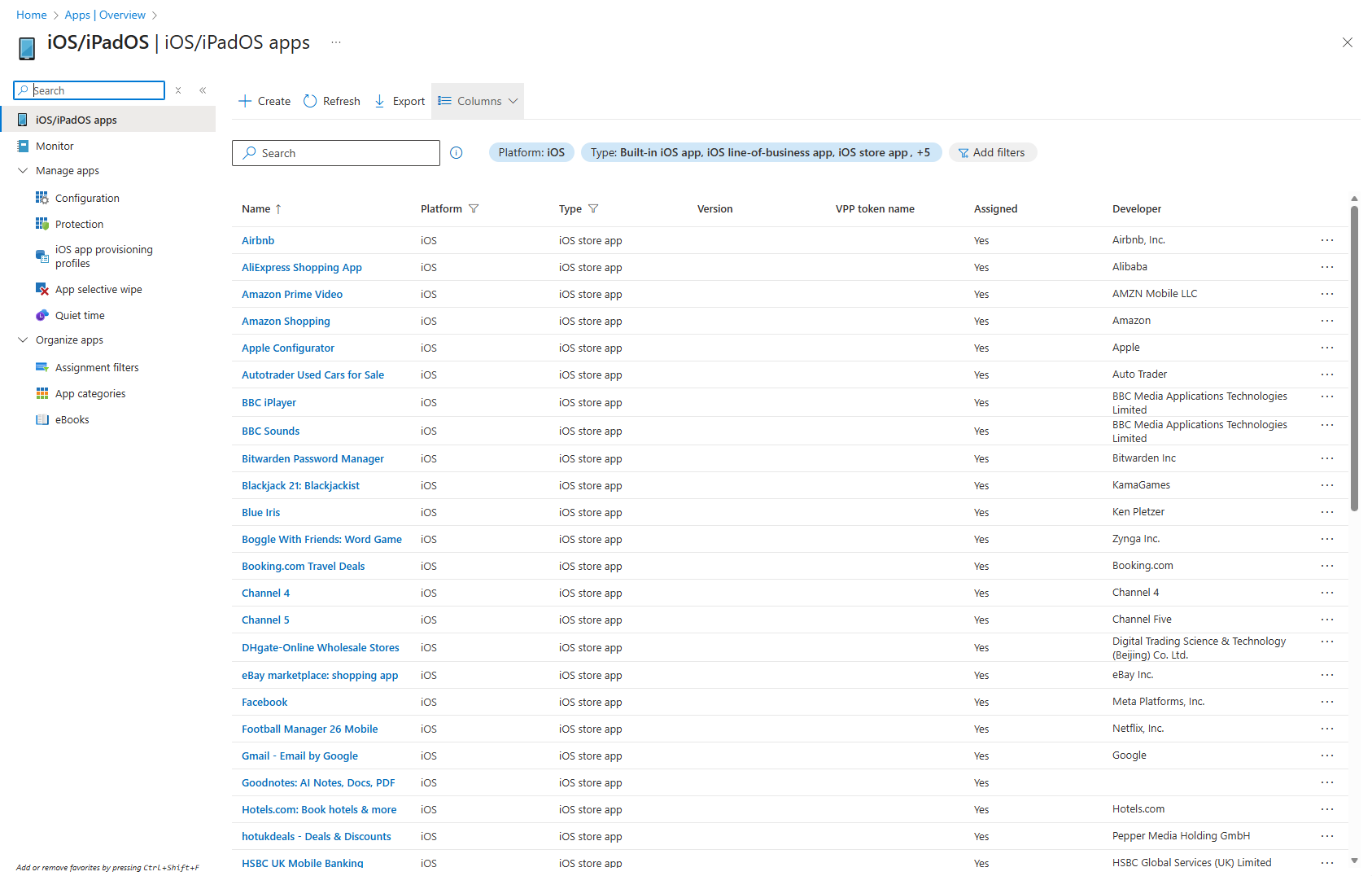
Happy days….. maybe?

Leave a Reply