In my last post, I showed how to publish and deploy an Apple .PKG applications through Microsoft Intune. The process outlined in the guide was very manual and click, click, click. However, that’s the native way of adding an unmanaged Application.
One hurdle I demonstrated within the article, was how Apple’s Privacy Settings can really make the user experience of Application deployment a nasty, nasty thing.
Fear not though. In a Managed Device world, nothing should be “nasty”, at least not when it comes to user experience. The beauty of managing devices, is that, with foresight, effort and testing, we can ensure that all the hurdles a user may face are catered for up front, removing any nastiness and ensuring a smooth like silk user experience. After all, the users are our customers – we need them to be happy, to prevent an influx of tickets, allowing us the time to do all the nice fun things we want to poke around with/explore/be doing – like this!
So, how do we validate that the user experience will be smooth like silk? We test…
In the aforementioned article, we saw that after installing an unmanaged .PKG application, the macOS Privacy Settings hounded the user for manual input. Somewhat bitter sweet. It validated the application installed for us – yay! But just look at the screen. Popups, notifications and windows with big red “Denied” icons – NOT a nice experience for a user.
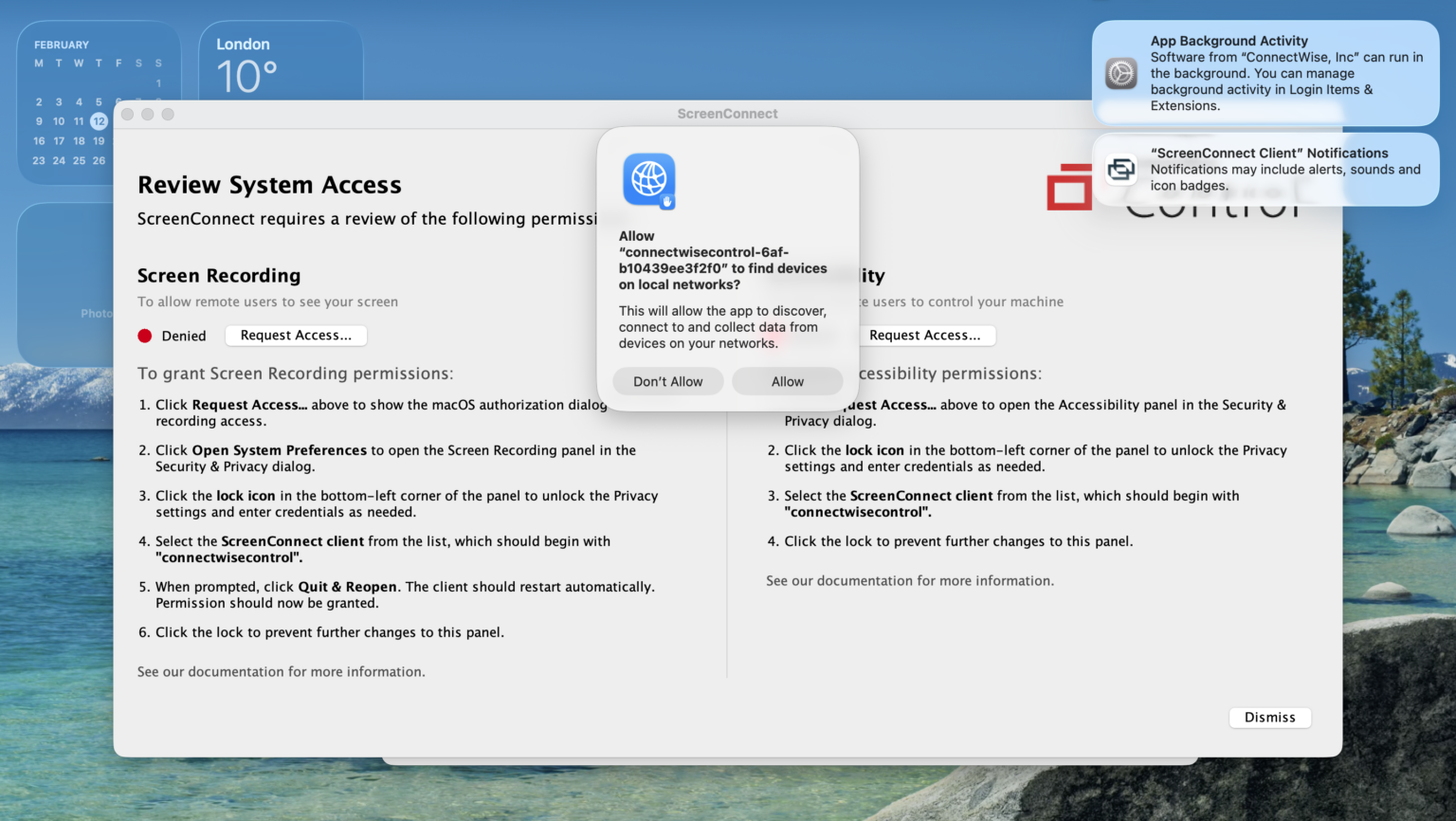
We could just accept this, but we shouldn’t. That’s a poor job. So how do we fix this?
We create a Privacy Preferences Policy Control policy within Intune, and assign it to our devices. I mean, as I’ve said a thousand times before, we could probably create a shell script and push that alongside the App as a pre/post install script. It would keep all the related App config together, but the use of scripts like this, in my opinion, are a step back away from utilising the native methods provided by the MDM solutions.
Prerequisites
- Access to Intune.
- A test device, with the Application(s) you wish to preconfigure installed so we know what settings to define.
- Which means, hands on with a macOS device, in this instance!
Creating a Privacy Preferences Policy Control policy
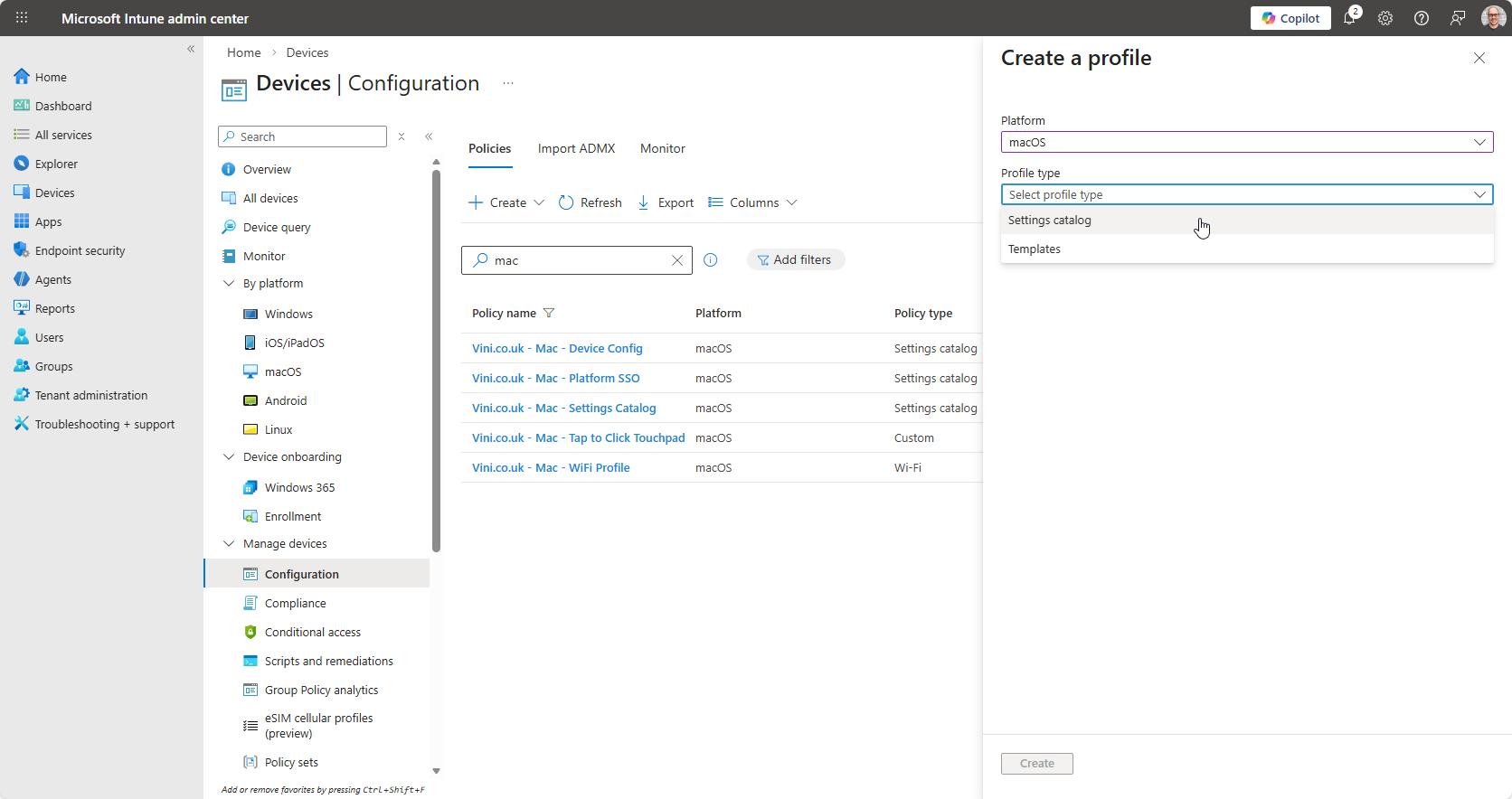
From Intune, go to Devices > macOS> Configuration Profiles and create a new Configuration Profile for macOS.
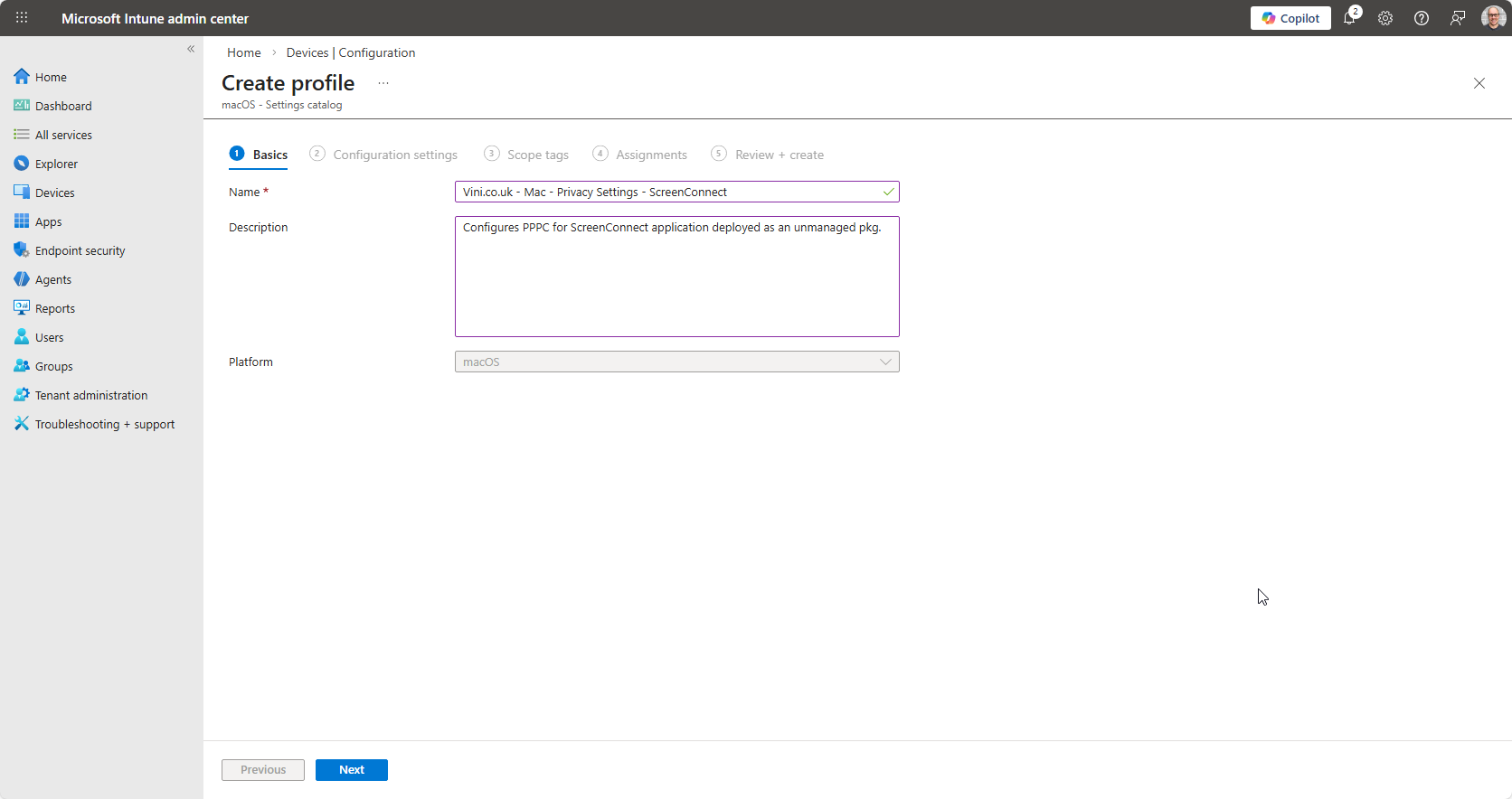
Use Settings Catalog as the profile type.
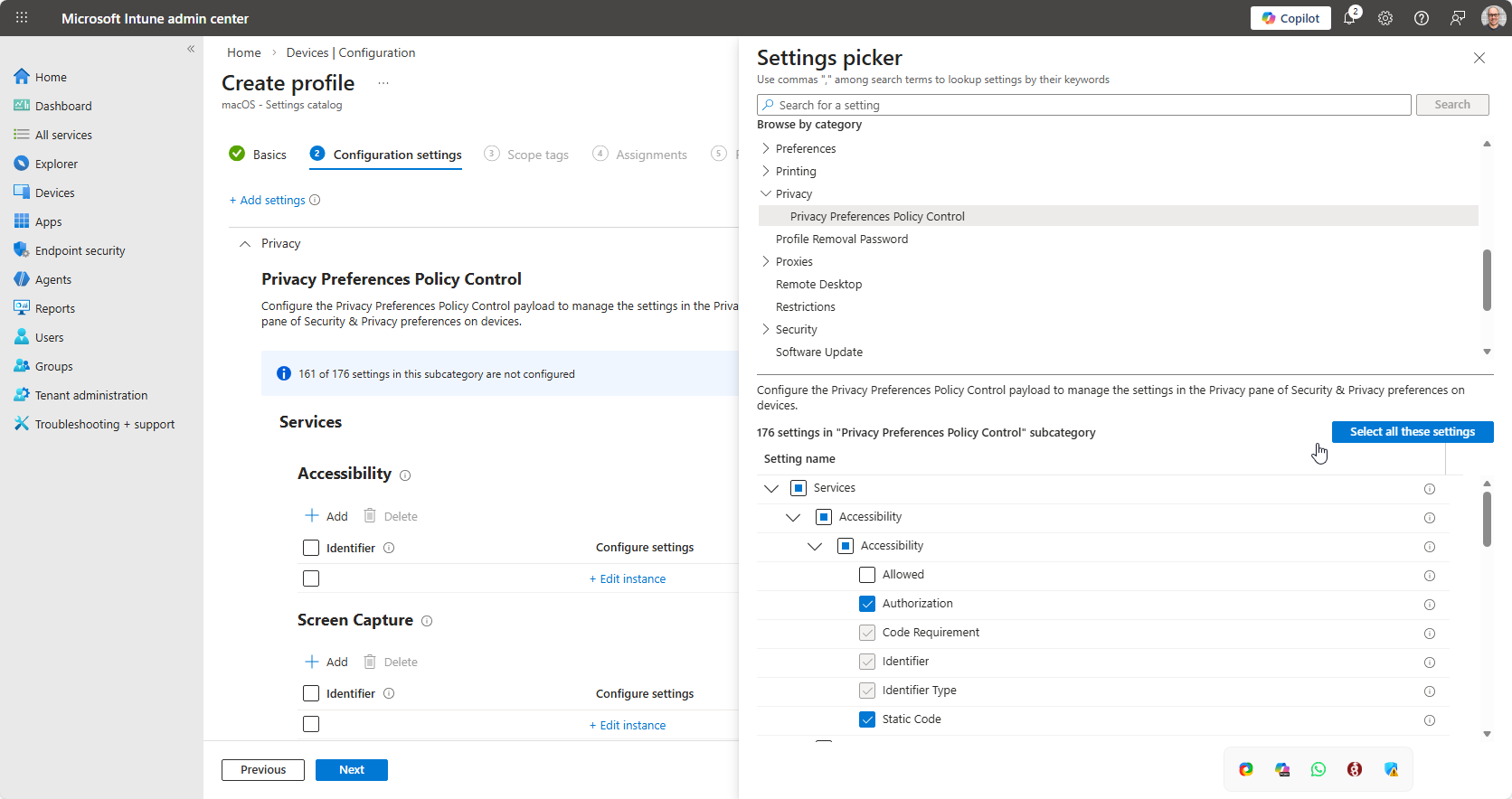
Browse Settings Catalog for “Privacy” and “Privacy Preferences Policy Control” under which you should see “Services” and then within Services, you should see many options that loosely represent the sections within the Privacy Control Panel actually on macOS. This guide uses ScreenConnect as the example application, and we can see from the image below, which particular settings we need to pre-configure (Screen Recording & Accessibility).
Within the Settings Picker, we locate Accessibility and Screen Recording, or Screen Capture as Intune refers to it. We can tick the top level checkbox, but it’s worth noting that the “Allowed” setting is deprecated, with Authorization taking priority. Keeping “Allowed” checked, and configured, will result in errors (likely 10022, which is rather generic) when the policy applies.
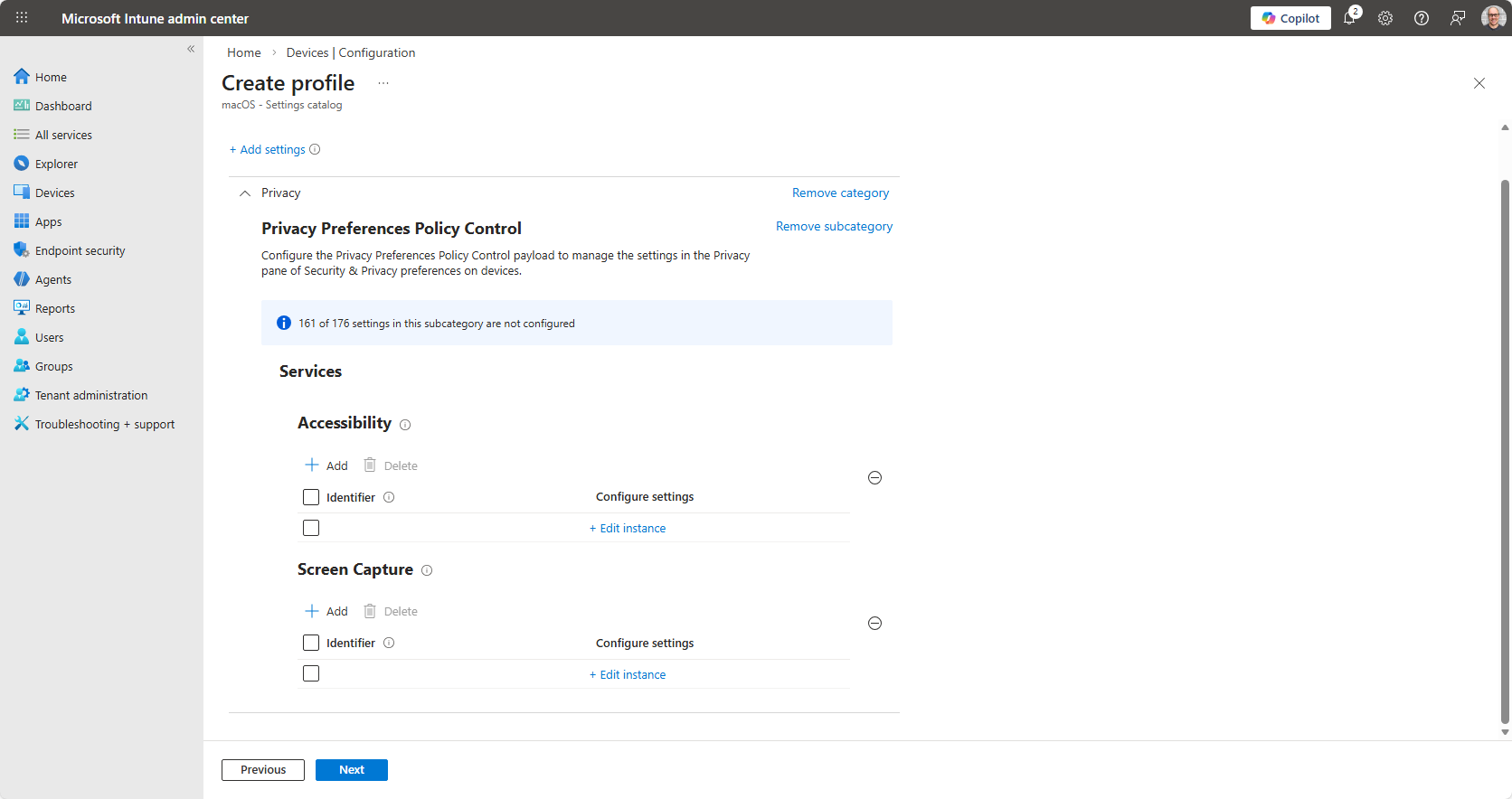
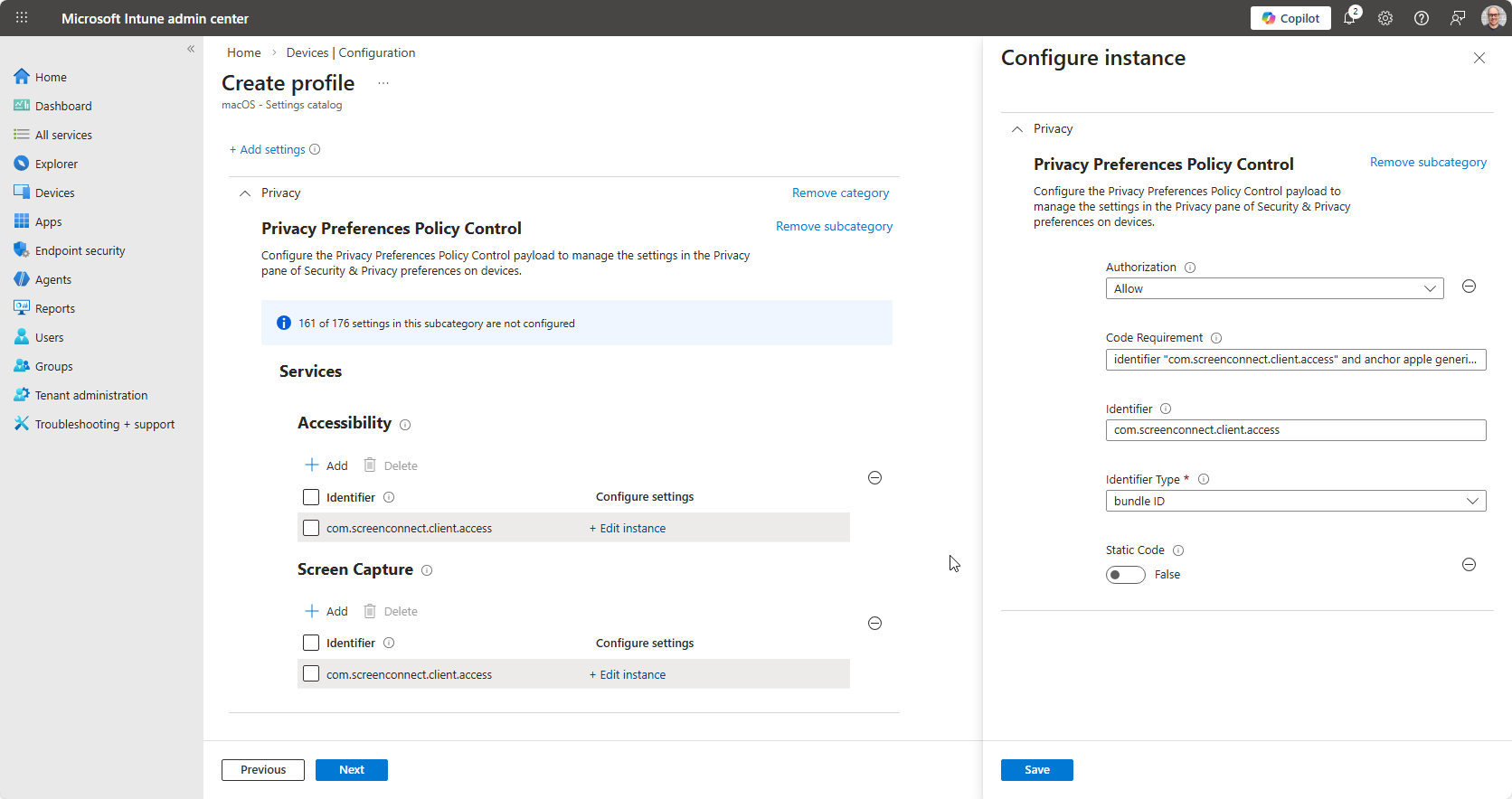
With the settings picked, as it were. We need to configure them. Click “Edit Instance” under the respective service, and we need to be ready to populate the details requested.
We’re asked to define, Authorization, populate Code Requirement and Identifier fields, select the Identifier Type and specify whether this is Static Code or not. What does this mean? And where and how do we get this information? Hints are provided when you scroll over the ? next to each setting…
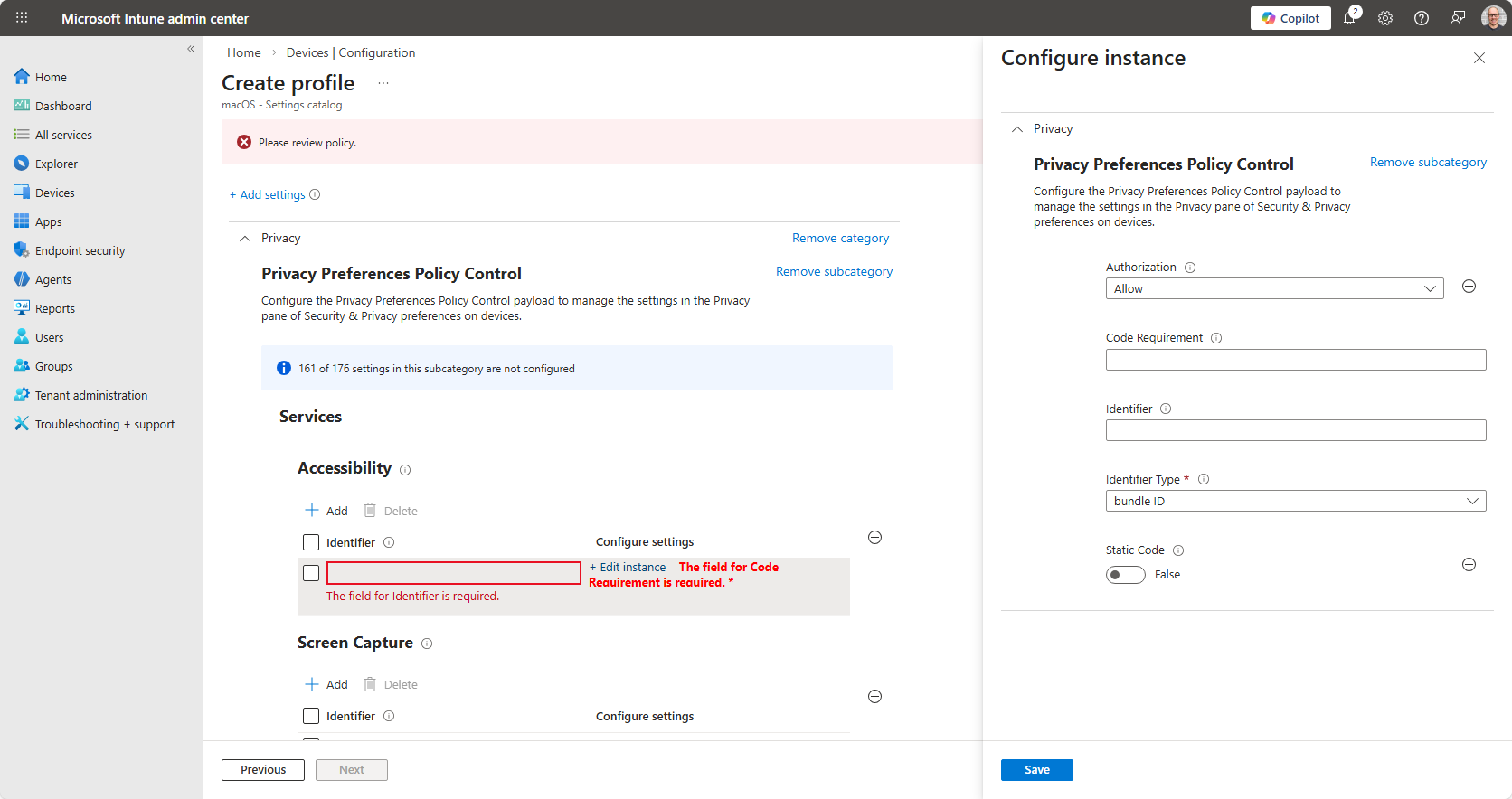
Authorization is a drop down, with predefined options. Allow will be the most common definition (assuming you’re actually wanting to allow the setting).
A note relating to Screen Capture…
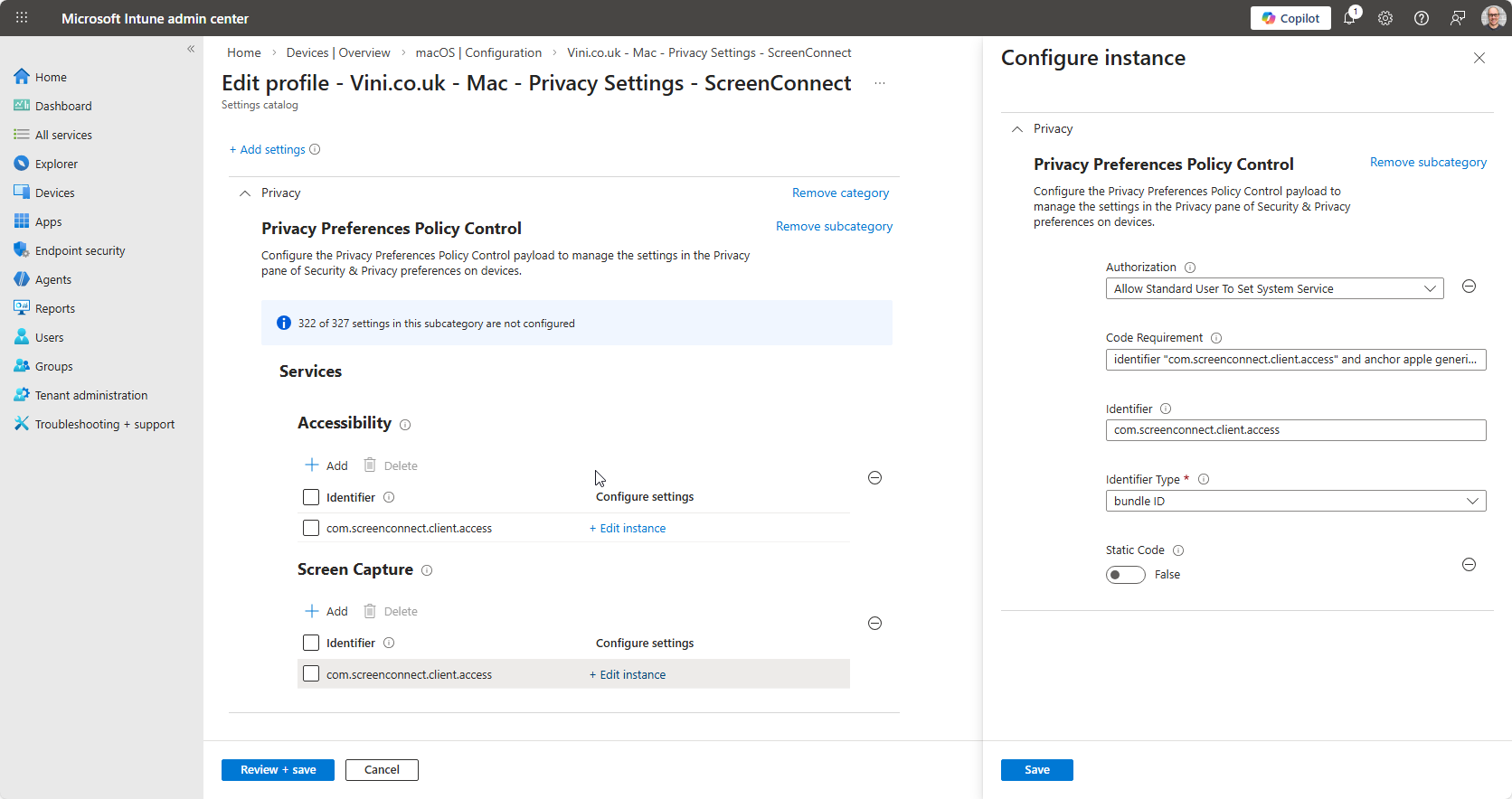
With regards to Screen Capture, it is worth noting that we cannot automatically and systematically authorise Screen Capture without making the user aware the device is capable of being remotely controlled. This is just a by-product of Apple’s commitment to privacy. As such under Authorization (for Screen Capture), it must be set to Allow Standard User To Set System Service. This will display a prompt to the end user informing them that an application wants to be allowed to perform Screen Capture – the user will be asked to Allow or Don’t Allow.
Regarding Identifier, and Code Requirement. Where and how do we get the information we require? Our test device is the answer. Jump over to your test device, open Terminal, and from the prompt, type codesign -dr- “path/to/your/Application.app” and hit return.
james@Jamess-Air ~ % codesign -dr- /Applications/connectwisecontrol-6afb10439ee3f2f0.app
Executable=/Applications/connectwisecontrol-6afb10439ee3f2f0.app/Contents/MacOS/ScreenConnect
designated => identifier "com.screenconnect.client.access" and anchor apple generic and certificate 1[field.1.2.840.113635.100.6.2.6] /* exists */ and certificate leaf[field.1.2.840.113635.100.6.1.13] /* exists */ and certificate leaf[subject.OU] = K8M3XDZV9Y
james@Jamess-Air ~ %
The output from the codesign command reveals the Identifier, and Code Requirement. The identifier is effectively the bundleID, and the Code Requirement, the full output of the command.
| Identifier | com.screenconnect.client.access |
| Code Requirement | identifier “com.screenconnect.client.access” and anchor apple generic and certificate 1[field.1.2.840.113635.100.6.2.6] /* exists */ and certificate leaf[field.1.2.840.113635.100.6.1.13] /* exists */ and certificate leaf[subject.OU] = K8M3XDZV9Y |
This information is added to the Intune configuration.
We then just next, next, next through the wizard. Configuring as required in your environment, assigning as desired.
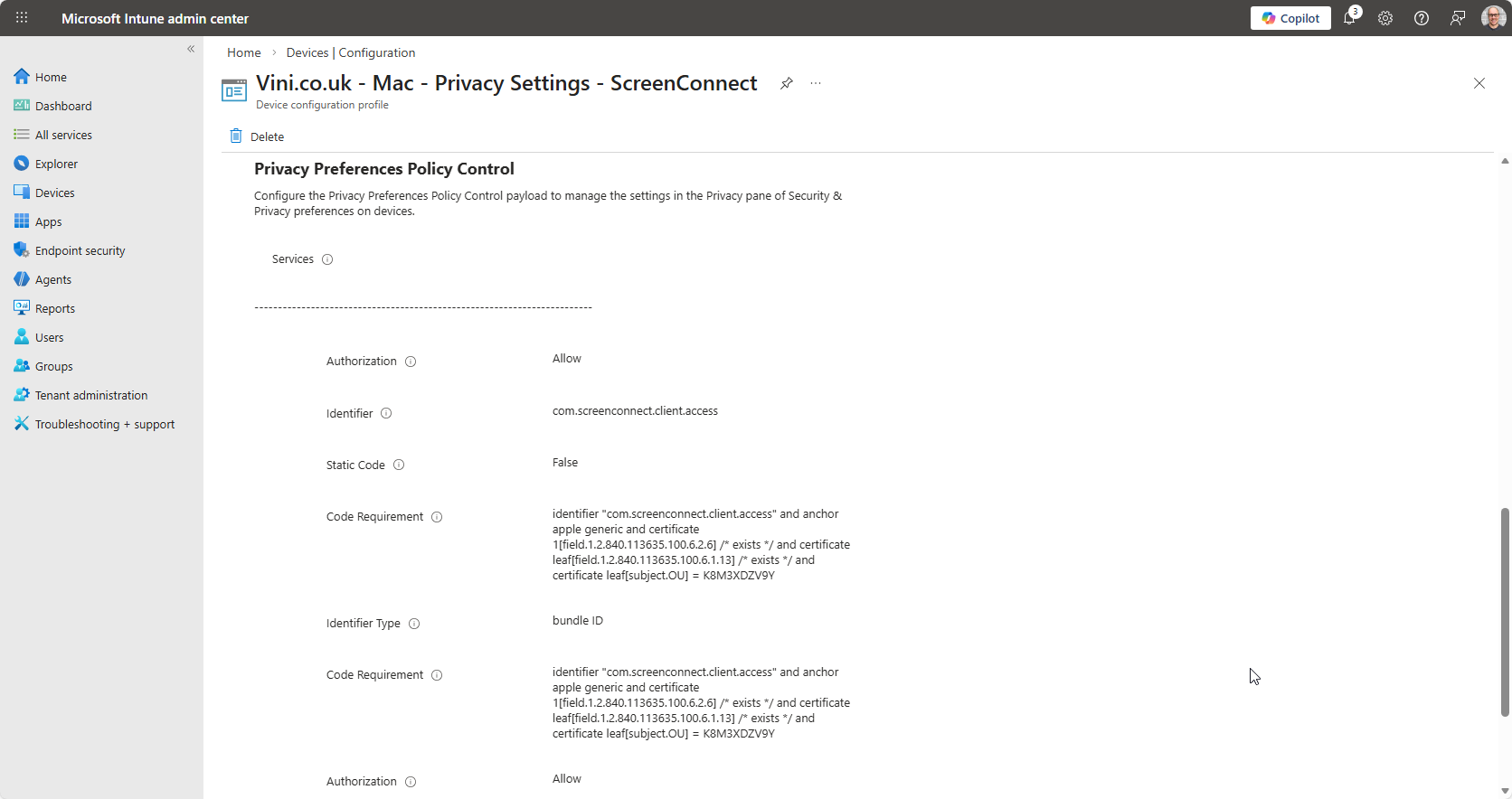
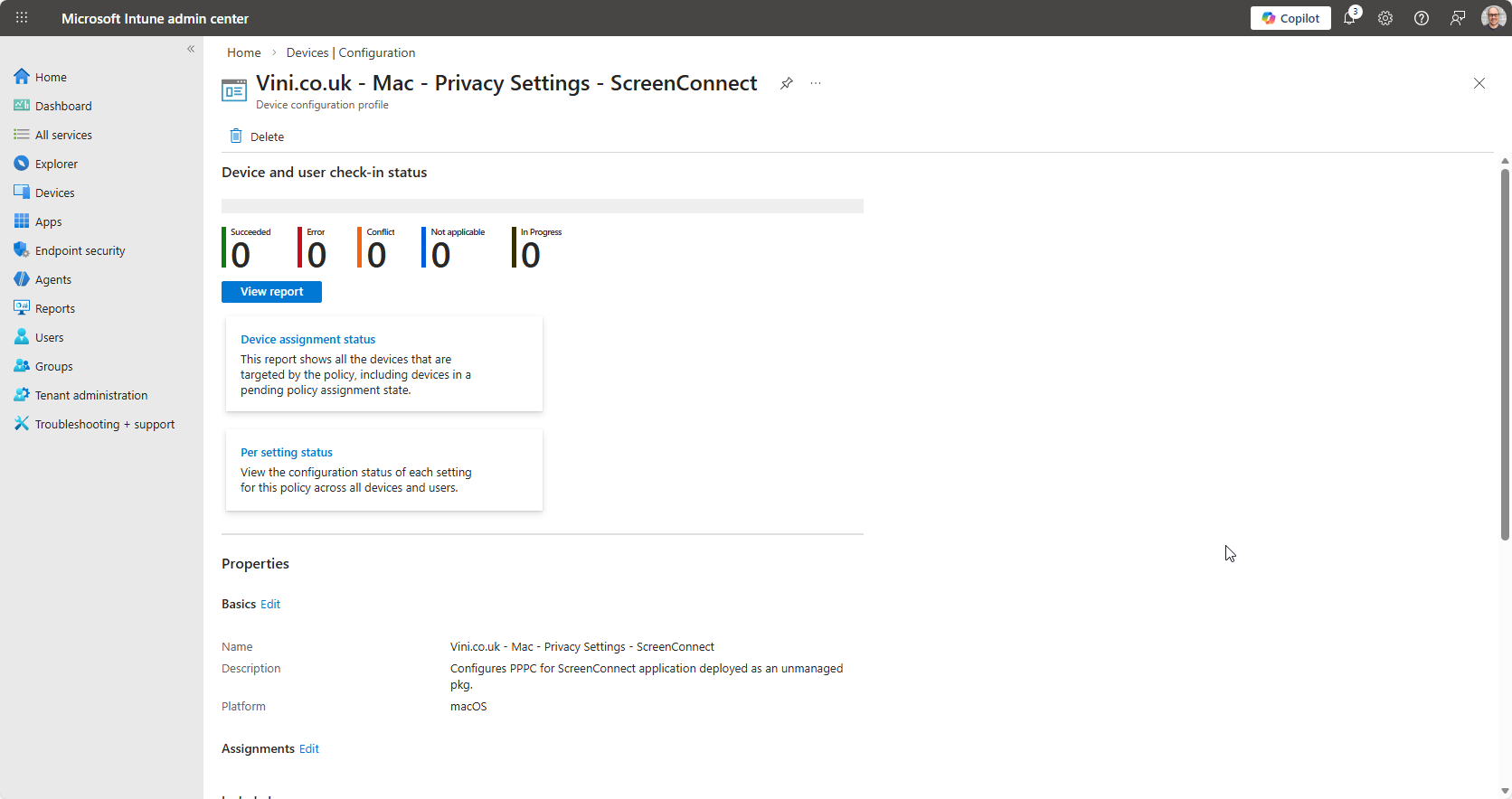
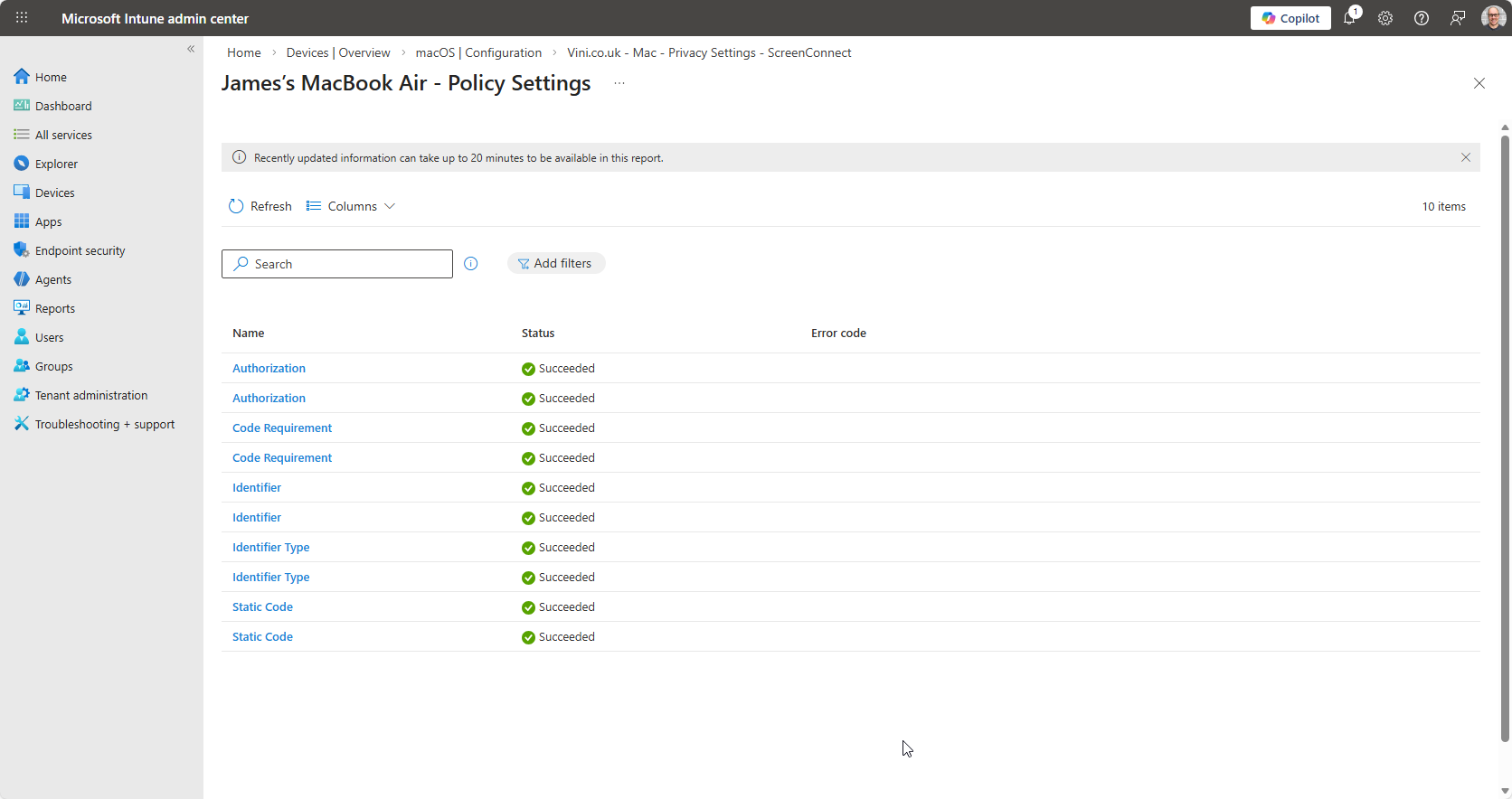
And we wait for the configuration to land.
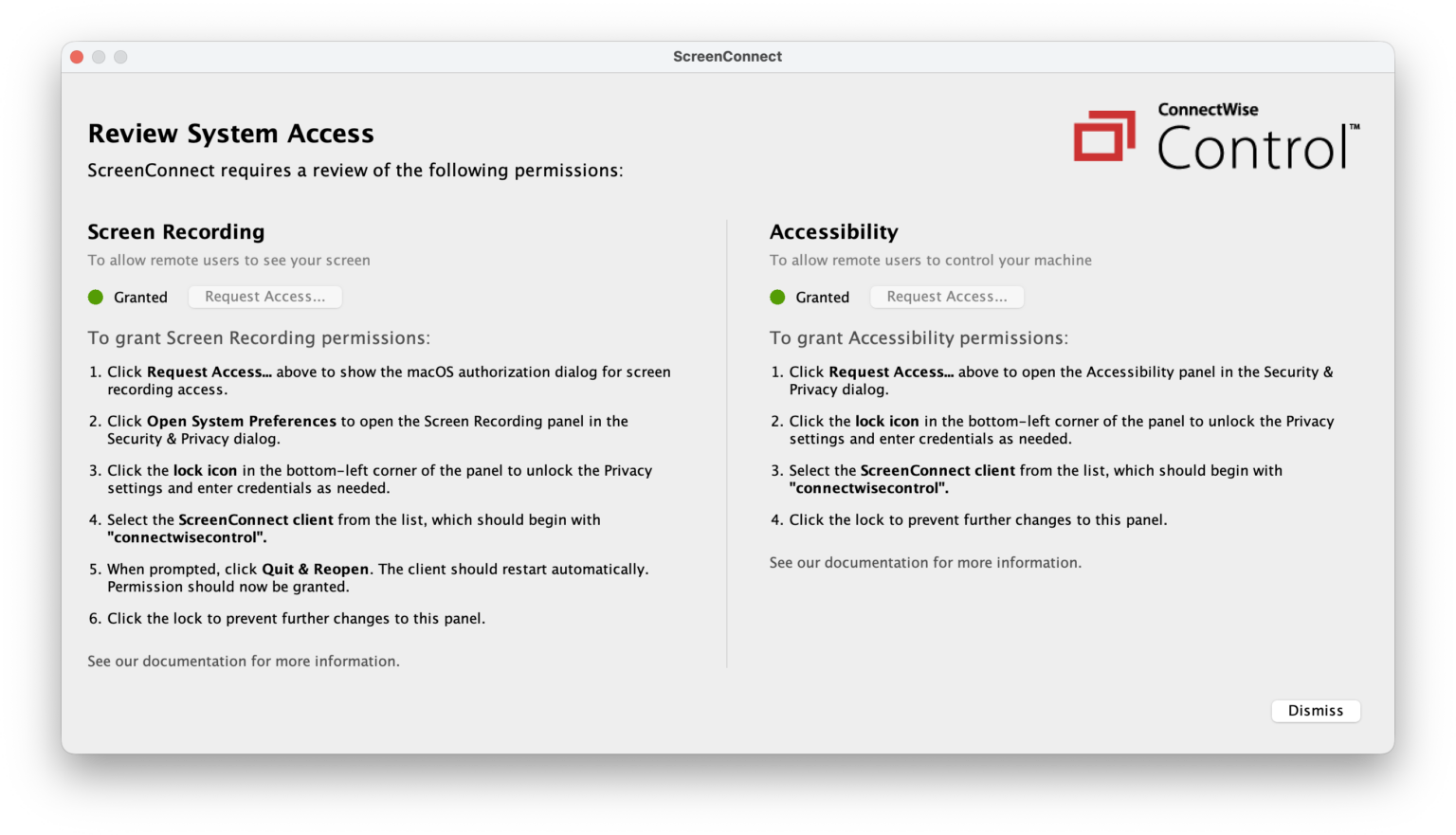
Now, when both Application and Privacy Preferences are assigned, both will work together, and make that user experience silky smooth.
Enjoy!
Troubleshooting Intune 10022
Intune may offer up Error 10022 on occasion. The code is rather generic within the UI, but obviously, we’ve implemented a PPPC profile, and we’re experiencing it in relation to the changes made. What do we know about this?
- We know that the Allow configuration item is deprecated.
- We know that we cannot systematically authorise Screen Capture without making the user aware the device is capable of being remotely controlled. This is just a by-product of Apple’s commitment to privacy.
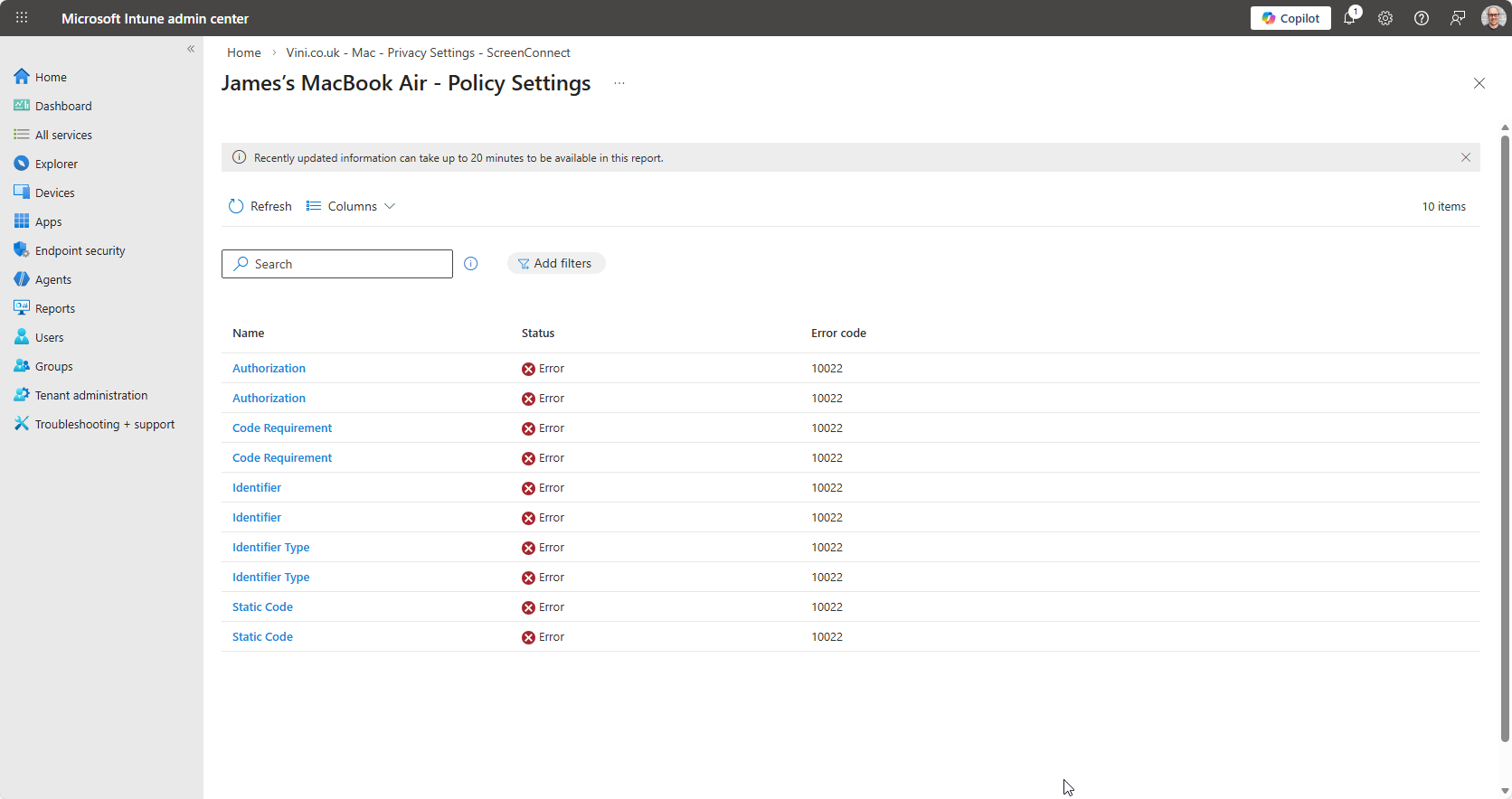
So if you’re seeing 10022, ensure that you haven’t got both Allow & Authorization enabled in your config profile.
Triple check, that if you’re configuring Screen Capture, that under Authorization, it is set to Allow Standard User To Set System Service.

Leave a Reply