The erase/wipe/reset method of choice within Intune has always been a question… and that question is always, which one should I use? The question hasn’t really gone away, people just seem to pick one that best fits, most commonly, without even understanding the full in’s and out’s, but stick with it because it works/does what they require – I think part of the confusion was down to the wording.
Rather than asking “Which wipe should I use?”, start by asking what you need this Windows device to look like afterwards? Is this a laptop going to another employee, a troublesome machine staying with its current user and a lost corporate device need different treatment?
Below I take a quick peek at the Wipe options available to us within Intune.
Did something change?
Well, not really. In recent weeks, Microsoft have reworked the UI to make things a little bit easier on the brain. As part of the revamped Device page, they have made the Wipe decision more visible and understandable, but even then the labels still deserve a careful read. In particular, keeping user data does not mean removing the device from Intune.
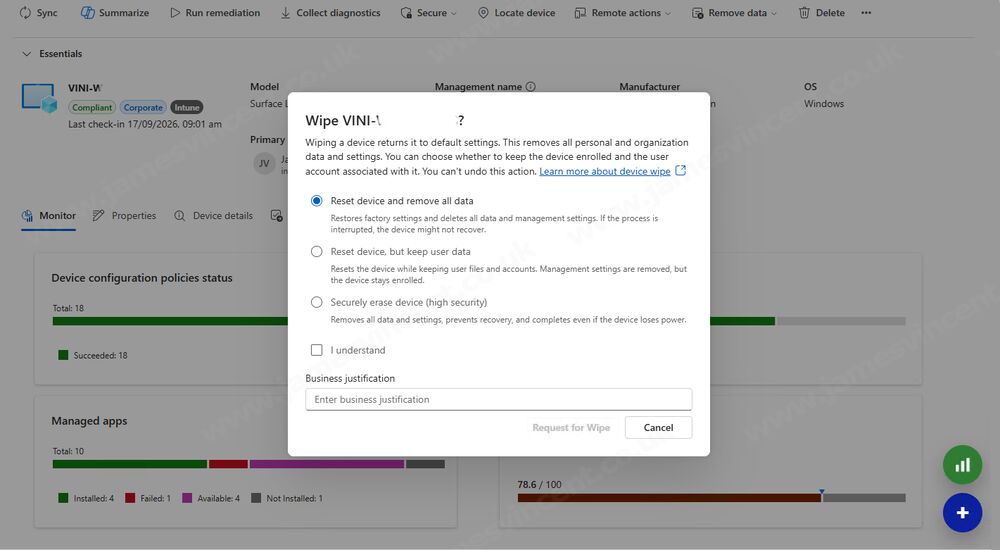
Ok, so they’ve made it a little easier to understand… but… which wipe/reset method should I actually use? See above, what do you need this Windows device to look like afterwards? 🙂
The three choices, compared
| Choice shown in the reported interface | Documented outcome | When I would consider it |
|---|---|---|
| Reset device and remove all data | Removes user data, settings and MDM policies; returns Windows to its factory state. | A full rebuild where the existing user environment is no longer required. |
| Reset device, but keep user data | Preserves user files and accounts. Management settings are removed, but Intune enrolment remains. | A recovery attempt for the same user, with a verified backup. |
| Securely erase device (high security) | Removes data and settings, adds drive cleaning and persists through interruptions. Some devices may become unbootable. | A corporate device where data destruction takes priority over easy recovery. |
The behaviours above follow Microsoft’s Wipe guidance. Note: Portal wording can differ: that documentation still describes the keep-enrolment and continue-after-power-loss options alongside the default wipe.
Keeping user data is not an offboarding shortcut
This is the distinction most likely to cause an expensive mistake. Microsoft’s guidance explicitly says the retained-data option keeps the device enrolled. Removing management settings during a reset is different from ending the management relationship.
Imagine a support ticket for a laptop that stays with its owner. Preserving their working files might be desirable. Now imagine the same laptop being handed to somebody else: retaining the previous user’s information is precisely what you want to avoid. Write that intended outcome into the ticket before choosing the action.
If the goal is to end management while preserving personal content, review Retire. Microsoft documents it as an unenrolment action that removes managed settings and organisational content without a factory reset. Check the Windows-specific removal behaviour for your applications and enrolment type; do not assume every work file copied onto a device will disappear. Microsoft also advises retaining access to BitLocker recovery information and local administrator credentials before retiring an Entra-joined device.
Secure erasure has a different operational cost
Microsoft maps the conventional reset to doWipe, retained user data to doWipePersistUserData, and the protected wipe to doWipeProtected. MEthods referenced within the MDM_RemoteWipe WMI documentation. And methods that I have used in scripts to perform unattended, user driven resets in the past… (demonstrated below).
The standard Windows reset deletes files without enabling the clean-data option. An interrupted reset attempts to roll back; failed recovery can require Windows to be reinstalled. The protected variant cleans the internal drive and keeps trying to finish, including after an interruption. Microsoft warns that some configurations may no longer boot.
For a routine help-desk repair, I would not choose the strongest-sounding label by default. For a lost corporate laptop, I would involve the incident owner and decide whether protecting the data outweighs recovering a working installation.
Nor should the words “high security” become a substitute for your organisation’s disposal process. Decide what evidence of erasure is required before a device leaves your control, and verify the result against that requirement.
The key take away from all of these is the following; a remote instruction still needs to reach the device; selecting it is not evidence that the data has gone or that the remote instruction will arrive (though the latter is improving with IC3 etc).
For an internal handover, consider Autopilot Reset
Windows Autopilot Reset removes personal files, applications and settings while maintaining the Microsoft Entra ID and Intune connections. That makes it worth evaluating when a supported corporate device is moving to a new employee and should remain managed.
It is a separate action, not another name for keeping user data. Microsoft lists limitations, including no support for Entra hybrid-joined devices, and requires a working Windows Recovery Environment. Check those prerequisites before making it your standard handover process.
What I would include within the support runbook
When working as part of a support team, I’ve put together runbooks and Service Now request forms, not dissimilar to the below. Asking mandatory questions that drive a specific, repeatable, outcome as part of the device lifecycle. As part of operations, you need or want to understand the following;
- Define the destination: same user, new employee, disposal or incident response.
- Verify the target: match the serial number, ownership and assigned user to the ticket.
- Protect what must survive: verify backups rather than assuming synchronisation has completed.
- Choose deliberately: record the selected reset outcome and the reason for it.
- Plan recovery: arrange power, connectivity and hands-on access if the machine needs rebuilding.
- Check completion: validate the device’s final state and, if it stays in service, its management and compliance status.
Point six is important, because, as above, a remote instruction still needs to reach the device; selecting it is not evidence that the data has gone or that the remote instruction will arrive… As such, keep any ticket or process open until you have appropriate completion evidence.
Our survey says…
My take on this is straightforward: preserve data only when the same user needs it, evaluate Autopilot Reset for a managed handover, and reserve protected erasure for an explicit data-destruction requirement.

Leave a Reply