I’m kind of getting tired of starting each article with “this week, I was working with a client and…”, I say that, because the main premise of my blog is to portray “real world” issues and experience. I don’t just want to blog about the theoretical stuff. I want to let you folks know about how it actually goes down, not just recite things from books etc… So in this article, we’ll look at phased deployments. Not something new, in theory as most folks have being deploying in phases/waves/batches since the beginning of time. However, until now, it’s usually been done in a manual fashion – I’m living proof. I’ve lost count of how many hours I’ve spent planning for these kind of deployments, and how many hours I’ve spent creating cascading Security Grroups etc.
Most reading this will already understand the need and value of a pilot group when deploying at scale. The hardest part is often deciding who is in the pilot group, and from there, establishing the success criteria before progressing to the next phase/wave/batch. Until now, this was quite a laborious task, often involving project teams, spreadsheets, reports and dashboards. Quite often, the manual process would be specific to a single thing, be it an App, Policy or Setting. And you might have had different group structures depending on the “thing” being deployed.
As of 28 September 2026, Intune Deployment Plans arrives in Public Preview (Preview, beware). This is a feature that brings this kind of phased rollout structure into the admin centre. But instead of recreating the same phased assignments for every change, you can define a reusable pattern and use it across supported applications and policies.
A plan defines the pattern; a deployment applies it
A deployment plan is a reusable template containing rings, groups, filters and timing. A deployment uses that structure to deliver one existing app or policy. You can play with this now within the Intune console, under Devices > Manage devices > Deployments.
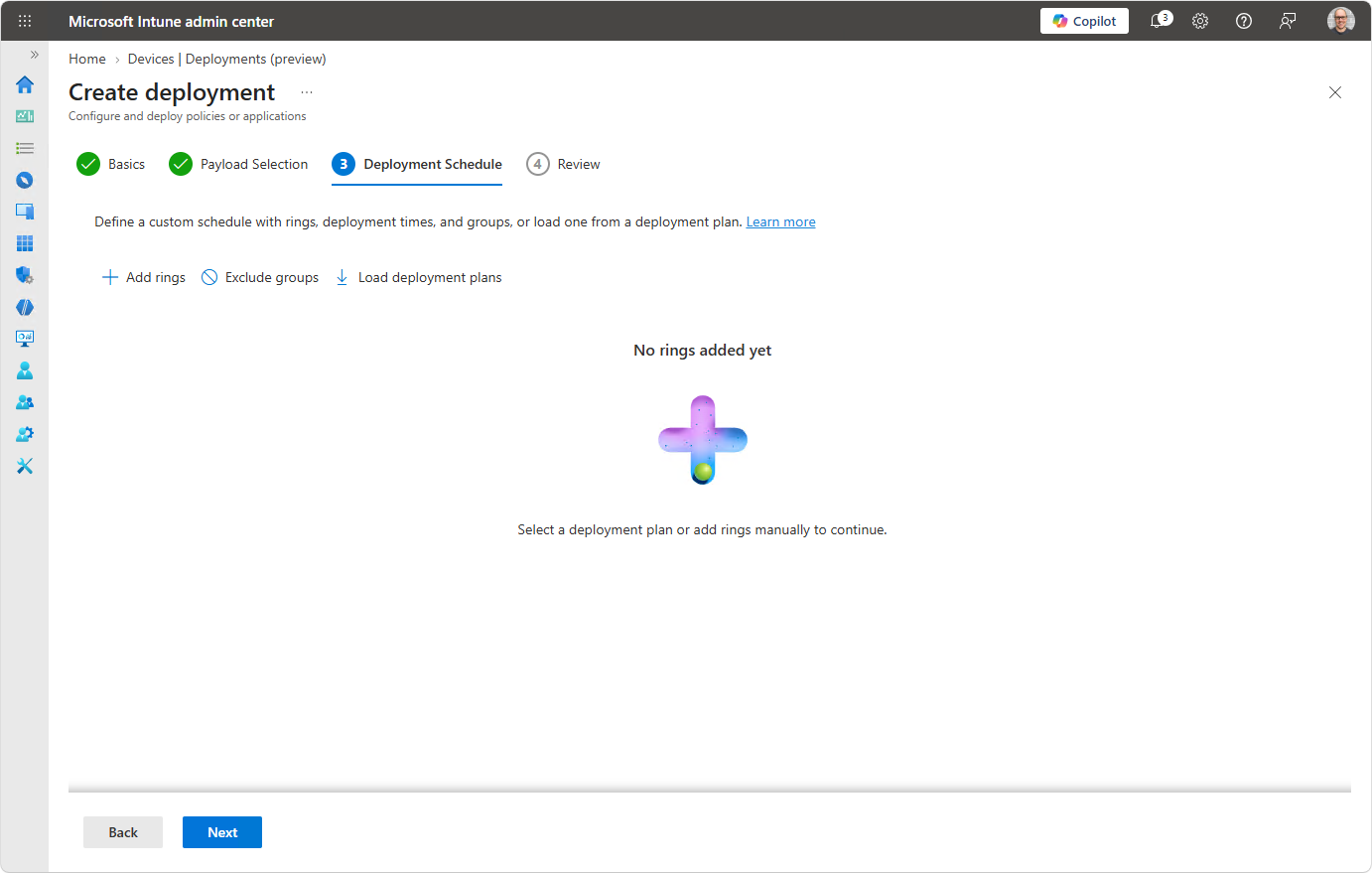
The preview supports Windows 10 and later, with Settings Catalog and Endpoint security policies, Win32 apps and Enterprise App Catalog apps as the payload. App deployments support Required installation, not Available or Uninstall. One thing to note, is that Enterprise App Catalog supersedence is supported, but its “Automatically update” option is not. See the Microsoft overview and support matrix – which is of course, open to change, given that this is in Public Preview.
In testing – start small & simple
Given this is a new feature, and in preview, you’re likely wanting to have a play. For a first pilot, I would choose a low-impact application with reliable detection rules and a straightforward recovery method. Notepad++ and 7-zip are always excellent starting places, small enough applications, frequently updated and unlikely to cause havoc if anything goes awry. These are pretty much my “Hello World”, “Canaries” when testing and I’m sure I’m not alone.
Below is an example. The timings are planning examples, not Microsoft defaults and not a guarantee that every device will finish installing within the interval. The Ring’s are “simplistic”. Some people prefer fewer Rings, as it’s less overhead, however, some like real granularity. I feel that the introduction of Intune Deployment Plans and it’s automated approach, may result in people going a bit wild with lots of granular rings. I’d recommend trying to avoid doing so if possible. Really, in this day and age, Security, Frameworks and Regulation is driving speed as a requirement, which really means less deferrals, and with that, less Rings.
| Ring | Example population | Observation window before deployment | What I would review |
|---|---|---|---|
| Ring 0 – Internal Testing | A small group of managed test devices, likely your IT colleagues (<10 devices) | 24 hours | Installation, detection, launch and recovery |
| Ring 1 – Pilot Group | Step out beyond IT, include a smaller number of “friendly” users and hardware (<50 devices) | 48 hours | Real workflows, performance and support feedback |
| Ring 2 – Production Validation | Include more representative users, less technical, perhaps departmental if the app is specific to a dept. | 3-5 days | Impact to productivity |
| Ring 3 – Broad Deployment | The remaining intended population | Continue monitoring | Failures, offline devices and unresolved exceptions |
It’s worth noting that a pilot made entirely of the IT team’s newest laptops can give false confidence, IT are likely to have different configurations and policies applied, by the nature of those users being IT. Really, with the IT team/internal testing, you’re just validating that the package deploys/works and your detection methods work. Beyond that, you want to include the device types, working patterns and business applications that matter to the change. Ensure there is time, and someone with responsibility in place for reviewing the evidence before the next scheduled deployment – Ring owners would be an ideal contact/position.
Create a reusable plan
Microsoft’s plan creation guide describes the following sequence:
- Open Deployment plans and select Create plan.
- Name the plan and explain its intended use.
- Select the platform, add rings and configure the interval between them. The minimum interval is one hour.
- Add at least one group per ring and configure supported filters.
- Set exclusions and scope tags as appropriate, then review and save.
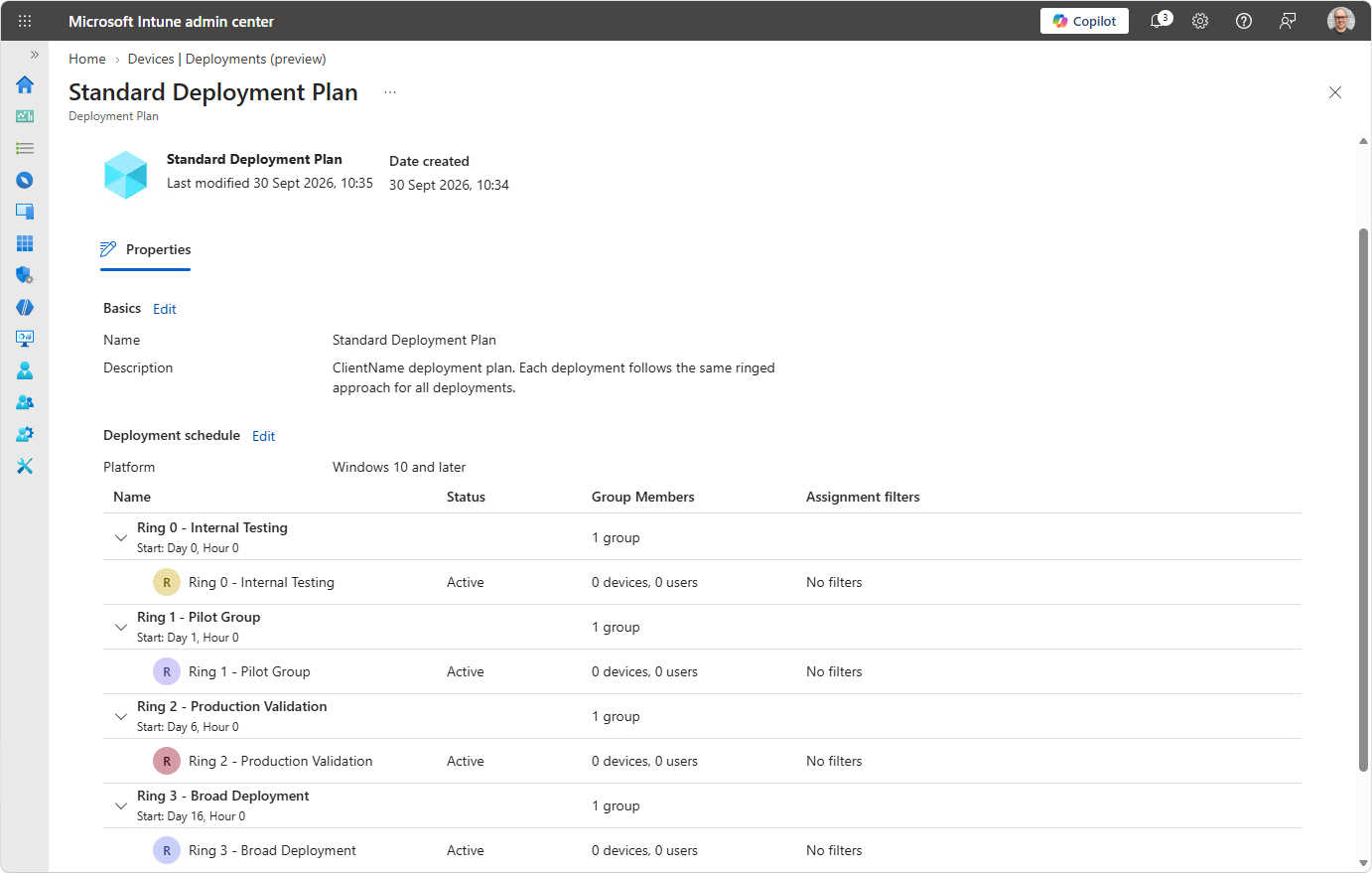
Keep the name meaningful: “Standard Deployment Plan” tells a fellow administrator more than the default “Plan 1”, but admittedly, not by much. Provide detail in the description. If I think to most engagements I’m involved with, most clients would like to have a Standard Deployment Plan, I.e. they always target the same users, in the same flow. Your technical users with appetite for risk and latest and greatest, are likely to want to expose themselves to the “deployment” earlier in the process flow, and these are your “friendly” users who qualify for Ring 1/2 membership – you will all have these kind of users, willing to help and provide the necessary feedback etc, in order to obtain earlier access. Having these defined rings can help with all deployments, and that’s exactly what the Intune Deployment Plans functionality is trying to achieve, standardisation.
Just for information, the first ring’s start time is chosen when you create a deployment. Editing a saved plan later does not alter deployments already created from it. Treat any plan modifications or changes as changes for future use of the deployment plan template.
The example above is based around a company wide deployment of an App for example, but what’s good about Deployment Plans, is that you might have a departmental specific application that only needs to roll out to the Marketing team. By creating a “Marketing App Deployment Plan”, you can apply the same logic but using “Rings” specific to the Marketing team, for example. Deployment Plans is really quite flexible!
Use the plan(s)
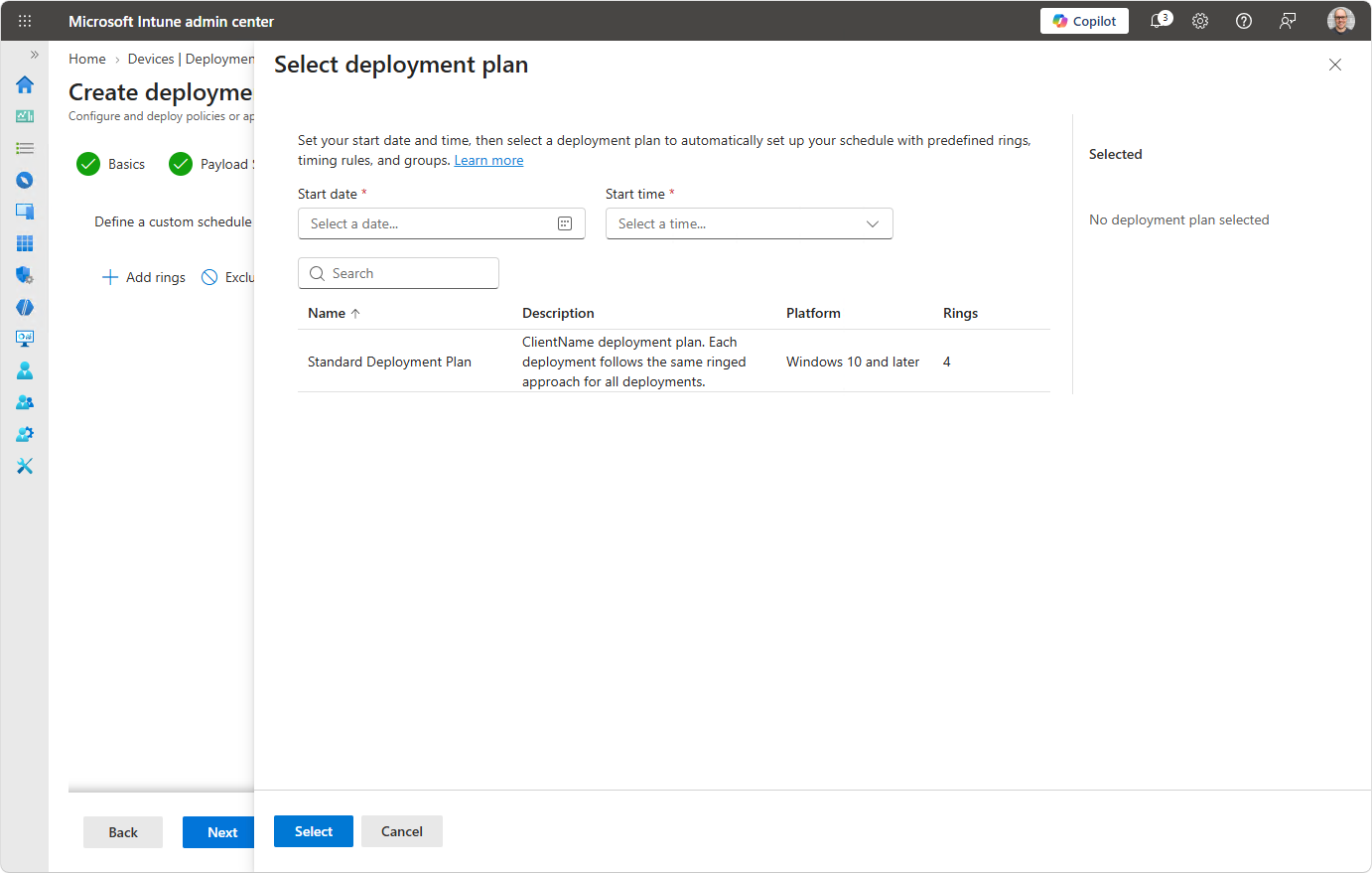
Using a previously created deployment plan is easy. Ensure that your “payload” is ready, so that’s just a case of making sure “your app” or policy exists within Intune. Then under Devices > Manage devices > Deployments create a deployment, select your payload, load your previously created plan and set the first ring’s start date and time. After doing so you’re able to review the groups and filters before creating it. After creation, the deployment’s name and description remain editable, but its payload, ring structure, schedule and groups do not. If you need to alter the deployment, right now, it’s a case of deleting the deployment and recreating it.
Three behaviours to consider
Assignments expand cumulatively. Earlier ring assignments normally remain assigned or in place as later groups are added. A final ring containing “All Devices” or “All Users” replaces the previous Required include-group assignments; exclusions remain. These virtual groups cannot share a ring with Security Groups.
The app or policy “payload” is not restricted or frozen from change. Direct edits can affect already-targeted devices and later rings. Maintain change discipline on the item itself while its rollout is running. Both behaviours are covered in the deployment fundamentals described on the Microsoft page.
Pause and Cancel options DO NOT rollback. They stop further ring progression, but existing assignments remain.
As with every change, ensuring a recovery plan exists is fundamental. For an application, that might involve a tested replacement package or removal script. For a configuration policy, establish the actual reversal behaviour before relying on it. Simply stopping the rollout does not repair devices already affected.
Ring Masters apply within…
The Intune Deployment Plan mechanism advances targeting according to time, and only time, and it proceeds automatically. It should not be seen as a health gate that automatically waits for a chosen success percentage before continuing. Ensuring there is a suitable “Ring Master”, or pair of eyes on the Deployment Plan is essential in these early days. There still needs to be someone looking over the deployment and ensuring the plan is going… to plan! If you take your eyes off it and then find in two weeks after the plan has completed, that the App Package failed to install correctly, you’ve not only wasted time, but could potentially have a job on tidying up afterwards.
Intune Deployment Plans are here to help standardise and simplify, but not yet run fully unattended – though they can…
Before your next planned deployment phase, ensure you review the installation or policy results, user impact and the devices that have not yet provided useful evidence. If the picture is unclear, pause while you investigate. Create or introduce observation windows that leave the team available to make that decision.
Planning permission and approval
Plan permissions and Deployment permissions are different. Creating a deployment depends on Read and Assign access to its app or device-configuration category. Plan scope tags control plan visibility; deployment visibility follows the selected app or policy.
Multi Admin Approval applies when a relevant access policy is configured. Microsoft lists Create, Resume, Cancel and Delete as approval-triggering deployment actions. This does not establish a separate approval gate at every ring. Check the specific MAA permissions and approvals reference when designing operational roles and responsibilities.
Known issues
Given this is a Public Preview, Microsoft lists out known-issues which is worth keeping your eyes on, especially if you become a user of Intune Deployment Plans.
Where to go next?
I learn by playing. So, play. Build yourself a Deployment Plan, and create a Deployment. Start with a low-impact application and deliberately test the pause process. Understand what to look for when checking the results. Establish who can approve changes and fathom out what you would do if the business pilot reports a problem.
The value of Deployment Plans is making a sensible rollout pattern easier to repeat. The quality of the pilot, the evidence you collect and the recovery decision still needs an owner. Get those pieces right and a reusable plan becomes a practical improvement to everyday Intune administration. The reality is, the process won’t, or shouldn’t be new. You’re just implementing a bit of automation alongside existing process, to make your life easier – hopefully.

Leave a Reply