Update 18/09/2026 — I woke today in fear of what was going to unfold when my new phone arrived. Thankfully… I can report, I was able to move rather painlessly from iPhone 16 Pro (Supervised and Managed) to iPhone 18 Pro (Supervised and Managed). This involved;
- Enrolling the iPhone 18 Pro into Apple Business using Configurator on the iOS, and linking the device to Intune.
- Following the Welcome guide on the iPhone 18 and connecting to WiFi.
- Restoring the latest iCloud backup of my iPhone 16 Pro.
After the backup was restored, the iPhone 18 Pro requested device enrollment, and everything was a’okay! Hurrah! I then spent the next 3 hours re-adding all my Authenticator tokens, and re-validating my Payment cards in Wallet… grrr…
Update 13/11/2025 — Seems the issue has been traced back to an issue (identified by AppleCare) where passcode enforced MS Exchange profiles configured on devices and backed up will cause iCloud restores to fail on iOS 26.
As reported by Kevin @ MLB and confirmed by davidtse916, who writes “once you remove the Exchange ActiveSync (EAS) profile (aka remove your work email / calendar / contact sync), then perform the backup, the Enrollment Failed bug is gone at restoration 👍”
Ref: iCloud Restore causing MDM Enrollment to fail : r/Intune
Update 28/10/2025 — TL;DR – It’s not plain sailing with iOS26 due to what I will determine a bug/unsupported feature within almost all MDM platforms.
At the start of the year, I posted about Restoring an unmanaged iOS Backup to a Supervised iOS Device and manage with MDM.
10 months on, my own iPhone which is supervised and managed (for testing purposes) has developed a fault which has resulted in me needing to replace the device. Fortunately, I’ve been able to leverage Apple’s Express Replacement, which has meant I’ve received a new device in advance of returning the old one which is really helpful as it allows me to transfer all my data, and more importantly, my MFA tokens before returning the defective device.
But what happens in relation to the Apple Business Manager enrolment and the whole supervision piece? I assumed, much like when you sell/swap your phone, you need to not only remove your iCloud account, but also, remove the device from ABM. So, I logged into ABM and found that Apple had already performed the necessary removal and addition automatically, meaning the device is ready to enrol into MDM straight away – very clever.

What happens in Intune?
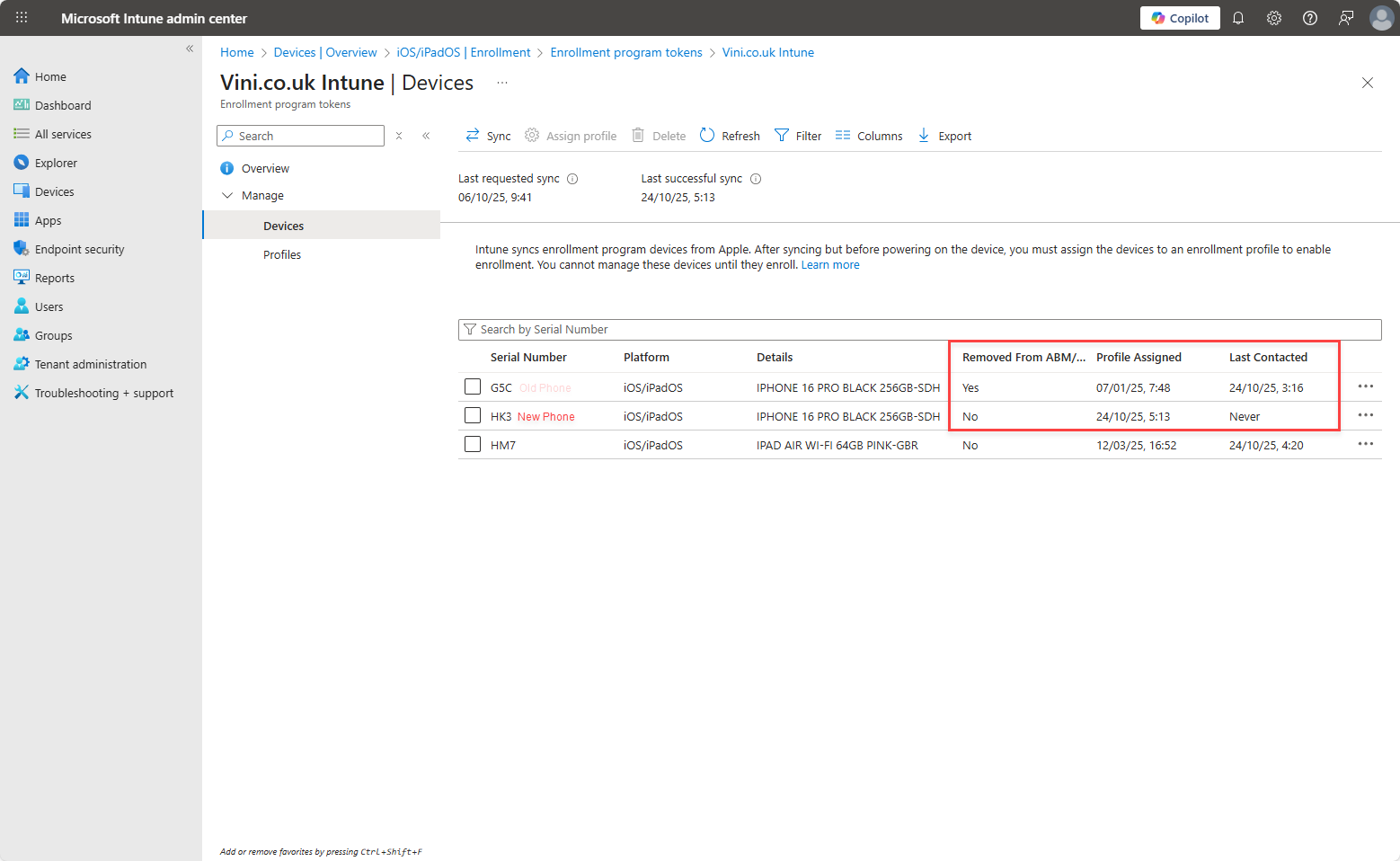
Again, everything happens automatically. You turn on the new phone, and you’ll be prompted to enrol into Device Management. From this image, you’ll see the old phone has been removed from ABM. The only thing you will need or want to do, when ready, is remove the Device Object from Intune to keep your data tidy and up to date.
How do you restore your data?
Ahead of the swap, I backed up my current phone to iCloud and again to my Mac. Preferring to backup and restore to my Mac (purely because encrypting the backup provides a bit more simplicity when restoring, certain data is retained etc).
I plugged the new device into my Mac and noticed it was running iOS 18, so the first thing I did was update that to iOS 26. After iOS26 had installed, the device powered up and had me run through the setup wizard, so I followed the steps which included enrolling the device into Device Management. After the setup wizard had completed, I then attempted to Restore Backup from within macOS, selecting the encrypted backup taken earlier… Because of the full fat nature of a local restoration, it took around 45 minutes to complete.
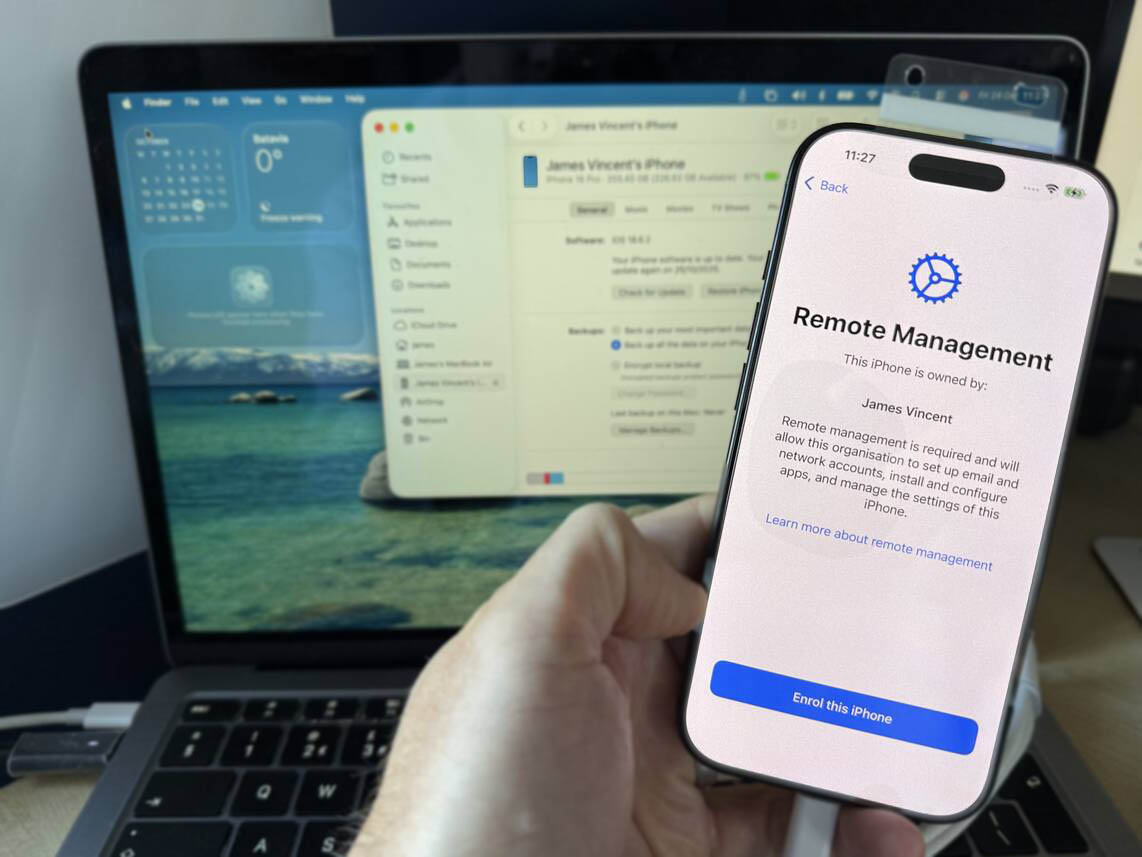
After the restoration had completed, I was again met with the Device Enrolment screen. At this point, in a normal working process, you would be off and running from here…
However…
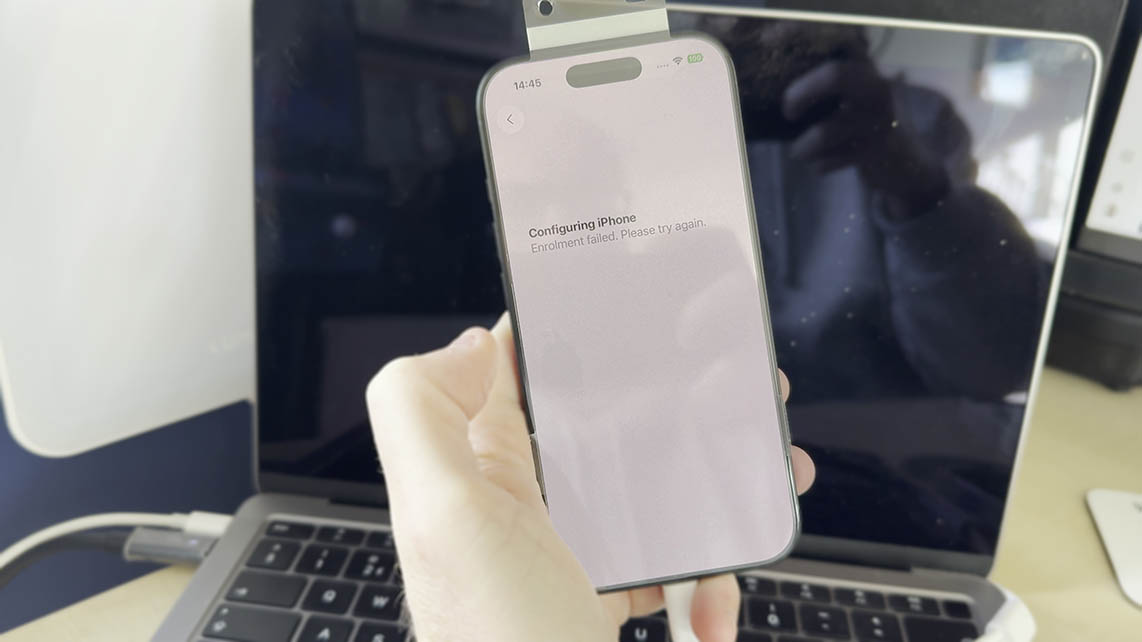
Clicking “Enrol this iPhone” resulted in enrolment failing “Configuring iPhone. Enrolment failed. Please try again.” Which turned out to be due to me hitting the device cap limit – well that’s a simple fix I told myself.
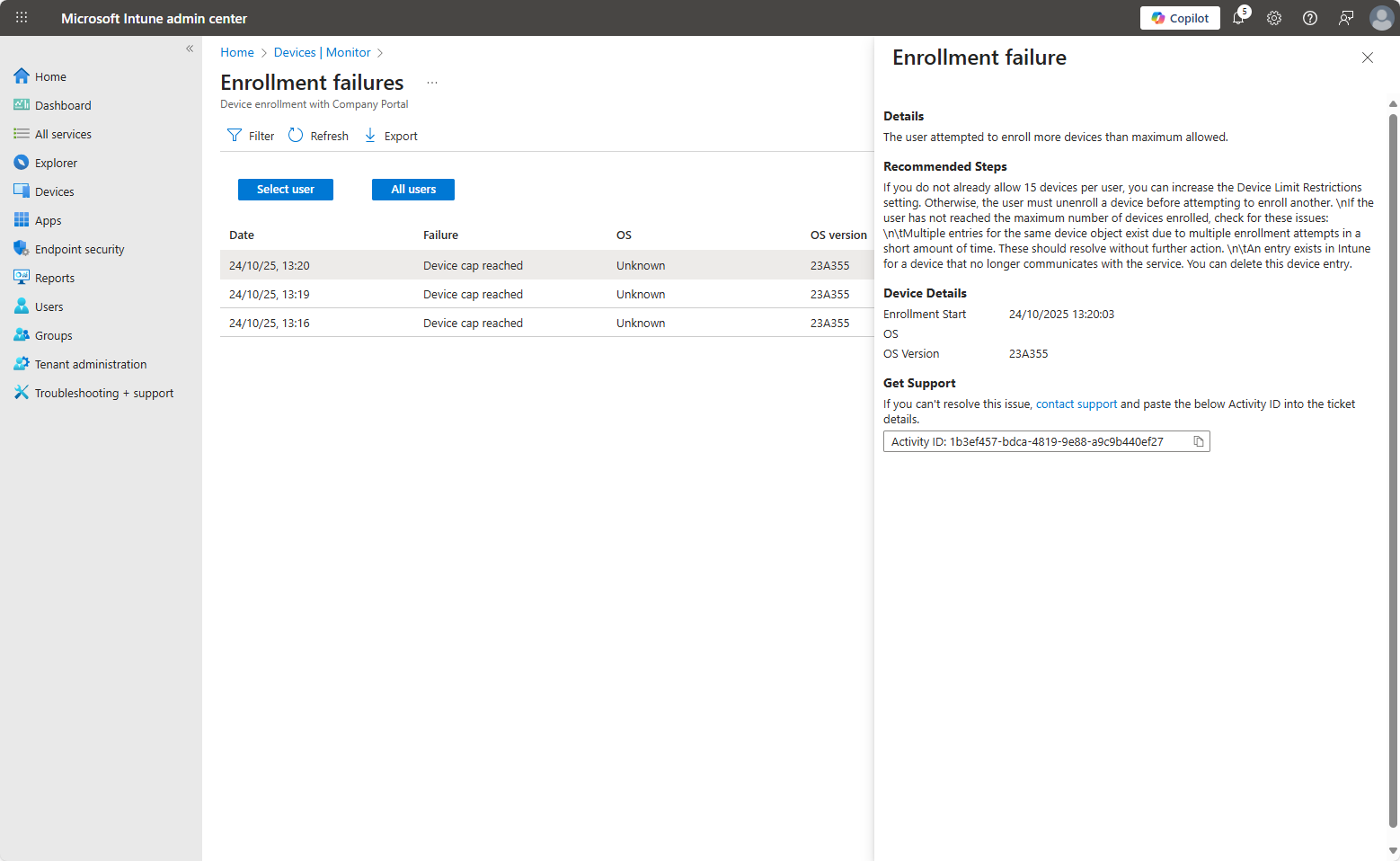
I increased the Device Enrolment limitation and gave it some time for the changes to be reflected… but even then I still faced issues enrolling the device post restoration. I tried a number of times of the weekend, spending in excess of 24 solid hours backing up, restoring, and generally trying anything and everything.
And then… it turns out that there’s a reason for this, I’m going to call it a bug, maybe it’s not, but whatever the cause isn’t officially acknowledged -yet- it seems… Read on to be informed, bored or perhaps annoyed, depending on your take.
The apparent cause: iOS 26 introduced the option do_not_use_profile_from_backup but no MDM seemingly supports it, yet…
Investigating the issue
So, as I always do when things go awry, I went exploring the great interweb. Given iOS 26 is relatively new, and the issue relatively vague, finding anything was a challenge. However, I stumbled across the following thread on Reddit iCloud Restore causing MDM Enrollment to fail : r/Intune, in which Reddit User davidtse916 fantastically summarised the challenge he’s been facing for over a month now. Seemingly hitting this issue way before I did and doing a lot of good digging, testing and heavy lifting. David had been experiencing the issue on Jamf, whereas I’m using Intune. Other users in the thread have experienced it with Workspace One also… so things are pointing towards Apple I guess.
It seems after much testing and reading, that the introduction of the setting “do_not_use_profile_from_backup” by Apple, covered in the Apple Developer Documentation for “Profiles” is likely the issue we’re facing. You can see from the image below, the Default is false. But as yet, we seemingly have no way of changing this.

Presumably, MDM utilities, or Apple, will provide a mechanism for allowing this to be toggled… And we’re assuming (which is never a good thing!) that this is the root cause at this stage, maybe it’s not, but it seems very plausible.
So, without expanding further on this, as it’s all assumptions. I’d recommend reading the linked Reddit thread above. Thanking davidtse916 and then sitting on your hands until the issue is acknowledged and resolved… because the workarounds for this are simply just too painful, at least to be done in bulk/at scale.
In short, refrain from replacing any Supervised and Managed devices for which you want to restore data to a new device until this is resolved.
Workaround
Based on my experience in writing about restoring an unmanaged iOS Backup to a Supervised iOS Device and manage with MDM I pretty much ended up taking the same approach. Which being honest, is too timely to perform at scale.
Prerequisites
- Time, plenty of it (and patience)
- A spare device capable of running iOS 26
- Ideally, an Apple Mac device to perform a local backup to and run Apple Configurator if things get messy (which they likely will)
- Beer
Method
This is the only way I’ve found to have this work (for me…), having tried to follow and mirror the actions of other users in the reddit thread…
– Retire the “To be retired/replaced Device” Supervised and Intune Managed device from Intune. This removes the management profile from the device. I didn’t have any corporate data/apps etc on the device, but it’s likely any corporate apps/data would be removed in performing this action. I’d take a guess this isn’t too much of a concern, however, as re-enrolling the “New Device” should return all that.
– Reboot the device (likely unnecessary, but having spent almost 4 solid days on this, no chances taken).
– Backup the “To be retired/replaced Device” to iCloud (and encrypted to Local, mostly as a safety net).
– Remove all traces of the “To be retired/replaced Device” from ABM & Intune.
– Remove all traces of the “New Device” from ABM & Intune (if any).
– Restore the iCloud backup/Local Backup from the “To be retired/replaced Device”, to the “New Device” in an unsupervised & unmanaged state.
– Backup the “New Device” to iCloud (and encrypted to Local, mostly as a safety net).
– Erase and Reset the “To be retired/replaced Device” so that it is Unsupervised and now in a “new, out of the box” state.
– Restore the iCloud backup of the “New Device” to the “To be retired/replaced Device”.
– Backup the “To be retired/replaced Device” to iCloud (and encrypted to Local, mostly as a safety net).
– Erase and reset the “New Device” so that it is now in a “new, out of the box” state.
– Prepare the “New Device” in Apple Configurator (using Configurator on the Mac, or another iOS device – I used the latter).
– Perform a token sync in Intune to have the prepared “New Device” show up. Check the “New Device” has an MDM profile assigned.
– Proceed to setup the “New Device”, Restore from iCloud choosing the latest iCloud backup of the “To be retired/replaced Device”.
– Enroll into Intune MDM when prompted. Rejoice that this should now proceed and not immediately fail!
– Wait for iCloud to finish syncing.
– Grab many, many beers.
– Come back the next day to painstakingly finish setting up the millions of Microsoft Authenticator tokens and Bank Accounts that require reauthentication etc…
Due to the speed in which iCloud backups/restorations occur, which isn’t fast, this process took approximately 6 hours. For one device. This is bonkers, and hopefully, the assumptions are correct, and this is something that can be fixed rather quickly, easily, and hopefully, painlessly!
Because whilst ever this is an issue, I’d really refrain from replacing any devices… IF your users are desperate to retain data! If there’s no desire to keep data, there’s no issue in simply setting up a new phone.
I have incidents raised with Microsoft and Apple, and there’s a community post on Microsoft to upvote, if you find the time. Hopefully this will be fixed soon.
Update 29/10/2025
The more I (and fellow Redditors) poke at this, the more I think it’s down to the MDM vendors not having support for this setting within the Enrolment Profile configuration.
u/HomeworkWorldly3686 has suggested that iMazing works. It seemingly has an option named “Allow MDM enrollment via Automated Device Enrollment (ADE/DEP)” within its Restore function, and the assumption would be that toggling this checkbox, toggles the do_not_use_profile_from_backup true|false setting. The problem with this, is that I’m not sure iMazing is seen as an enterprise ready or enterprise grade tool for the job. Prior to this issue, I’d never come across it, and given the costs involved, I’m doubtful you’ll find it in many enterprises that have the likes of Intune or JAMF. But hey, I could be wrong…
u/HomeworkWorldly3686 also had a smart suggestion, in trying to PATCH in the missing setting using Graph. Unfortunately, this fails. Presumably Microsoft actually needs to be aware of the setting/option for it to be patched in this manner… Despite that, here’s the script I put together to try; Intune/Get-depProfileID at main · jamesvincent/Intune (The PATCH is commented out for now).

Leave a Reply