Updated 29th September 2025, small improvements made to the Install and Detection scripts.
I don’t like to do “per Application” posts, as I could be here all day, but I’m treating this blog more as a “note to future self” than anything else. That said, I’m an avid fan of ScreenConnect, or ConnectWise Control, or whatever it’s called these days… And for this, the application installation can be fiddly, as can detection. So this is how I’ve cobbled something together so that will simplify the installation, especially via Intune and/or Company Portal.
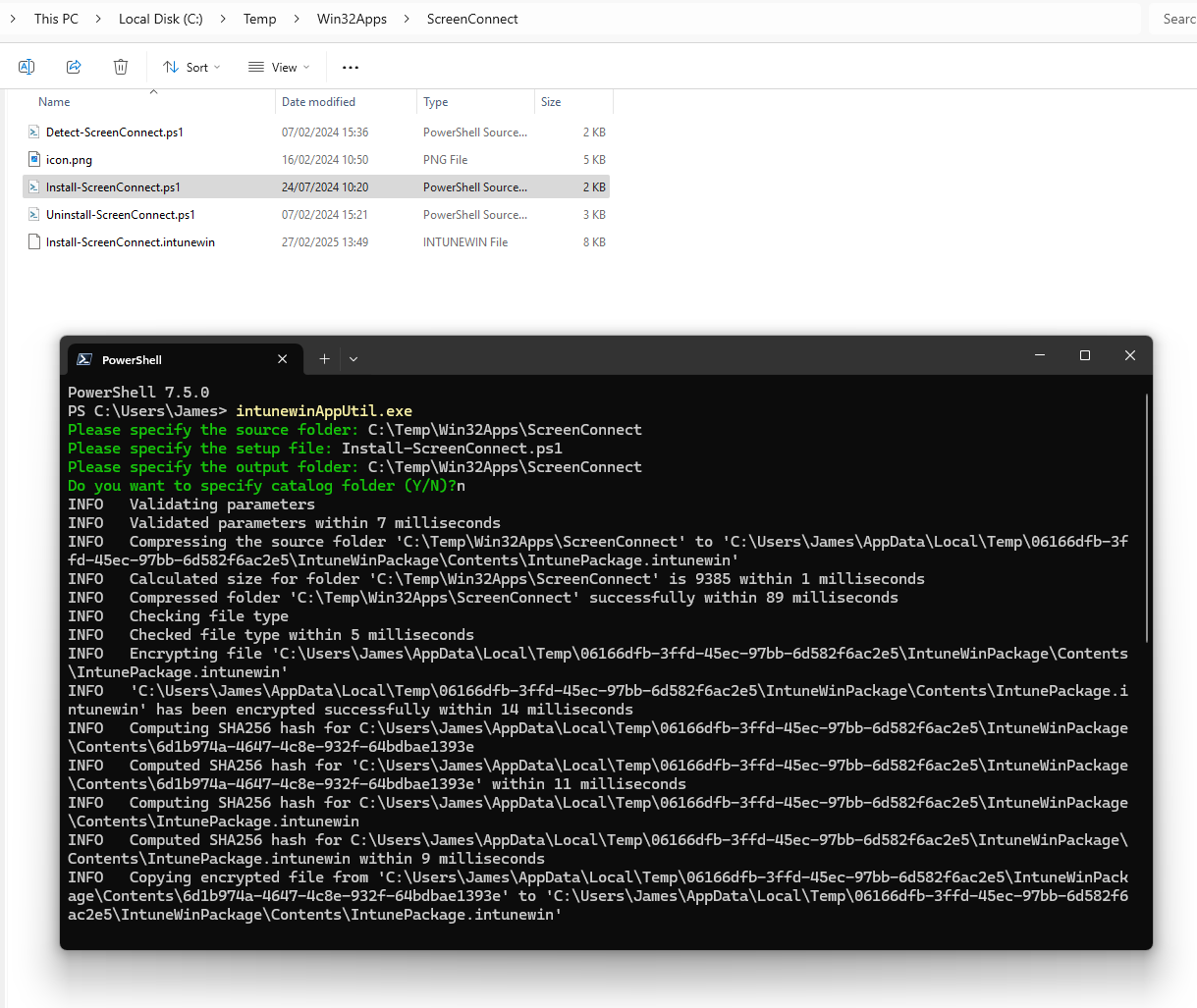
I have three scripts wrapped into a Win32 Intunewin file.
Install-ScreenConnect.ps1
Note! Within the “Download Installer” step, you need to replace CHANGEMETOYOURACCOUNT to the path/host/account details aligned to your ScreenConnect account.
# ScreenConnect Install Wrapper for Intune
# James Vincent
# October 2025
# Enhanced with Logging

param(
    [Parameter(Mandatory=$true)]
    [string]$Client,
    [Parameter(Mandatory=$false)]
    [string]$Department,
    [Parameter(Mandatory=$false)]
    [string]$DeviceType
)

# Set up paths
$FolderPath = "$env:ProgramData\Microsoft\IntuneManagementExtension\Apps\ScreenConnect"
$LogFile = "$env:ProgramData\Microsoft\IntuneManagementExtension\Logs\App-Install-ScreenConnect.log"
$InstallerPath = "$FolderPath\ScreenConnect.msi"

# Logging function
function Write-Log {
    param([string]$Message)
    $TimeStamp = Get-Date -Format "dd-MM-yyyy HH:mm:ss"
    $Entry = "$TimeStamp - $Message"
    Write-Host $Entry
    Add-Content -Path $LogFile -Value $Entry
}

# Start Logging

# Check/create working directory
if (!(Test-Path $FolderPath)) {
    try {
        New-Item -ItemType Directory -Path $FolderPath -Force
        Write-Log "Created folder: $FolderPath"
    } catch {
        Write-Log "ERROR: Could not create folder $FolderPath - $_"
        exit 1
    }
} else {
    Write-Log "Folder already exists: $FolderPath"
}

# Download the installer
$DownloadUrl = "https://CHANGEMETOYOURACCOUNT.screenconnect.com/Bin/ScreenConnect.ClientSetup.msi?e=Access&y=Guest&c=$Client&c=&c=$Department&c=$DeviceType&c=&c=&c=&c="
try {
    Write-Log "Downloading ScreenConnect MSI from $DownloadUrl"
    Invoke-WebRequest -Uri $DownloadUrl -OutFile $InstallerPath -ErrorAction Stop
    Write-Log "Download completed: $InstallerPath"
} catch {
    Write-Log "ERROR: Failed to download ScreenConnect MSI - $_"
    exit 1
}

# Install ScreenConnect
try {
    Write-Log "Starting ScreenConnect installation"
    Start-Process "msiexec.exe" -ArgumentList "/i", "`"$InstallerPath`"", "/qn", "/l*v", "`"$env:ProgramData\Microsoft\IntuneManagementExtension\Logs\App-Install-ScreenConnect-MSI.log`"" -Wait
    Write-Log "ScreenConnect installation completed"
} catch {
    Write-Log "ERROR: Installation failed - $_"
    exit 1
}

# Delete installer
if (Test-Path $InstallerPath) {
    try {
        Remove-Item -Path $InstallerPath -Force
        Write-Log "Deleted installer: $InstallerPath"
    } catch {
        Write-Log "WARNING: Could not delete installer - $_"
    }
} else {
    Write-Log "Installer not found for deletion: $InstallerPath"
}

exit 0
Detect-ScreenConnect.ps1
# Detect ScreenConnect Installation & Output to logfile
# James Vincent
# October 2025

# Define log file path
$logFile = "$env:ProgramData\Microsoft\IntuneManagementExtension\Logs\App-Detect-ScreenConnect.log"

# Function to write output to console and log
function Write-Log {
    param([string]$Message)
    $timestamp = Get-Date -Format "dd-MM-yyyy HH:mm:ss"
    $logEntry = "$timestamp - $Message"
    Write-Output $logEntry
    Add-Content -Path $logFile -Value $logEntry
}

# Base path with wildcard for unique folder
$basePath = "${env:ProgramFiles(x86)}\ScreenConnect Client*"

# Check if any ScreenConnect Client folder exists
$folders = Get-ChildItem -Path $basePath -Directory -ErrorAction SilentlyContinue

if ($folders) {
    # Search for ScreenConnect.WindowsClient.exe inside each folder
    $scExe = $folders | ForEach-Object {
        Get-ChildItem -Path (Join-Path $_.FullName 'ScreenConnect.WindowsClient.exe') -ErrorAction SilentlyContinue
    }

    if ($scExe) {
        foreach ($exe in $scExe) {
            Write-Log "ScreenConnect.WindowsClient.exe found at: $($exe.FullName)"
            $fileVersion = (Get-Item $exe.FullName).VersionInfo.FileVersion
            Write-Log "File Version: $fileVersion"
            Write-Output "ScreenConnect.WindowsClient.exe exists | Version: $fileVersion"
            exit 0
        }
    } else {
        Write-Log "ScreenConnect.WindowsClient.exe not found in any ScreenConnect Client folder."
        exit 1
    }
} else {
    Write-Log "ScreenConnect Client folder not found."
    exit 1
}
Uninstall-ScreenConnect.ps1
# Define the application name
$applicationName = "ScreenConnect Client"

# Function to get the GUID from the uninstall string
function Get-GuidFromUninstallString($uninstallString) {
    $uninstallString -match '\{(.+?)\}' | Out-Null; $Matches[1]
}

# Search 64-bit registry
$uninstallKey64 = Get-ItemProperty "HKLM:\SOFTWARE\Microsoft\Windows\CurrentVersion\Uninstall\*" |
    Where-Object { $_.DisplayName -like "*$applicationName*" }

# Search 32-bit registry
$uninstallKey32 = Get-ItemProperty "HKLM:\SOFTWARE\Wow6432Node\Microsoft\Windows\CurrentVersion\Uninstall\*" |
    Where-Object { $_.DisplayName -like "*$applicationName*" }

# Extract GUID from the uninstall string and if found, perform uninstall
if ($uninstallKey64) {
    $displayName = $uninstallKey64.DisplayName
    $guid64 = Get-GuidFromUninstallString $uninstallKey64.UninstallString
    #Write-Output "GUID for ${$displayName}: $guid64"
    # Display uninstall command
    Write-Output "Uninstalling $displayName."
    $uninstallLogFile = "$env:ProgramData\Microsoft\IntuneManagementExtension\Logs\App-Uninstall-$displayName.log"
    # Run the uninstall command
    Start-Process "msiexec.exe" -ArgumentList "/x", "`"{$guid64}`"", "/qn", "/l*v", "`"$uninstallLogFile`"" -Wait
    Write-Output "$displayName has been uninstalled."
    exit 0
} elseif ($uninstallKey32) {
    $displayName = $uninstallKey32.DisplayName
    $guid32 = Get-GuidFromUninstallString $uninstallKey32.UninstallString
    #Write-Output "GUID for ${$displayName}: $guid32"
    # Display uninstall command
    Write-Output "Uninstalling $displayName."
    $uninstallLogFile = "$env:ProgramData\Microsoft\IntuneManagementExtension\Logs\App-Uninstall-$displayName.log"
    # Run the uninstall command
    Start-Process "msiexec.exe" -ArgumentList "/x", "`"{$guid32}`"", "/qn", "/l*v", "`"$uninstallLogFile`"" -Wait
    Write-Output "$displayName has been uninstalled."
    exit 0
} else {
    Write-Output "Uninstallation of $displayName failed"
    exit 1
}
With this all wrapped into a Win32 Intunewin, as shown below.
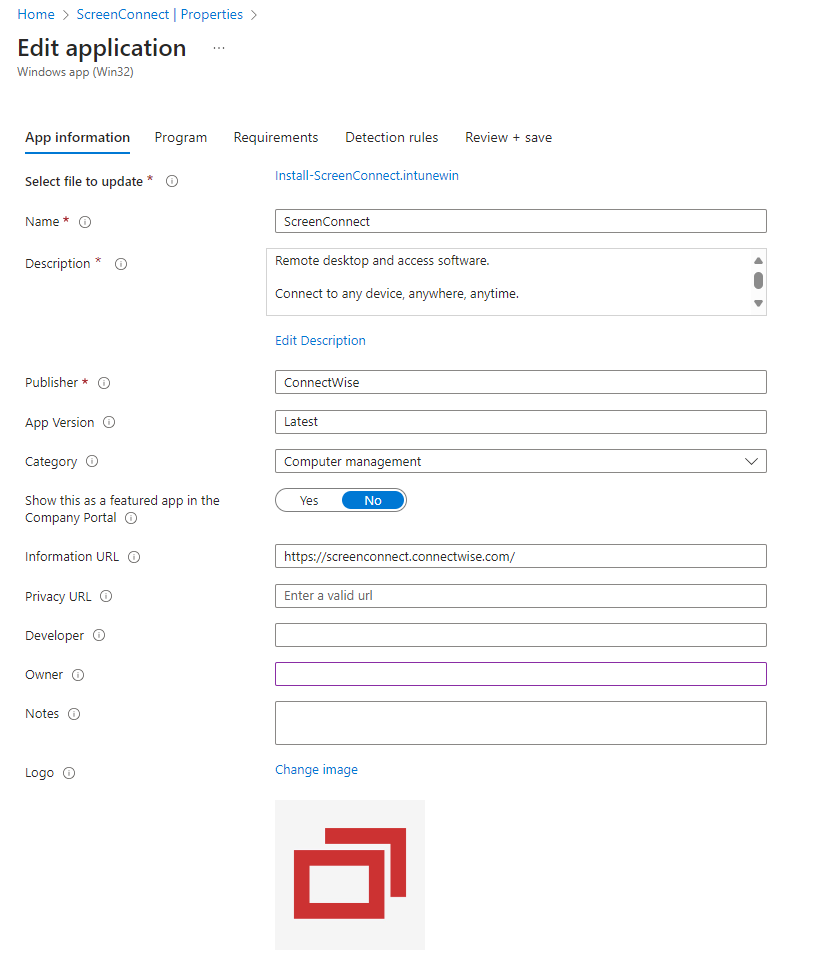
The Intunewin is loaded into Intune as a Win32 Application Type, with the following configuration.
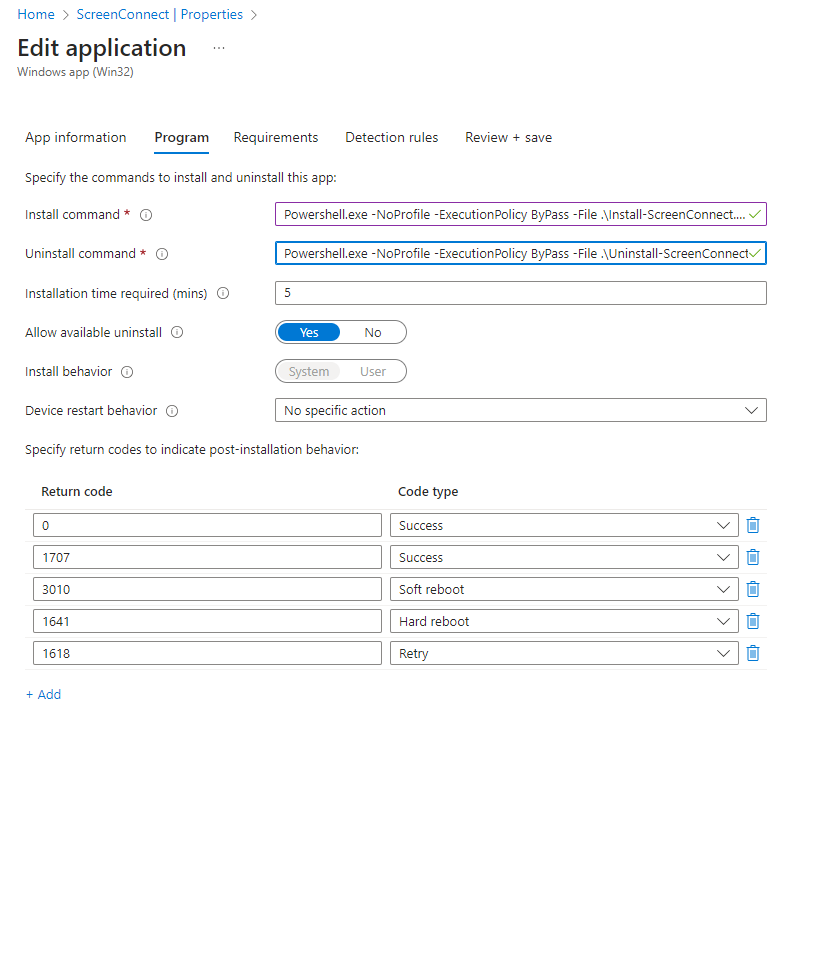
For the Install and Uninstall commands, we use;
Install
powershell.exe -NoProfile -ExecutionPolicy Bypass -File .\Install-ScreenConnect.ps1 -Client "ClientName" -Department "DepartmentName" -DeviceType "Laptop"
Uninstall
powershell.exe -NoProfile -ExecutionPolicy Bypass -File .\Uninstall-ScreenConnect.ps1
And we throw in the Detection script to take care of the app detection.
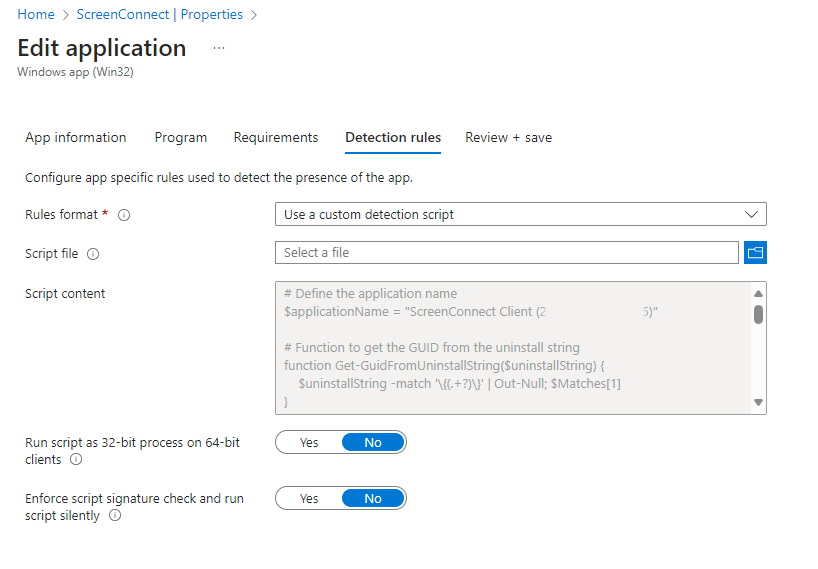
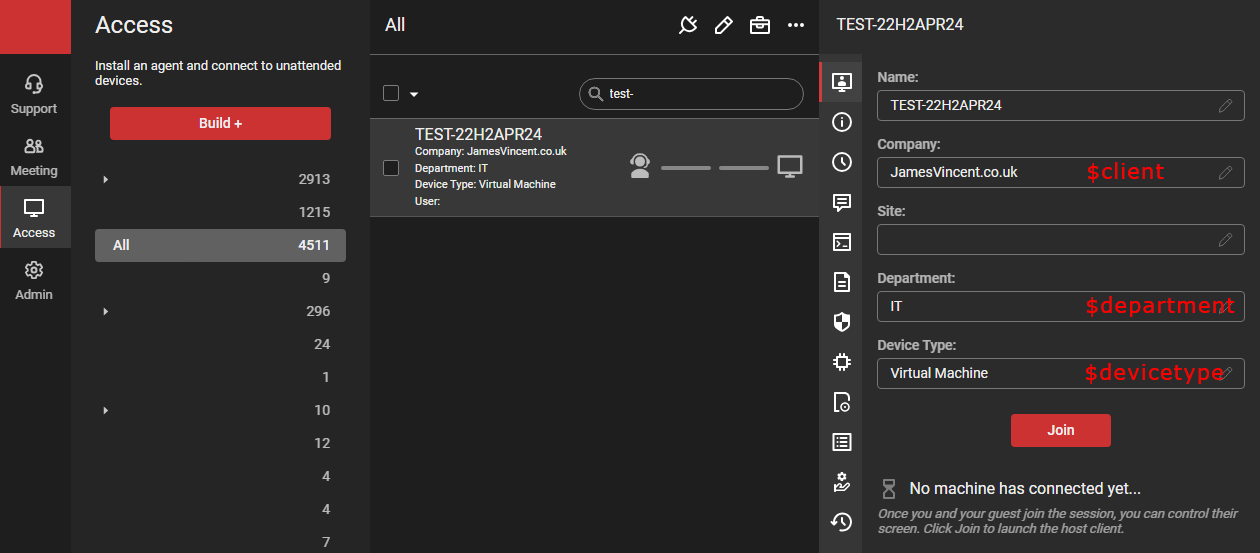
Simple as peas. This is how a device will look in the Screen Connect console.

Leave a Reply to Max Cancel reply