This one goes out to all the remaining SCCM administrators…
This post will describe how to correct the time zone in WinPE (which may differ, depending on which PE WIM you’re using). By doing this, the SMSTS Log file will show accurate dates/times regardless of its phase, and we’ll introduce a Task Sequence variable that we’ll tattoo to registry towards the end of the build (using a script from 2018, published by Jorgen Nilsson (CCMEXEC)) so we can accurately monitor and record how long a build takes.
During my last lengthy stint as an SCCM Administrator, which is getting on for 10 years ago now, I implemented the above as part of a set of metrics we would report on for our build speed, consistency and version control. I would collect the Reg entries and pipe them into a Power BI Dash, which was pretty cool for 2018. Forgetting about yesteryear, more recently, I had a need to implement this again, as I was working on a client who was experiencing ~3-hour deployments, and when you’re needing to build 50+ a day, that’s not ideal.
Unless you’re packing every Autodesk product into the image, which I wouldn’t recommend, I don’t see why any image deployment should take longer than an hour – max. I wanted to reintroduce the process of tattooing the registry for use as marker, to evidence that the build time was improving.
So, here’s how I did it.
In your Task Sequence near the very top, if not at the very top, create a PowerShell Script entry. You could break this into three task sequence steps and mirror how it is documented here for ease of consumption/troubleshooting, if need be, or run a one for all, that does it all in one go.
This is step one, a PowerShell snippet that calls timeapi.io and retrieves the time zone specified in the variables, attempts to convert it to an IANA style time zone for use with timeapi… and then sets the time zone on the local machine, in WinPE.
Your timezone mapping may be missing, consider adding it if required.
# Map Windows TimeZone IDs to IANA-style short codes for timeapi.io
$TZMap = @{
    "GMT Standard Time" = "Europe/London"
    "UTC"               = "UTC"
    "W. Europe Standard Time" = "Europe/Berlin"
    "Central Europe Standard Time" = "Europe/Budapest"
    "Romance Standard Time" = "Europe/Paris"
    "Eastern Standard Time" = "America/New_York"
    "Pacific Standard Time" = "America/Los_Angeles"
    "Mountain Standard Time" = "America/Denver"
    "China Standard Time" = "Asia/Shanghai"
    "Tokyo Standard Time" = "Asia/Tokyo"
    "AUS Eastern Standard Time" = "Australia/Sydney"
    "New Zealand Standard Time" = "Pacific/Auckland"
}

# If we have a mapping, use it — otherwise default to UTC
$TimeApiZone = if ($TZMap.ContainsKey($YourDesiredTZ)) {
    $TZMap[$YourDesiredTZ]
} else {
    Write-Warning "Timezone '$YourDesiredTZ' not in map. Defaulting to UTC."
    "UTC"
}

# Apply the timezone to the system (in WinPE this may not persist)
Set-TimeZone -Id $YourDesiredTZ

# Get current time from the Internet API
$time = Invoke-RestMethod -Uri "https://timeapi.io/api/Time/current/zone?timeZone=$TimeApiZone"

# Build a PowerShell date object from the API response
$date = Get-Date -Year ($time.year) `
                 -Month ($time.month) `
                 -Day ($time.day) `
                 -Hour ($time.hour) `
                 -Minute ($time.minute) `
                 -Second ($time.seconds)

# Set the local date/time within WinPE
Set-Date $date
Afterwards, we could have another PowerShell step, to generate the newly introduced OSDStartTime that we’ll tattoo.
##VAR: Create the OSDStartTime Variable for use during Tattooing
$OSDStartTime = Get-Date -Format "dd/MM/yyyy HH:mm:ss"
$tsenv = New-Object -COMObject Microsoft.SMS.TSEnvironment
$tsenv.Value("OSDStartTime") = "$OSDStartTime"
And finally, with a few small alterations, we have Jorgen Nilsson’s script to write the variables to the registry.
##Tattoo Registry
# Name: OSDTattoo
# Authors: Jorgen Nilsson CCMEXEC (https://ccmexec.com/)
# Script to tattoo the registry with deployment variables during OS deploymnet
$RegKeyName = "$YourCompanyName"

# Set values
$tsenv = New-Object -COMObject Microsoft.SMS.TSEnvironment
$FullRegKeyName = "HKLM:\SOFTWARE\" + $RegKeyName

# Create Registry key
New-Item -Path $FullRegKeyName -type Directory -Force -ErrorAction SilentlyContinue

# Get values
$InstallTime = Get-Date -Format G
$OSDStartTime = $tsenv.Value("OSDStartTime")
$AdvertisementID = $tsenv.Value("_SMSTSAdvertID")
$Organisation = $tsenv.value("_SMSTSOrgName")
$TaskSequenceID = $tsenv.value("_SMSTSPackageID")
$Packagename = $tsenv.value("_SMSTSPackageName")
$MachineName = $env:computername
$Installationmode = $tsenv.value("_SMSTSLaunchMode")

#Calculate time elapsed
$OSDTImeSpan = New-TimeSpan -start $OSDstartTime -end $installtime
$OSDDuration = "{0:hh}:{0:mm}:{0:ss}" -f $OSDTimeSpan

# Write values
new-itemproperty $FullRegKeyName -Name "Advertisement ID" -Value $AdvertisementID -Type STRING -Force -ErrorAction SilentlyContinue | Out-Null
new-itemproperty $FullRegKeyName -Name "Computername" -Value $MachineName -Type STRING -Force -ErrorAction SilentlyContinue | Out-Null
new-itemproperty $FullRegKeyName -Name "Installation Type" -Value $Installationmode -Type STRING -Force -ErrorAction SilentlyContinue | Out-Null
new-itemproperty $FullRegKeyName -Name "Organisation Name" -Value $Organisation -Type STRING -Force -ErrorAction SilentlyContinue | Out-Null
new-itemproperty $FullRegKeyName -Name "OS Version" -value (Get-CimInstance Win32_Operatingsystem).version -PropertyType String -Force | Out-Null
new-itemproperty $FullRegKeyName -Name "OSD Begin Time" -Value $OSDStartTime -Type STRING -Force -ErrorAction SilentlyContinue | Out-Null
new-itemproperty $FullRegKeyName -Name "OSD Completed Time" -Value $InstallTime -Type STRING -Force -ErrorAction SilentlyContinue | Out-Null
new-itemproperty $FullRegKeyName -Name "OSD Duration" -Value $OSDDuration -Type STRING -Force -ErrorAction SilentlyContinue | Out-Null
new-itemproperty $FullRegKeyName -Name "Task Sequence ID" -Value $TaskSequenceID -Type STRING -Force -ErrorAction SilentlyContinue | Out-Null
new-itemproperty $FullRegKeyName -Name "Task Sequence Name" -Value $Packagename -Type STRING -Force -ErrorAction SilentlyContinue | Out-Null
When correctly plumbed in and configured, the output should be some nice readable entries in Registry, that you’re welcome to do whatever you like with.
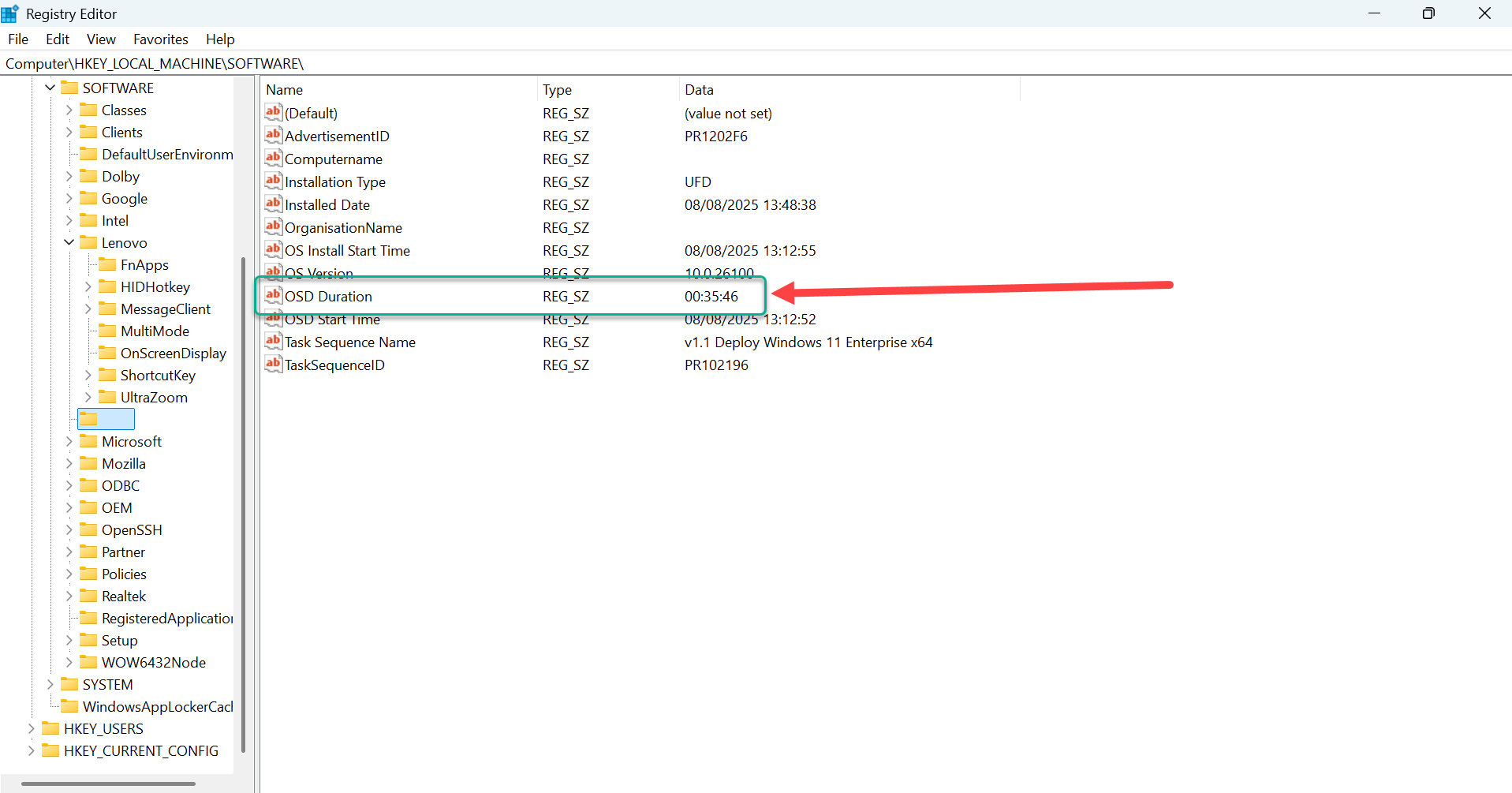
Another thing I used to do, is utilise the Task Sequence Name recorded in Reg and create device collections based it. This would allow me to track those devices using outdated images and plan accordingly. Admittedly, I operated a 4 release/year cycle… As such your use cases may vary.
Whether you want three steps, or one, here’s the all in one script for reference; Set-WinPETimezone.ps1
Enjoy!

Leave a Reply to Chris W Cancel reply