You’re managing your Apple devices via Intune, great. Now you need to add some applications to the devices that you’re managing… Where do you start?
Well, the best way, with Apple devices, is to utilise the Volume Purchasing Program (VPP) and the integration between Apple Business Manager and Intune (or other MDM solutions).
However, in a lot of cases, specifically for macOS, Applications will not be available in the Apple Store, so that method isn’t an option. Much like with Windows, we have the ability to upload Applications to Intune. Previously, you had to wrap Applications inside .intunemac files (much in the same way we do with .intunewin files). However, this required access and use of a Mac devices to do so. Nowadays, we can upload .pkg or .dmg files for deployment, which is certainly a lot easier/more user friendly, especially for Windows administrators, but also, quite time consuming!
This guide will show you how to take an off the shelf .pkg file, and publish it into Intune for deployment across your macOS estate.
What is a .pkg?
Google offers up;
A .pkg file on macOS is an Apple installer package used to install software, applications, or system updates. Similar to a Windows .msi file, it is a compressed archive containing the app’s files, scripts, and configuration data, which the Installer.app tool extracts and distributes to appropriate directories.
Deploying your .pkg App …
In this guide, we will manually publish and deploy Connectwise ScreenConnect. An automated/scripted solution may come in the near future.
This process starts with you downloading/acquiring/collecting your .pkg file. Whether thats a public download, or internal application. We need the .pkg to be able to upload it to Intune.
Using Connectwise ScreenConnect as the example here. I’ve logged into my account, and configured the installer, then hit Download.
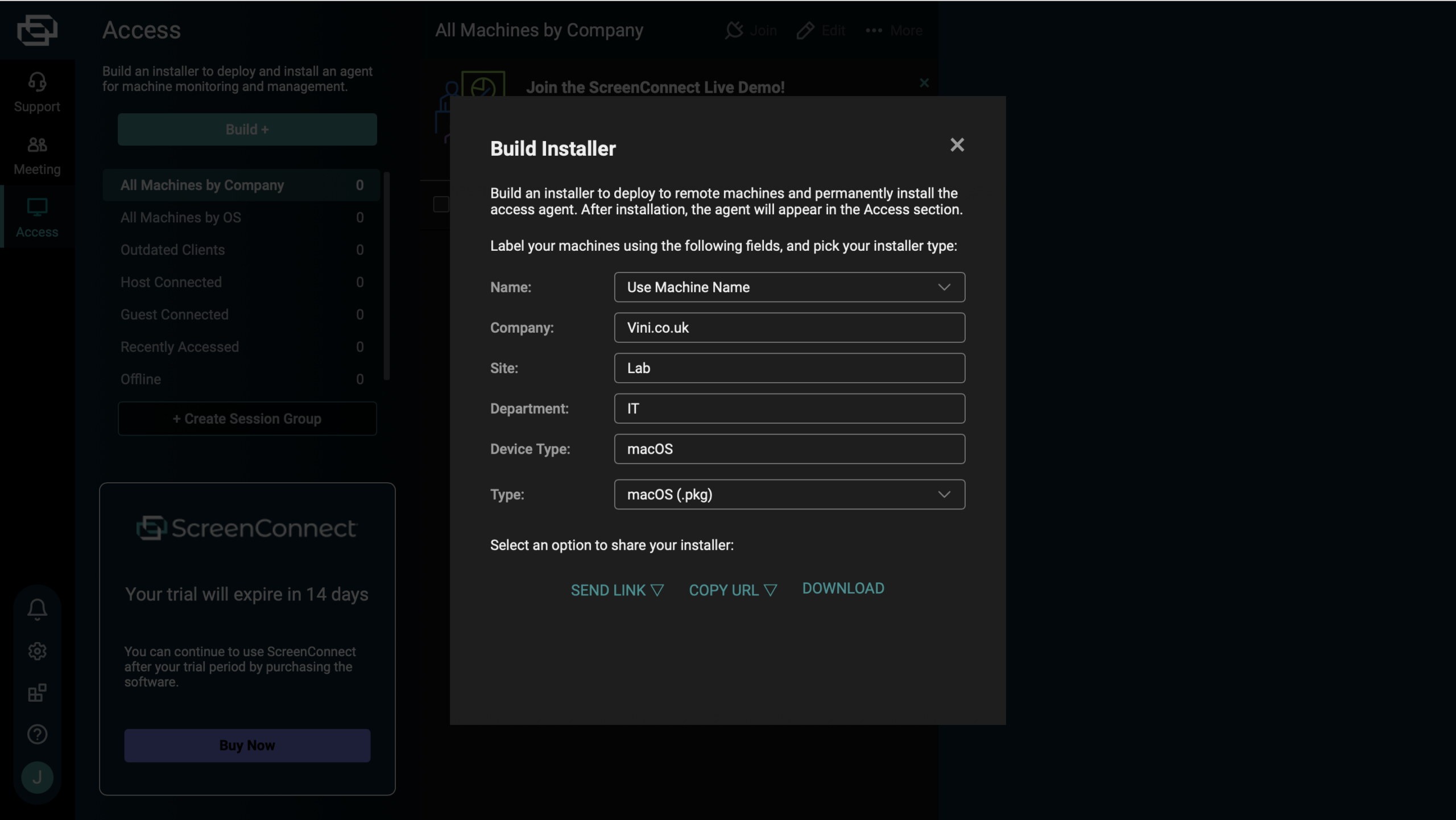
Down comes the .pkg file.
Once we have the .pkg locally, we then move over to Intune. Once logged in, browse to Apps > macOS, and click +Create. Then select macOS App (PKG) from the drop down.
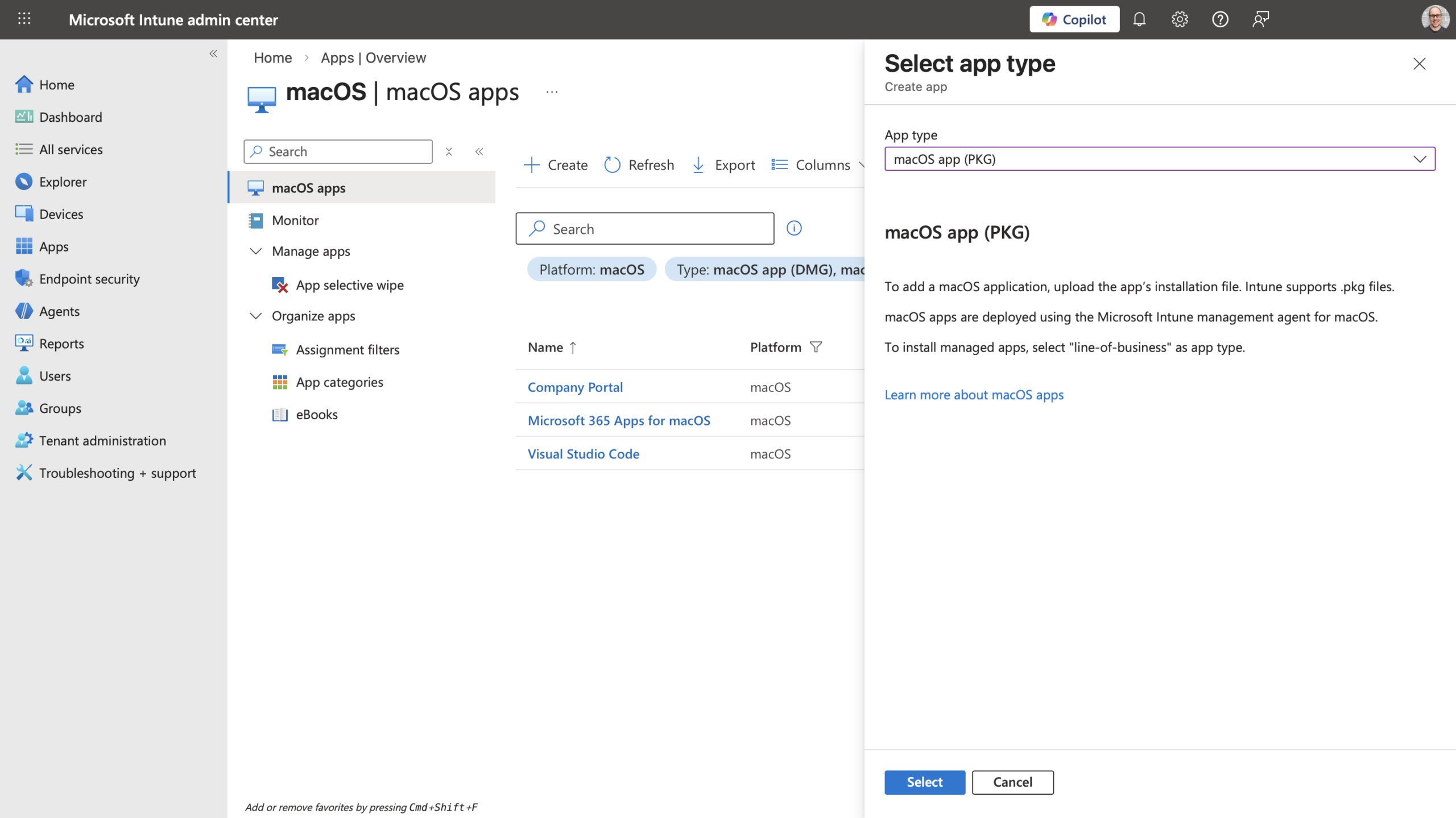
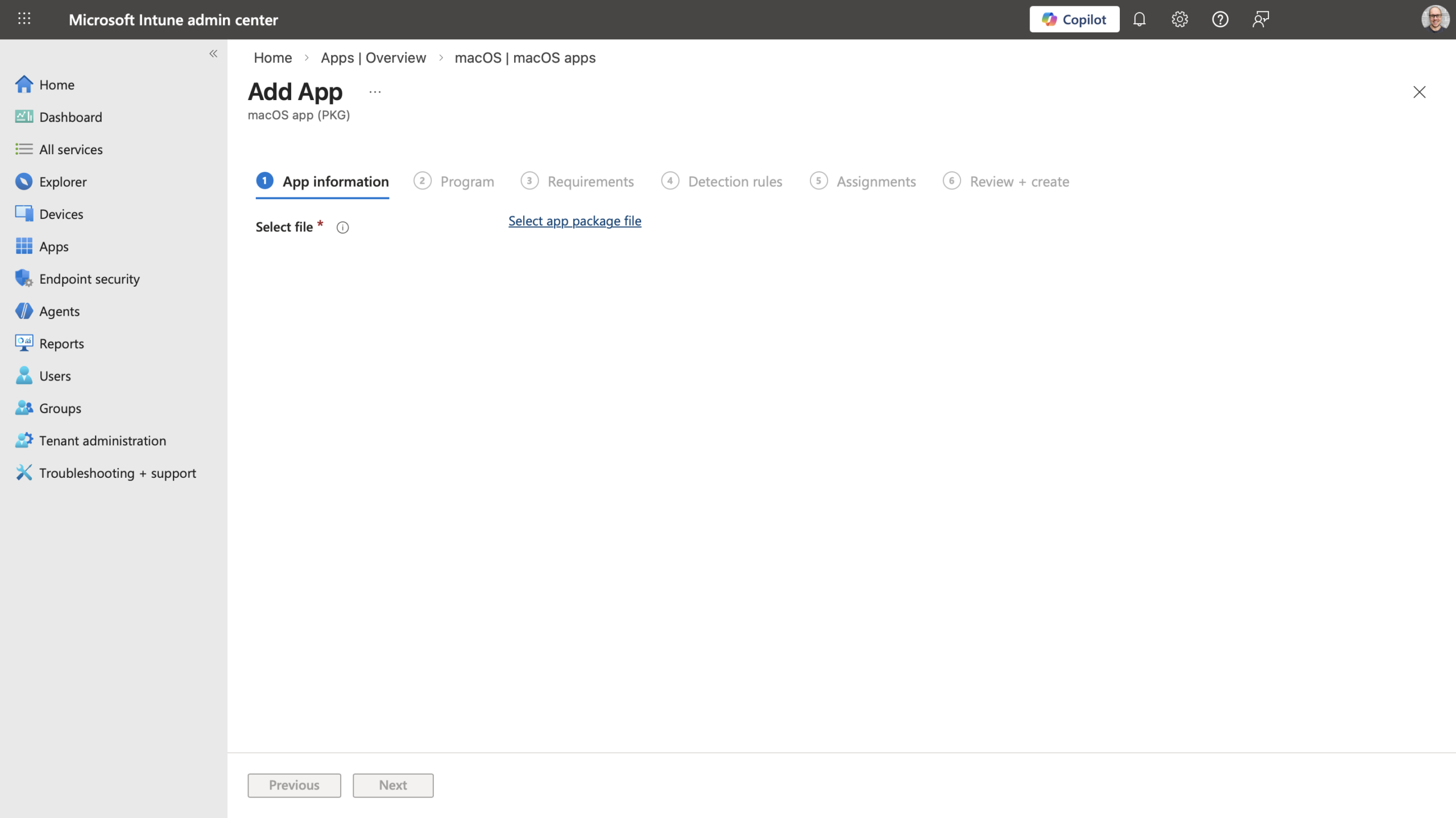
After clicking Select, you’re then asked to provide your .pkg file.
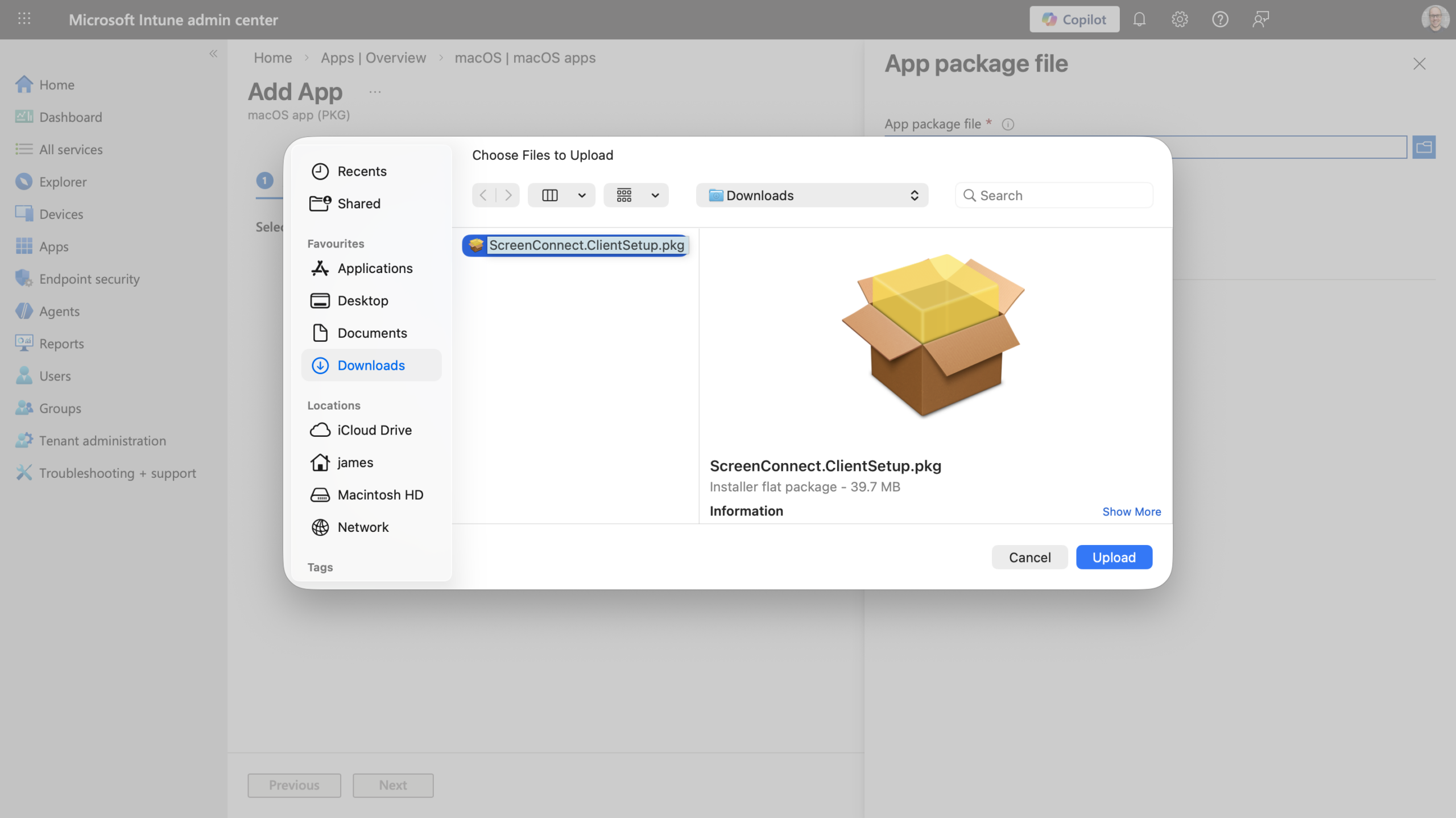
Locate your download, and click Next.
Populate the required fields. Some may be prepopulated, but will likely look at bit untidy. Tidy them up and complete the fields as required/desired. Add an Application Logo so that Company Portal doesn’t look ugly, and your users are made to feel loved.
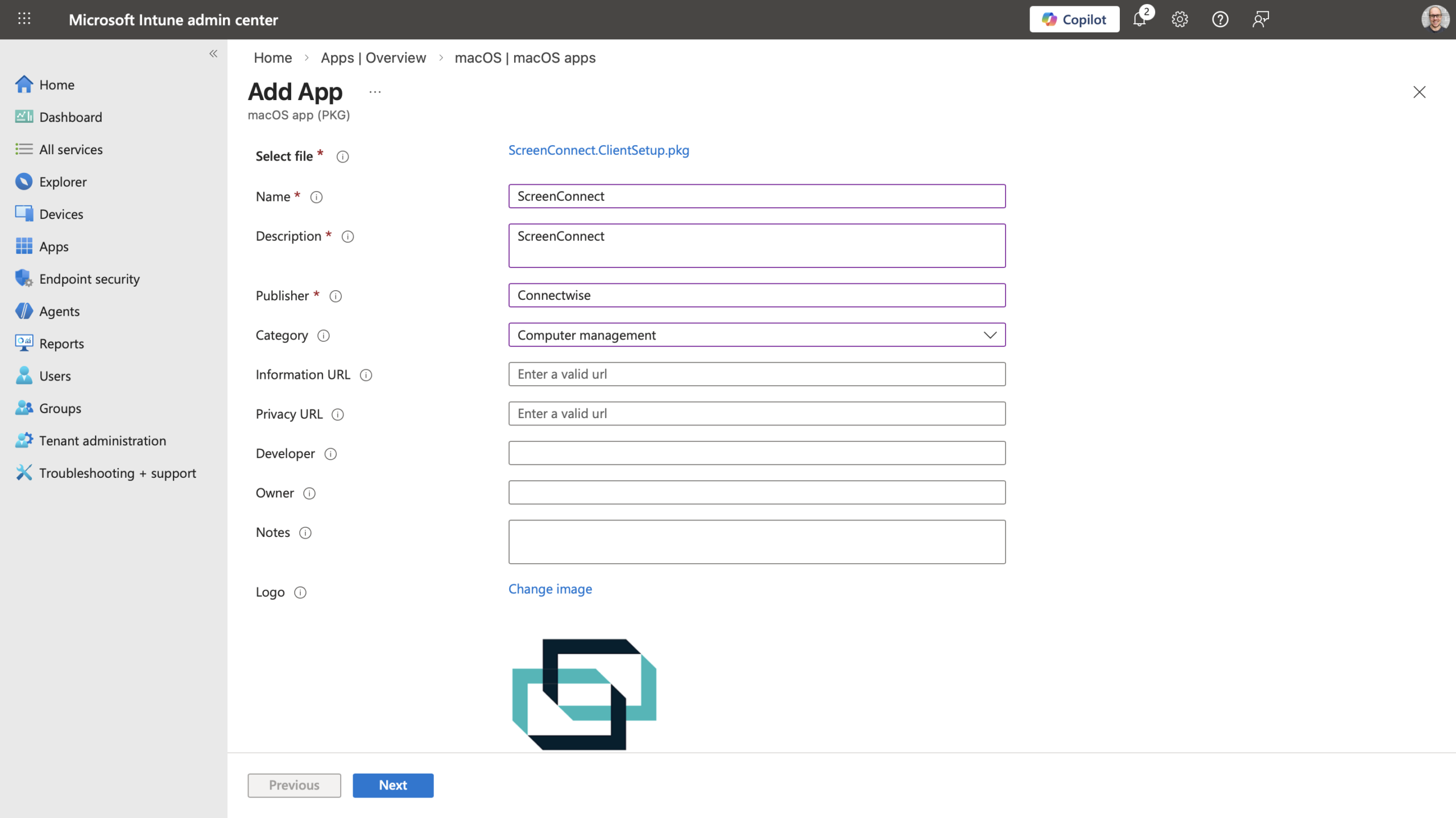
Click Next and work through the wizard.
After making the necessary assignments and clicking finish. The provided .pkg file will begin to upload to Intune. Depending on it’s file size, and your bandwidth, this could take some time.
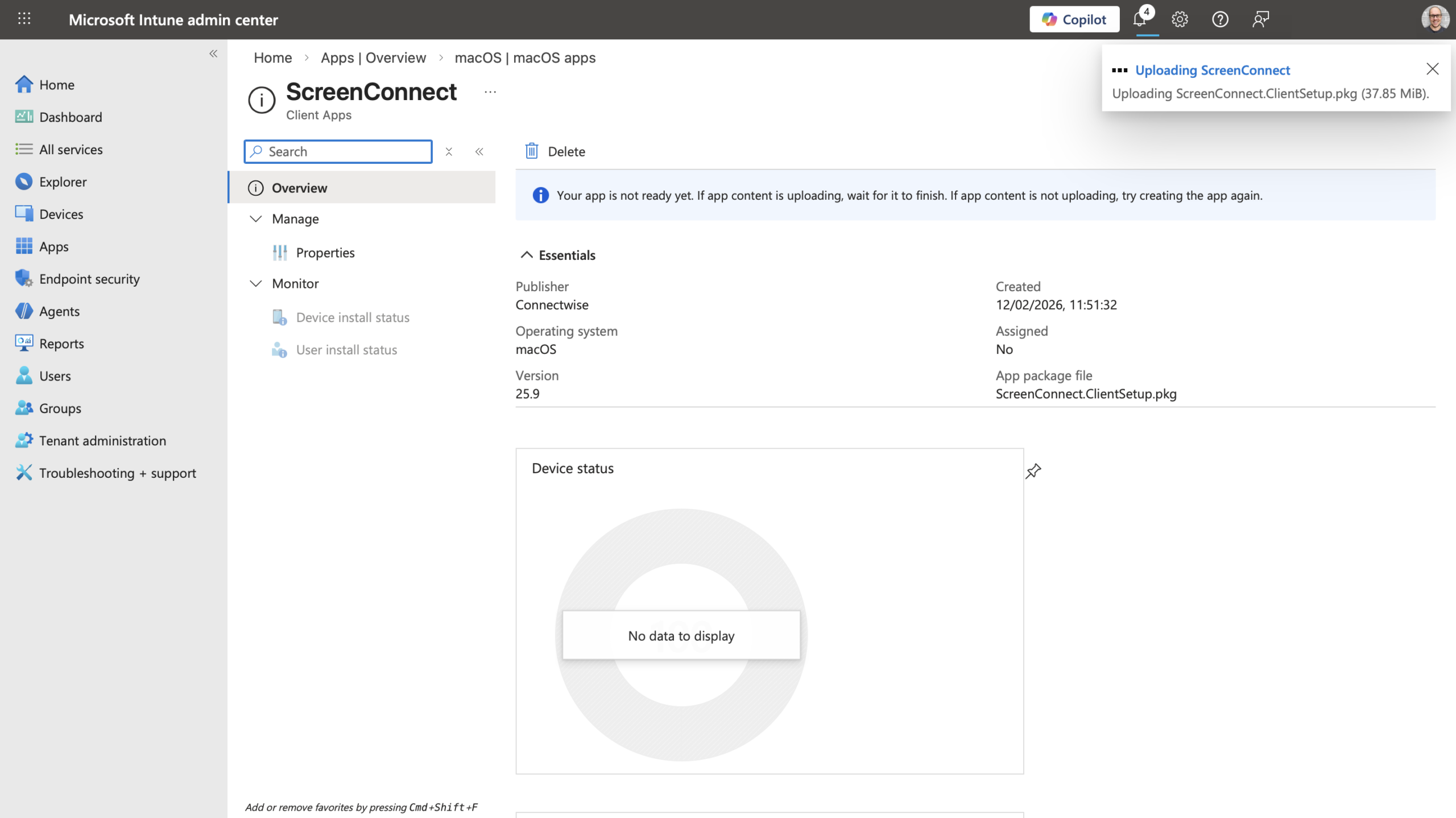
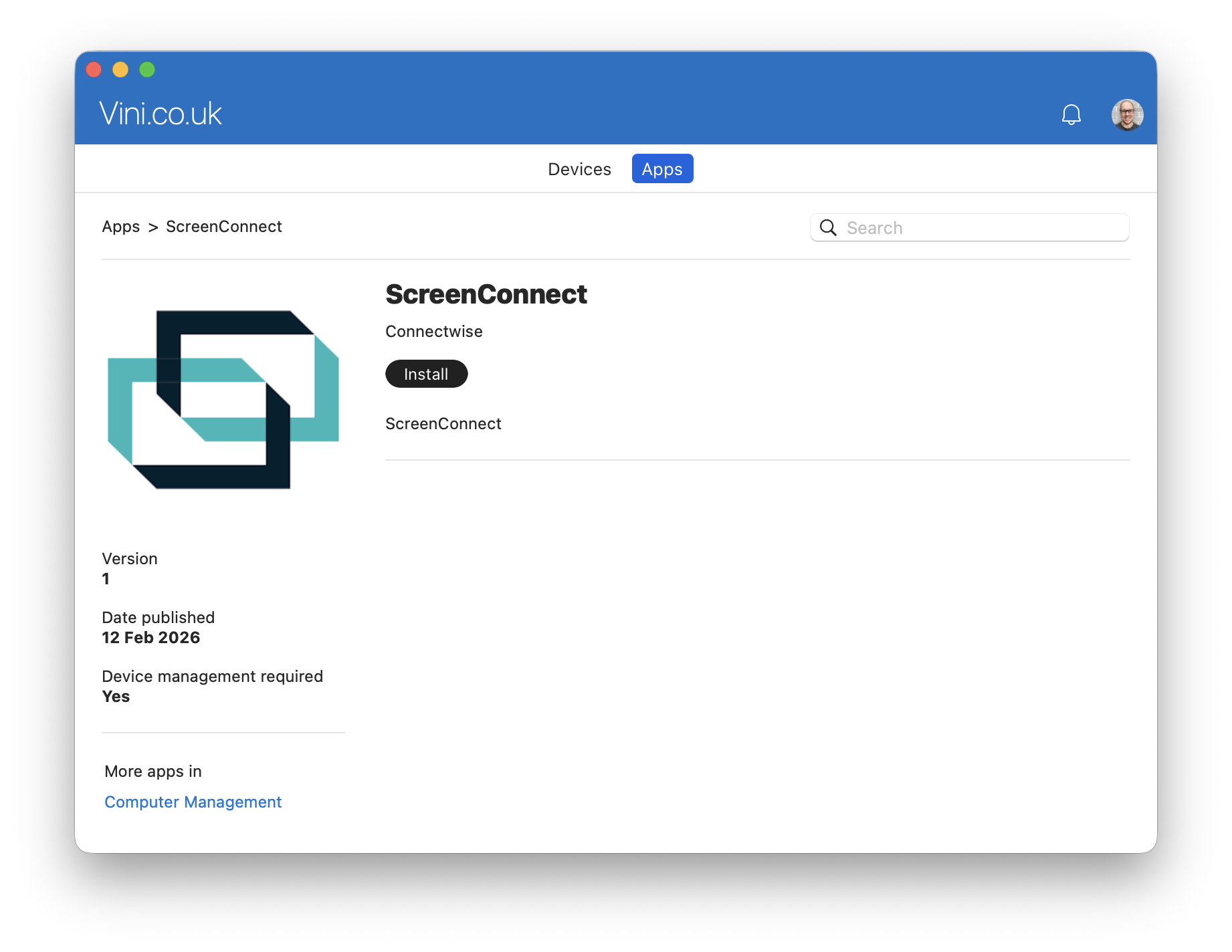
After a small period of “Microsoft minutes”, you should see that Company Portal is now advertising your shiny new application. Depending on how you assigned the application of course.
In this instance, it was assigned as “Available to enrolled users”, so visiting Company Portal allows me to select the App and press Install.
If this was a required assignment, you wouldn’t necessarily see this.
30 seconds later, I see my Application is installed… and I’m bombarded with Apple ugliness. This is where foresight and planning comes into play. Best practice here would be to have a machine that you use for testing your packages and deployments on, primarily because there’s now information we need to collect from this device, post deployment, that will massively improve and enhance our end user experience if/when deploying this (or other) applications on scale.
The image shown below, is not an acceptable “user experience”, in my opinion. Applications installed from enterprise solutions, should be seamless, quiet and land predominantly pre-configured (where allowed/applicable). In a separate post, I cover pre-configuration of Privacy Preferences Policy Control (PPPC). PPPC configuration profiles allow administrators to manage privacy access controls for macOS 10.14 and later. These profiles are crucial for silently granting or denying access to sensitive user data and hardware resources for apps and system services. By pre-configuring these settings we can streamline the user experience by reducing the number of permission prompts.
However, in this specific example, we will “operate manually” and proceed as prompted. This means the user will now need to acknowledge the notifications in the upper right. Allow, or not, the application to find devices on the local network and accept two privacy configurations to allow the specific application to work. (Your experience here, will be based solely on the application you’re publishing – the key take away from this particular section, is to test your deployments, and consider user experience!)
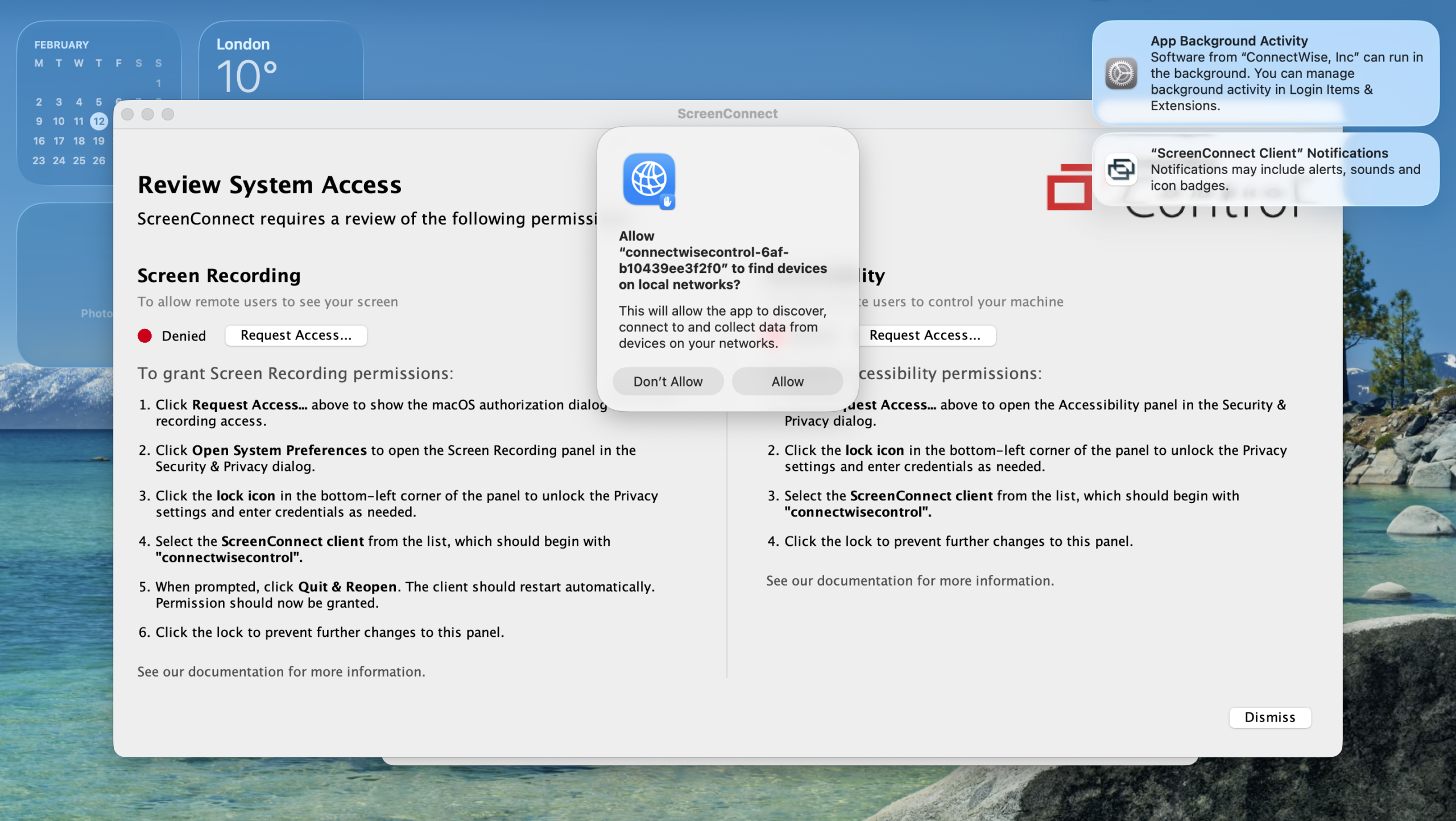
After fighting through the noise and configuring the machine and application settings as requested, we can continue.
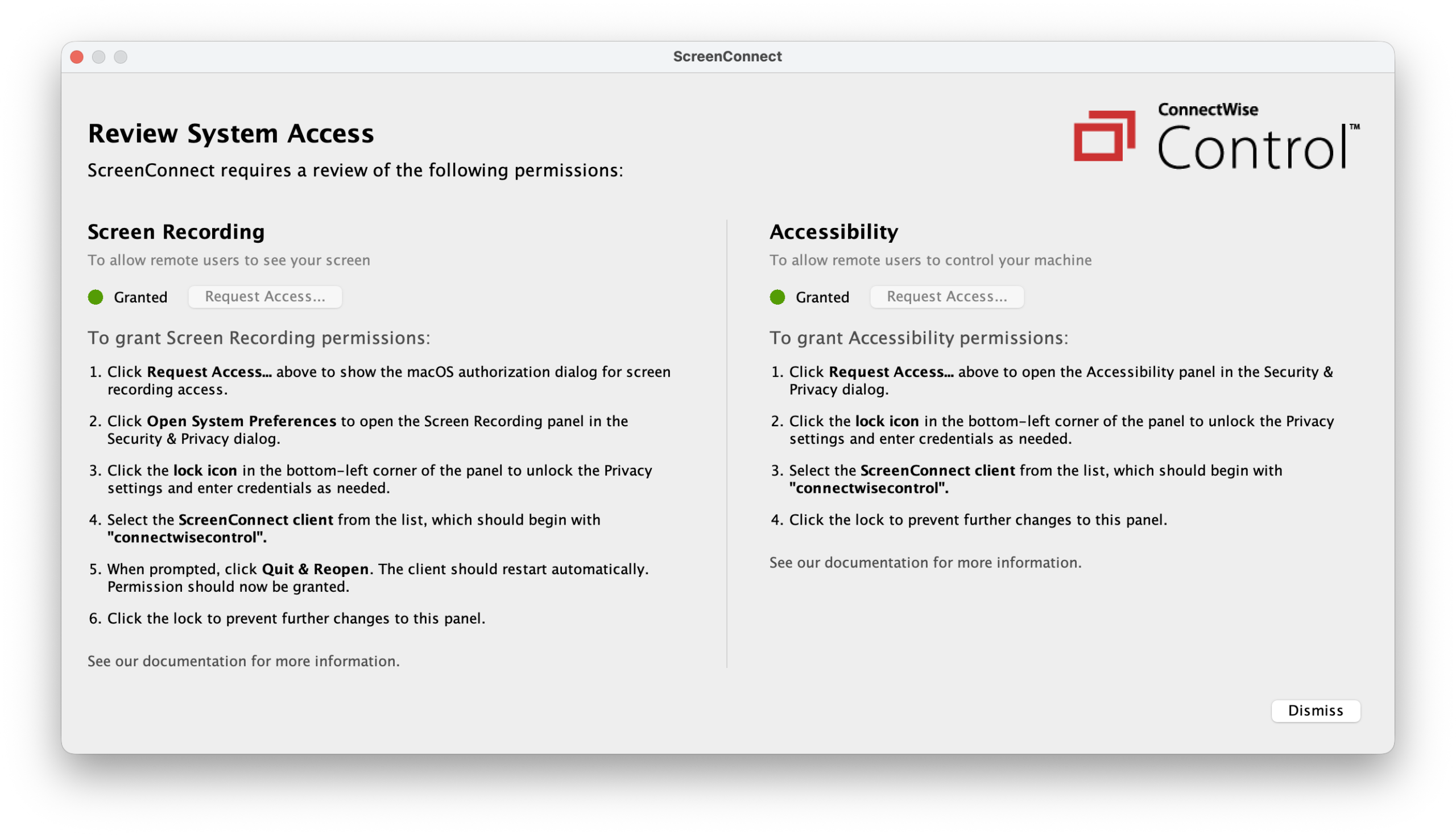
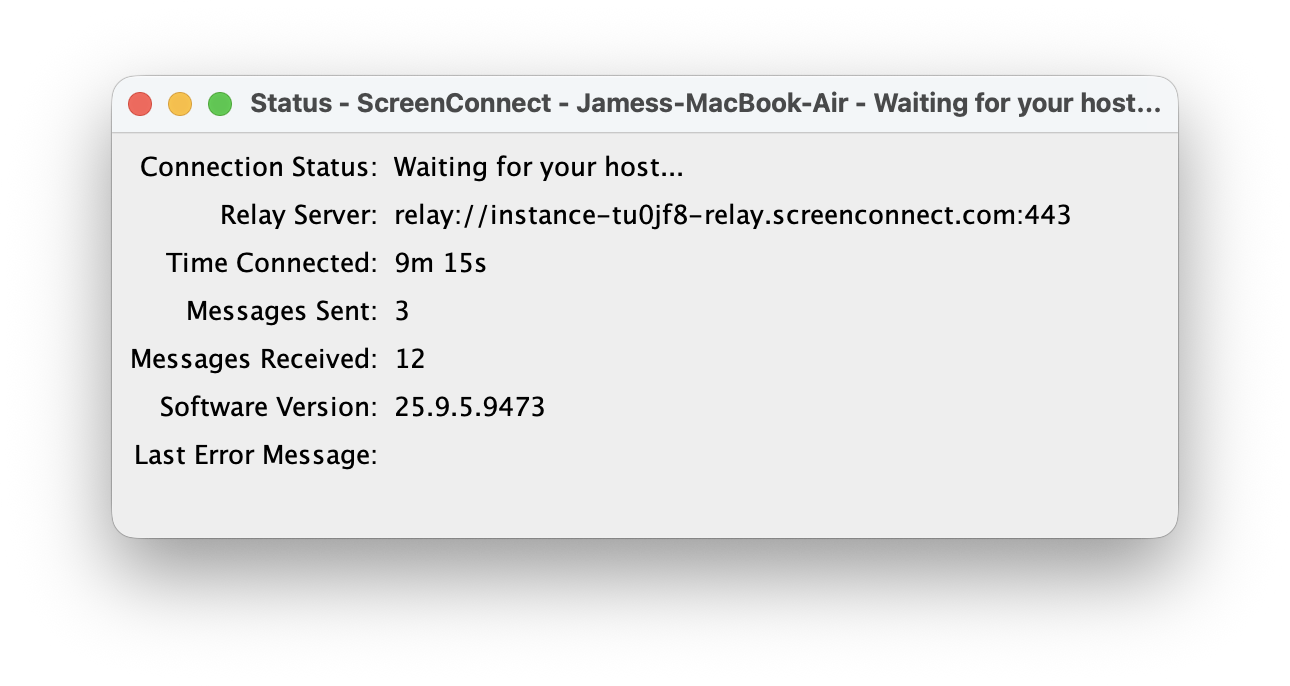
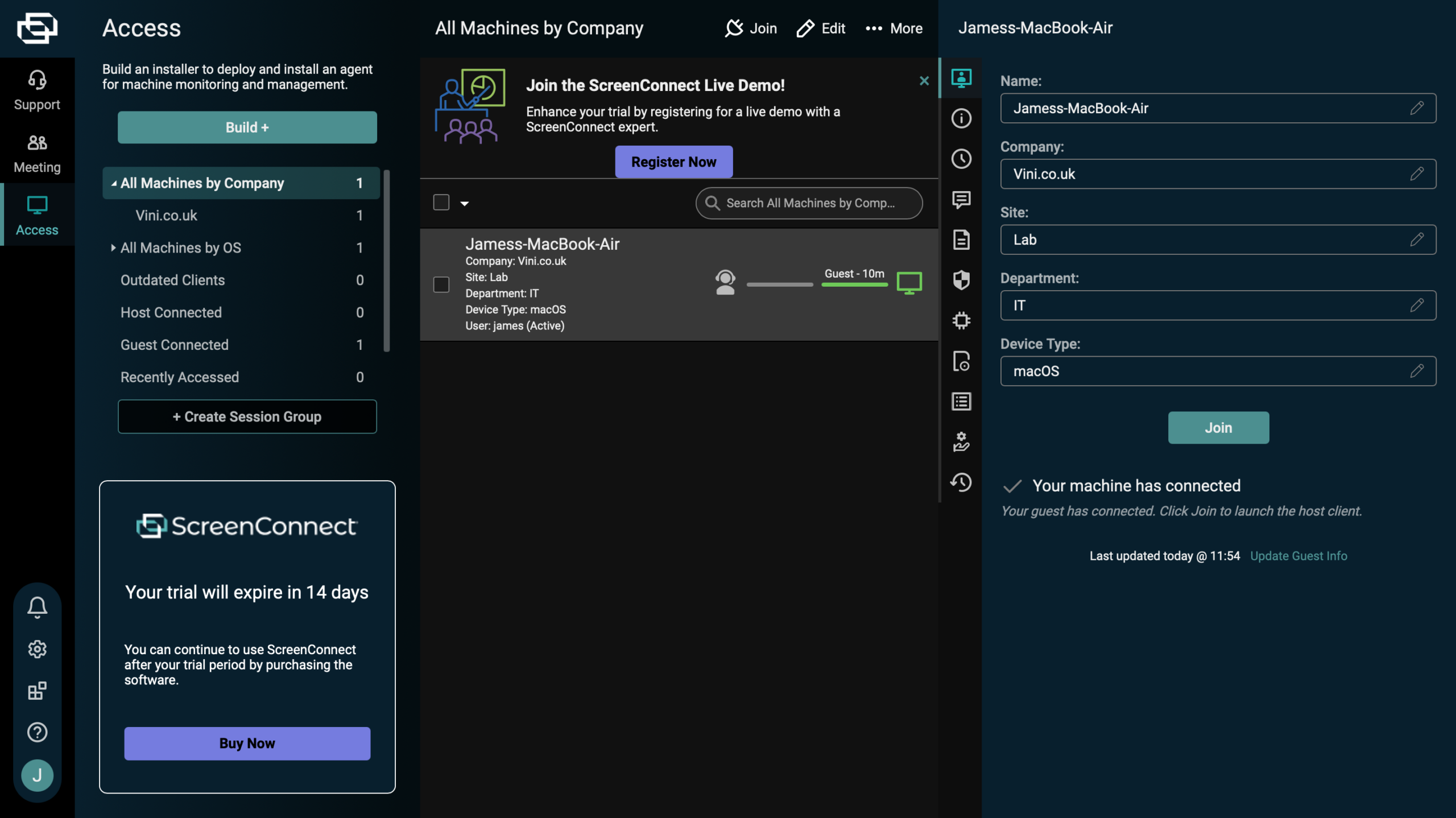
Our application is successfully installed, and ready to be used.

Leave a Reply to Ethan Cancel reply