Just over a year ago, I demonstrated how to use Merrill Fernando’s very excellent Lokka MCP, with Claude to integrate with Microsoft Graph – the outcome, gave you the ability to interrogate Intune using natural language.
Fast forward a year (ish), and we now have Security Copilot which pretty much allows us to do the same, albeit/somewhat natively.
Yeah, and what? Well, if you’re an IT admin managing devices with Microsoft Intune, you’ve lived through and felt the pain of troubleshooting policy conflicts (or trying) and decoding (or trying) compliance reports (for example). Microsoft Security Copilot is deeply integrated into Intune and might help alleviate some of the pain you feel as you can query the environment using well formed natural language prompts… well formed, I say.
What is Security Copilot for Intune?
Microsoft Security Copilot is a generative AI analysis tool that sits on top of your existing Microsoft data. When integrated with Intune, it lets you ask questions using natural language to investigate device issues, and take action all without leaving the admin console.
There are two ways to access your Intune data through Copilot:
- Copilot in Intune: Available directly in the Microsoft Intune admin console. Prompts and outputs are scoped entirely to your Intune and Windows 365 data. The use of Copilot within the Intune console is best for IT admins managing devices day-to-day, who live in the console.
- Standalone Security Copilot portal: Which brings a broader, SOC-focused experience that draws on data from across multiple Microsoft platforms (Intune, Defender, Entra ID, Purview etc). This is ideal for security analysts who need cross-product visibility, all from a single pane of glass.
What can I do with Security Copilot for Intune?
The Explorer pane in the Intune admin console lets you ask questions across your Intune environment, so that’s devices, apps, security policies, users, compliance data, and more. Instead of building queries using kusto from scratch, you can simply ask:
- Show me devices that are not on the latest version of Windows.
- Which of my Endpoint Privilege Management rules are in conflict?
- Which enterprise applications have credentials about to expire?
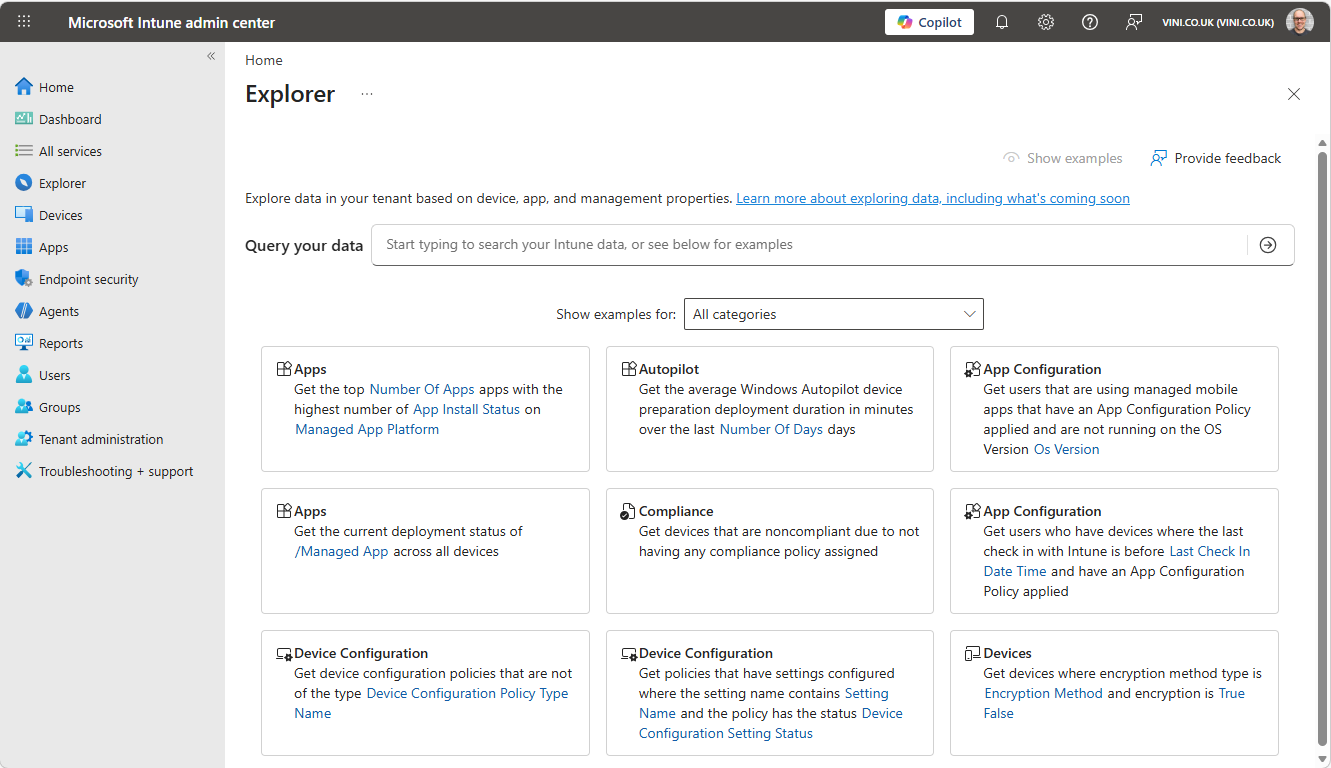
Explorer guides you towards using preconfigured queries, which means you’re less likely to burn through Security Compute Units (SCUs) with a poorly formed request. SCUs equals money $$$.
Examples
Probing unknown devices – If you’ve spotted unknown devices enrolling in Intune you could use Copilot to quickly surface the device details. Copilot can even link you directly to the device in Microsoft Defender for further action.
A favourite of mine, Custom Reporting – Security Copilot can help you write Kusto Query Language (KQL) queries and generate custom reports which can be a huge time-saver if you’re not fluent in KQL.
Using built in agents – Four Three specialised Security Copilot agents are now generally available in the Intune admin console, each handling a specific security scenario. There was four, but I never got chance to use the Device Offboarding Agent, which sounds like it could have been quite useful – though the fact it is being retired makes me assume that it either, wasn’t that useful/didn’t quite work, or that it’s functionality will be swallowed into something else.
| Agent | What It Does |
|---|---|
| Change Review Agent | Evaluates approval requests and recommends actions before changes are applied. |
| Policy Configuration Agent | Turns plain language instructions or imported documents into Intune settings catalog policies. |
| Vulnerability Remediation Agent | Uses Defender data to monitor vulnerabilities and prioritise remediation with AI-driven risk assessments. |
| Being retired – removed from the admin console on 1 June 2026. |
Licensing – How much does it cost?
Security Copilot runs on Security Compute Units (SCUs), these are priced at $4 per SCU per hour as a standalone add-on. If you have E5 licensing, then during Microsoft Ignite 2025, it was announced that Microsoft 365 E5 subscribers would receive a monthly SCU allocation included with their licence to the sum of 400 SCUs per month per 1,000 paid E5 seats (capped at 10,000 SCUs). This is rolling out tenant-by-tenant between 20 April and 30 June 2026.
Security Copilot is also available as an add-on for customers on:
- Microsoft 365 E5
- Enterprise Mobility + Security E5
- Defender for Endpoint Plan 2
There are no additional Intune-specific licences required beyond your existing Intune subscription and access to Security Copilot SCUs.
Usage Tip! The embedded Explorer experience in Intune is sizeably lighter on SCU usage than free text prompting via the Copilot buttons inside individual device/policy blades – and don’t forget to frequently check your SCU consumption!
On to the good stuff…
How to Enable Security Copilot for Intune
Here’s a step-by-step walkthrough to get up and running.
Prerequisites
Before you begin, make sure you have:
- Microsoft Intune
- A Microsoft Azure Subscription
- Access to Security Copilot (via SCU capacity or M365 E5 inclusion)
- The Intune Administrator role in Microsoft Entra ID (this has access to Copilot in Intune by default), or appropriate permissions assigned in Security Copilot
Provision Security Copilot Capacity
- Go to the Security Copilot portal, this can be launched from within Intune, under Tenant Administation > Copilot.
- Complete the first run setup wizard within the Security Copilot portal.
- Select your prompt evaluation location (e.g. UK). Your data is always stored in your home tenant geography!
- Select your capacity region (e.g. UK South)
- Create a workspace
- Set the number of SCUs you want to provision (Microsoft recommends starting with 3; 1 is sufficient for testing and for the bank balance!)
- Review and accept the terms, then select Continue
- Wait a few minutes for the Azure resource to deploy in the background
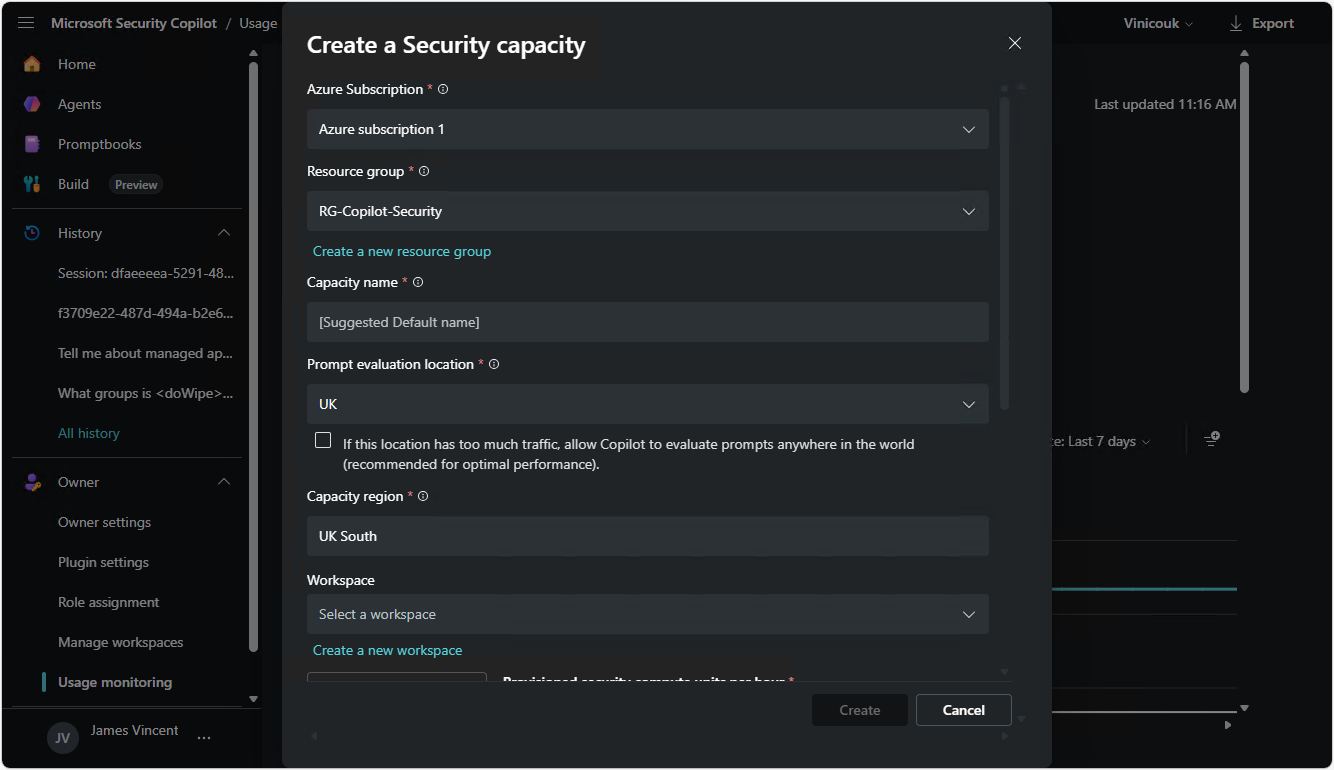
Microsoft Security Copilot Security Compute Units (SCUs) are provisioned and billed on an hourly basis, designed to offer flexible, scalable capacity for AI-driven security workloads.
Verify the Setup in Intune
- Sign in to Intune
- Browse to Tenant Administration > Copilot
- Confirm the Copilot status now shows as Enabled
- Select the Copilot button in the top banner to open the embedded experience
Refer to the note above, whereby it is advised that using the pre-configured prompts is cheaper than using free text prompts. It can be tricky to avoid getting a bit giddy here and asking many many questions of Copilot 🙂
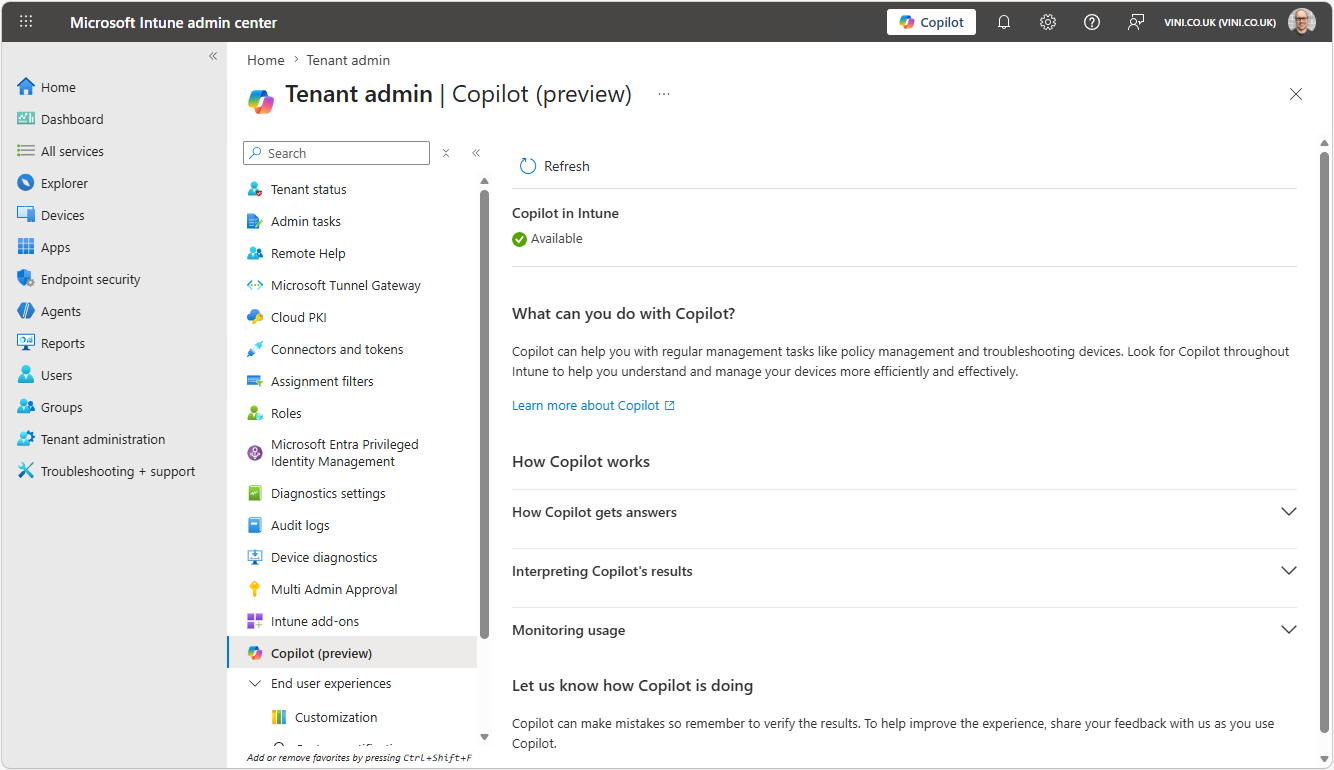
Instead consider using the Explorer option within Intune to drive using built in prompts. Or visit the Security Copilot console for additional prompts.
Configure Built in Agents
To enable the three built in AI agents within Intune…
- From the Intune console browse to Agents
- Select View details for the agent you want to configure
- Follow the on-screen setup for each agent (use the least-privileged role required for that specific agent!)
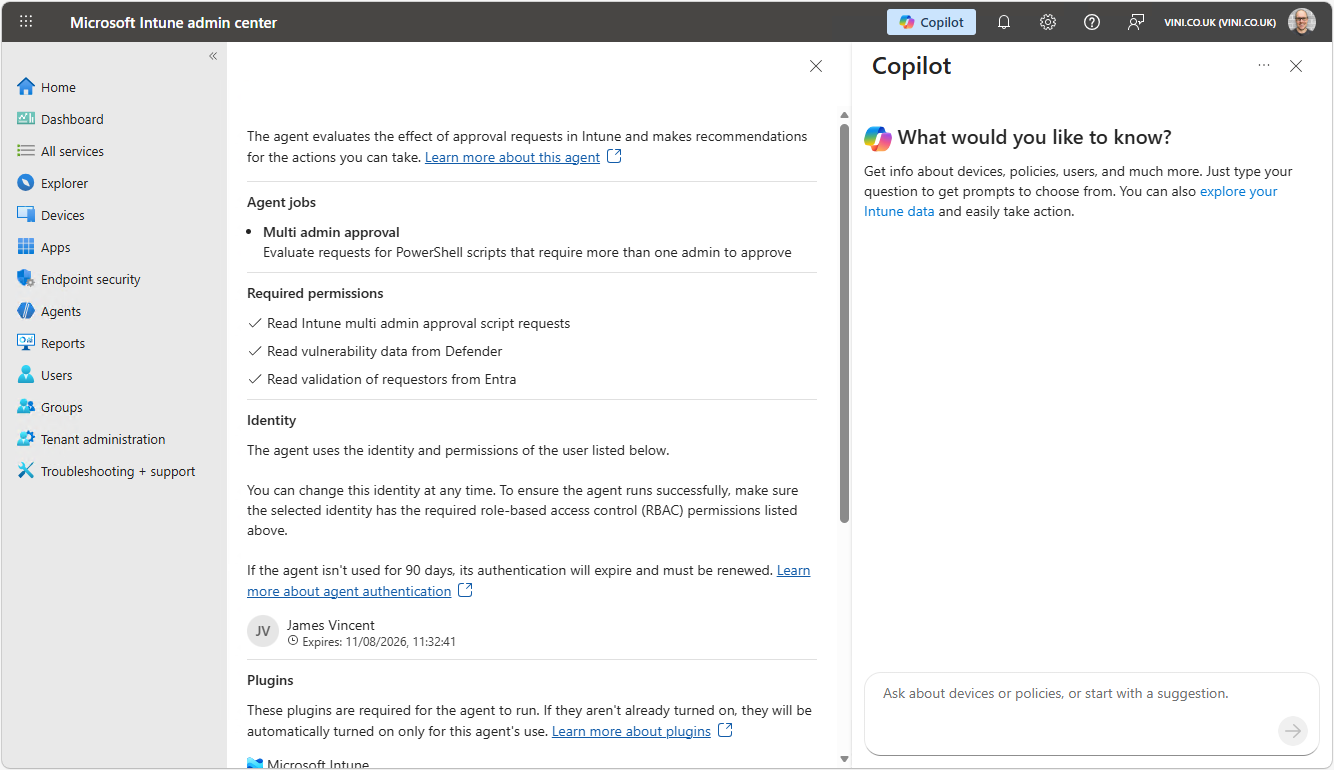
Roles and Permissions
In relation to role and permissions, and the reference to using the least-privileged role required for that specific agent. Access to Copilot in Intune is managed through Security Copilot or Microsoft Entra ID there is no built-in Intune role that grants Copilot access by default.
- The Intune Administrator role in Entra ID has Copilot access automatically
- Other roles can be granted access via Security Copilot role assignments
- Copilot can only access data that the submitting admin has permissions for, RBAC roles and scope tags are fully respected
Is It Worth It?
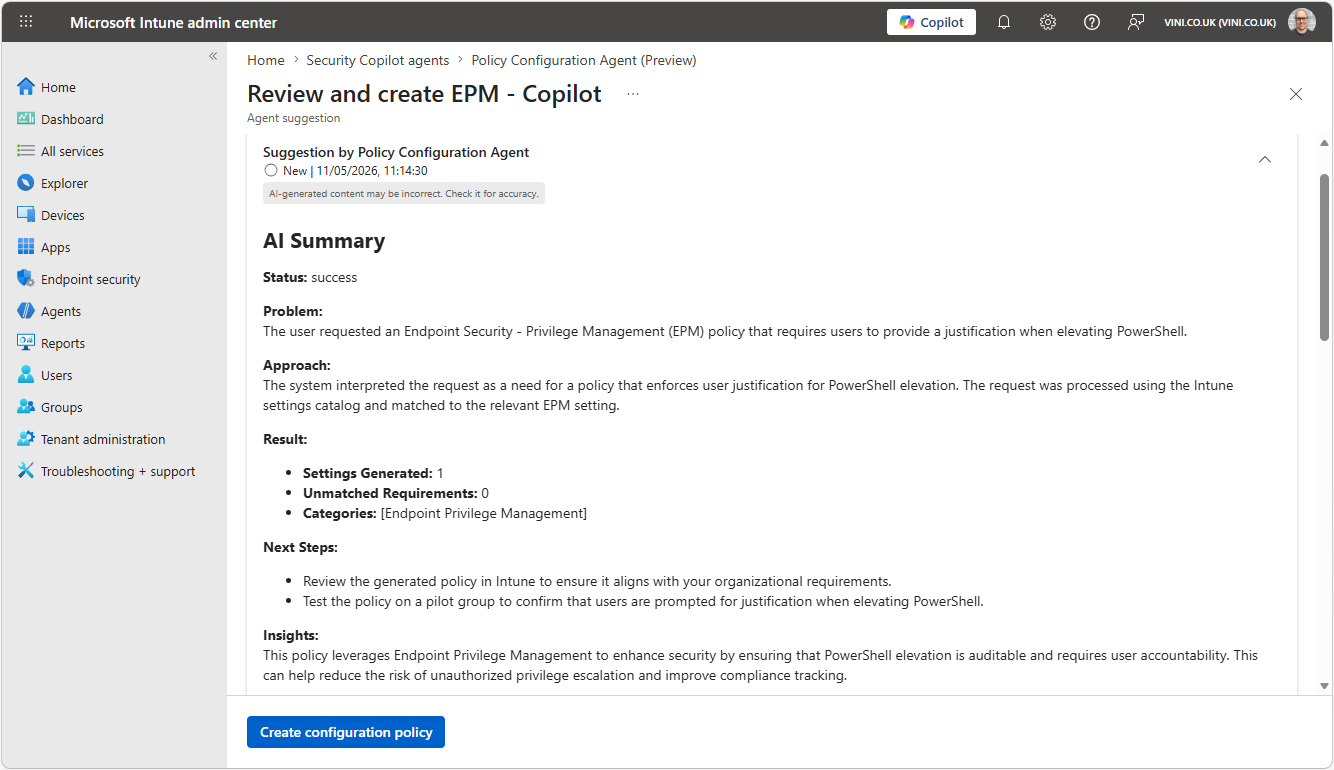
Right now… It depends – Security Copilot for Intune can be useful if you’re not so familiar with Intune, or find yourself spending significant time on policy troubleshooting or security posture reviews. The Explorer pane alone can save hours of KQL query writing or assisting with “getting the data out” and the agents can reduce the manual overhead of change review and vulnerability remediation. Here’s the output of a question I put to the Policy Configuration Agent. I asked it to generate an Endpoint Privilege Management configuration that will prompt the user for justification when executing PowerShell, and the output is below – the subsequent profile was created and applied with success.
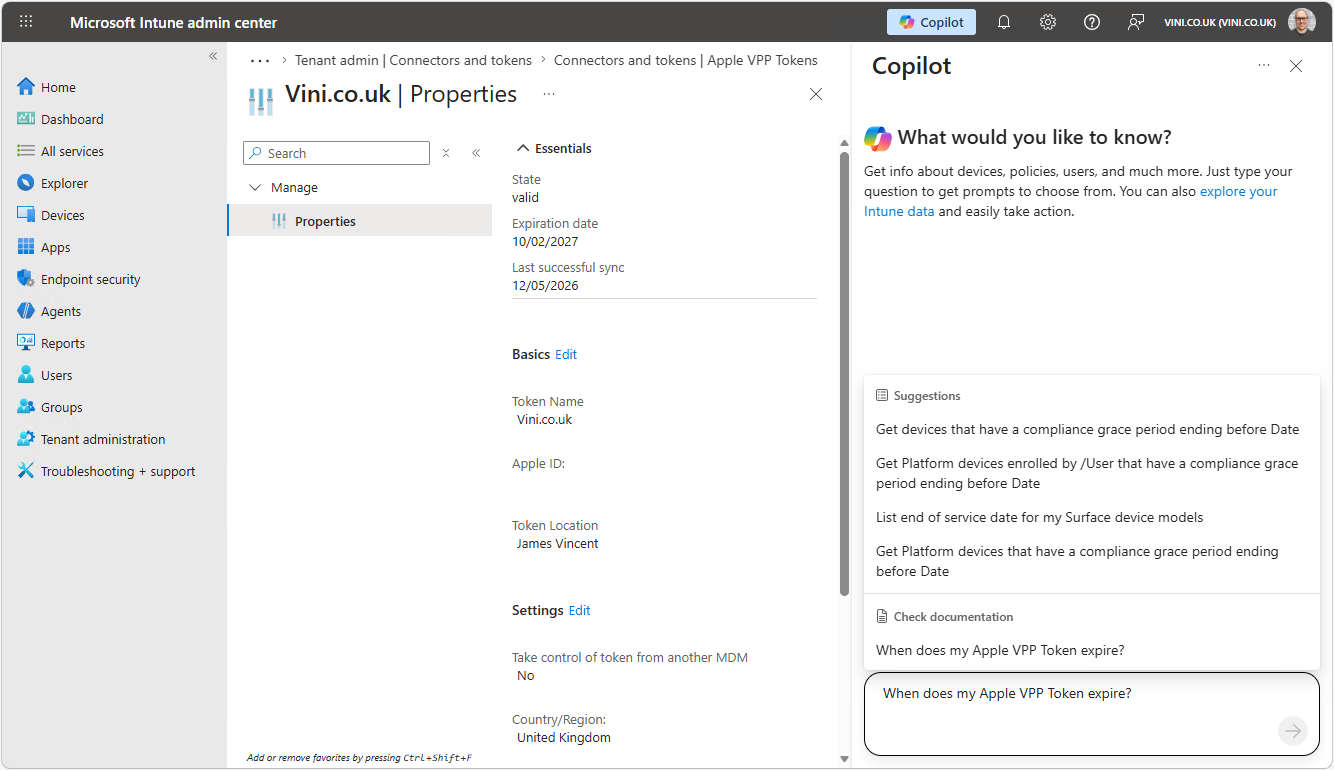
That said, Security Copilot within Intune is still not perfect. Custom prompting can burn through SCUs and the overall experience is still maturing, to the point where some custom prompts might not even work at all. See the example below, where I ask “When does my Apple VPP Token expire?” Copilot won’t let me submit this prompt, instead it suggests I check documentation and offer’s “you may also like” suggestions (which aren’t really in the same ballpark) – showing it’s current limitations.
So right now it’s probably not going to set your world alight, but it’s a start. We’ve all seen how quickly agents have improved over time, so give this 3/6/12 months, and the whole offering will be a completely different beast – I’m sure!
However, if you’ve got M365 E5 licensing, then due to the inclusion of SCU allocation, there’d be very little reason not to turn it on and start experimenting and watching it develop over time! Just be mindful of the SCU credits and consumption!

Leave a Reply