This article was inspired by the recent release of iOS 27, and the removal of legacy controls to manage Software Updates within iOS. Now… the legacy configurations had been deprecated for some time, giving ample warning to act on the forthcoming removal. However, life can and does get in the way. So, if your Apple update strategy in Intune still depends on legacy MDM software update policies, yesterday was the time to fix it. You’ve had long enough, you now need to move your configuration to Declarative Device Management (DDM) policies. Of course, with that, you need to keep an eye on the goal: move to a supported update model without losing control of deadlines, user experience or reporting.
Declarative Device Management (DDM) is already available for Apple software updates in Intune and has been for some time, over a year in fact, as I quickly established that the two configurations cannot coincide. Meaning we have to remove old assignments, and apply new ones.
Review your existing update controls
Before creating a replacement policy, establish what currently influences updates. A profile name is not enough: record its settings, assignments, exclusions and the devices that actually receive it.
Check eligibility before assigning policies
iOS/iPadOS 17 and macOS 14 are the baseline platforms for the documented Software Update configuration, with Device Enrollment and Automated Device Enrollment supported. Individual declarations and settings can require newer versions or particular management conditions.
Do not confuse a feature’s technical minimum with Intune’s current supported-OS policy. Check both before choosing your target population. Separate personal-device and User Enrollment scenarios from the corporate-device pilot rather than assuming identical enforcement capabilities.
For Macs, Microsoft also recommends checking power and internet connectivity to avoid update delays. Include practical readiness checks such as available storage, recovery arrangements and application compatibility in your own pilot checklist.
Choose the update outcome first
Intune documents two approaches: enforce the latest eligible version after a delay, or target a specific version with a deadline. Configure these through Settings Catalog using the relevant DDM Software Update categories. The latest-version delay controls the enforcement date, not when users first see an update. Targeted deadlines use the device’s local time.
For a tightly controlled business application, I would consider a tested target version. For a population expected to stay current with minimal manual intervention, I would evaluate the latest-version model. Neither choice removes the need to test the behaviour on your actual devices.
Keep update visibility, user interaction and enforcement as separate design decisions. “Users cannot see this update yet” and “the device must install by this deadline” express different requirements. Write each requirement down before selecting settings.
Pilot the transition, not just the policy
Use a small, representative group covering Macs, iPhones and iPads where those platforms are in scope. Include remote workers and different working patterns, rather than relying entirely on IT-owned test devices.
For each pilot group, document the intended replacement of legacy targeting. Preserve a record of the old configuration, then coordinate removal of assignments and application of the new controls. You must avoid having two policies in place trying to control the same settings, as this does not work.
Perform tests to validate the configuration is working as desired!
As always measure the outcome, not just policy delivery
Just because a policy is delivered and reports as successful does not mean that “the desired outcome” has actually applied. Use the built in report within Reports > Device management > Apple updates for monitoring actual OS installations. The organisational report includes current and pending versions; the failures report helps investigate reasons and timestamps. Per-device views provide more detail for individual cases.
Expand in controlled groups
Once you’re happy with the configuration and your Pilot is deemed a success, expand to the remaining eligible devices. In future, maybe we can utilise Intune Deployment Plans? 😉 [alas, for now, mac/iOS profiles are not supported]
As with any Pilot and wider deployment, before each deployment phase, agree the observation period, support coverage and criteria for stopping further targeting. Also, stopping a rollout is not the same as OS downgrade strategy. Consider how you will support devices already updated if an application issue appears.
Only retire the superseded configuration and automation after you have checked the remaining assignments and exceptions. Keep an explicit plan for devices that cannot meet the new requirements rather than leaving them dependent on a disappearing workflow.
Bonus time… Legacy to DDM Analyser “tool”
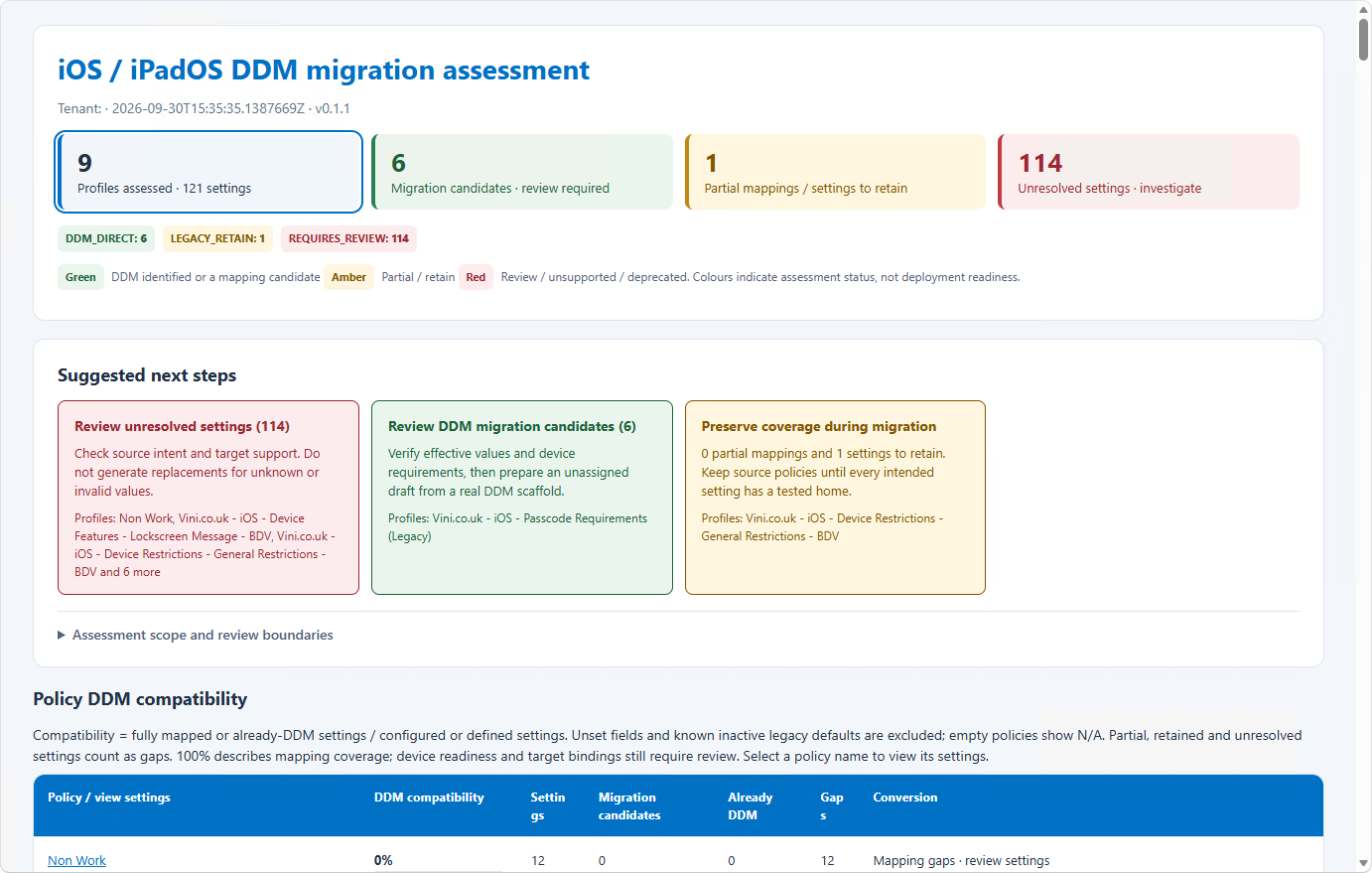
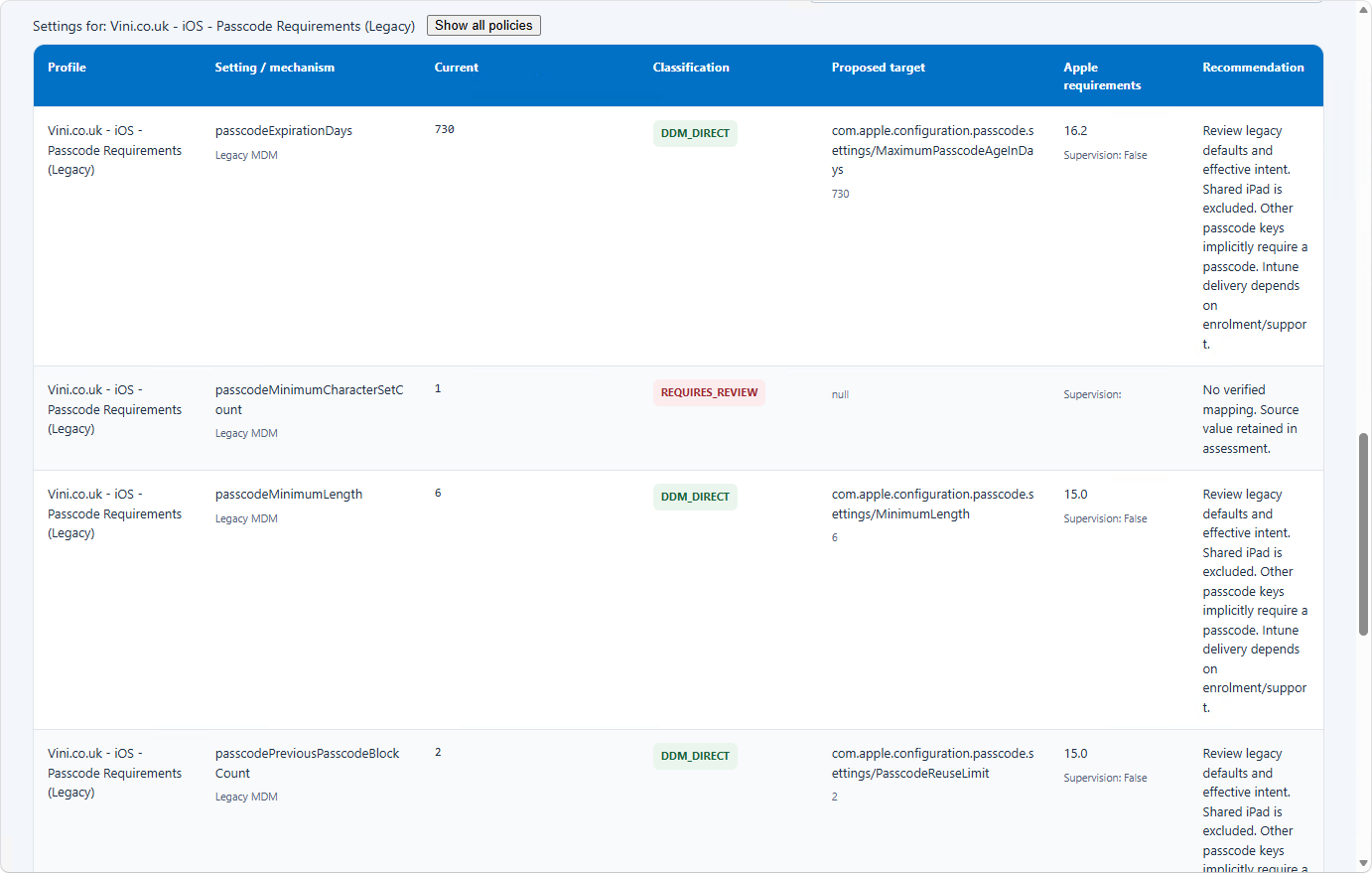
In light of this change, and the slow drive towards DDM. I worked with everyone’s favourite AI agent (by that, I mean ANY agent worth its salt) to create a tool that reviews your pre-existing legacy configuration profiles, and evaluates their capability/compatibility to be moved into DDM native profiles. A little bit like the built in GPO Analyser that exists within Intune – in fact, I purposely asked for the tool to utilise that way of working.
The tool compares MDM documentation from both Intune and Apple, and evaluates and cross references setting objects, to see if DDM provides a native alternative to the legacy definitions. It’s by no means perfect, but… like the GPO Analyser, it does seemingly offer a good level of insight and gives you food for thought in relation to your Legacy to DDM “migrations”.
Grab the script from my GitHub, and run the following command. You’ll need to authenticate with a user account that is able to connect and leverage read-only capabilities via Graph API. If you don’t know your Tenant ID, then you can refer to What is my tenant ID? or any other method of finding your Tenant ID out.
Within the .\TenantResults directory, or the directory you specify within -OutputPath, you’ll find the HTML report (as shown above).
.\Invoke-AppleDDMMigrationAssessment.ps1 `
    -Live `
    -TenantId '<your-tenant-ID>' `
    -Platform All `
    -IncludeDeviceInventory `
    -OutputPath .\TenantResults
In relation to the Platform switch, your options are iOS, macOS or All. Where iOS will just evaluate iOS/iPadOS config, macOS will evaluate macOS config, and All, will evaluate both iOS/iPadOS and macOS config.
Download: AppleDDMMigrator-v0.2.4.zip
OK, so what next
Start with one question: can you explain which policy controls updates on every managed Apple device? If the answer is unclear, build that inventory first. Then choose one supported population, define its update outcome and test the complete experience from notification to verified installation.
DDM gives Intune administrators an established route forward. A dependable migration comes from clear targeting, realistic deadlines and evidence that the devices actually updated. Not to mention the fact, that legacy configurations will slowly but surely become deprecated as DDM takes over.

Leave a Reply