Over a year ago, I showed how to deploy custom Teams backgrounds to Windows devices, this continues to attract attention. To the point I spent the weekend enhancing the process to support the removal of deployed images.
It was however, suggested within the comments that the guide was only for Windows devices – which it was. Not one to shy away from a challenge, I set about testing the theory on Mac devices… and, well… here we are.
I’ve created a helper, much like I did for Windows to achieve the same outcome.
The script I’ve created will;
- Ask you to provide a location with JPG files (i.e. the images you want to deploy to devices)
- Ask you for a description. This description will feature in the file names, and can be used if/when needing/wanting to remove these images in future.
- The script will then resize the images to 1920 on the longest width.
- Rename the images to be prefixed with a GUID.
- Create a .PKG file with the images contained within for uploading to Intune.
You can grab this script from GitHub @ Intune/MSTeamsBackgrounds/macOS/Create-MSTeamsBackgrounds.sh
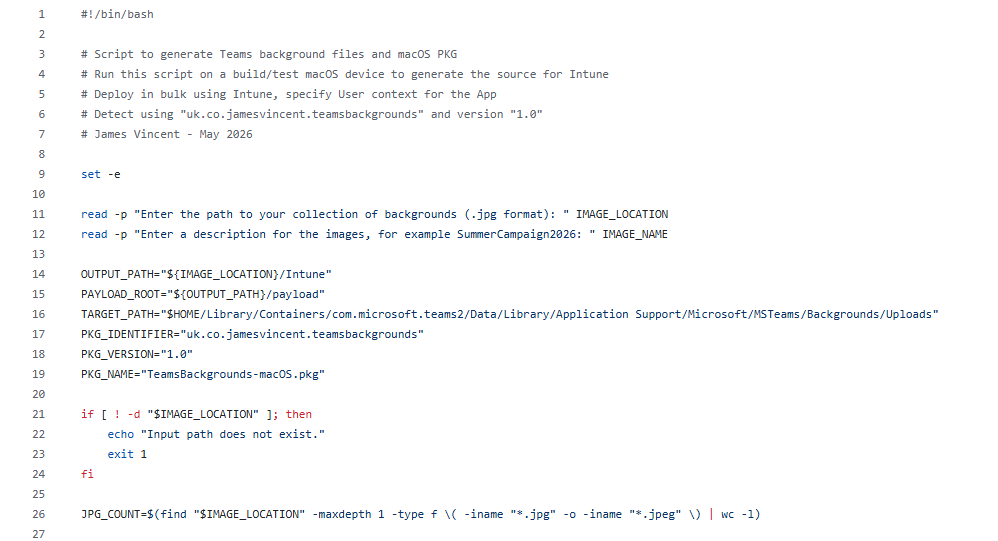
In this example, my working directory is ~/Downloads/
Once you’ve downloaded the script, ensure it’s executable by running chmod +x ~/Downloads/Create-MSTeamsBackgrounds.sh
Then execute the script. You can either pass through the parameters, like so; ~/Downloads/Create-MSTeamsBackgrounds.sh \
-ImageLocation “/Users/James/Downloads/Backgrounds” \
-ImageName “SummerCampaign2026”
Or, have the script prompt you interactively by simply running; ~/Downloads/Create-MSTeamsBackgrounds.sh
The script will ask you to enter the folder in which your backgrounds live, and then ask you to enter a Description. Do this.
Note. The script will perform some basic checks and file conversions on a small amount of “typical image filetypes”, but its really easier all round, if you ensure that ONLY .jpg files exist in your specified image directory.
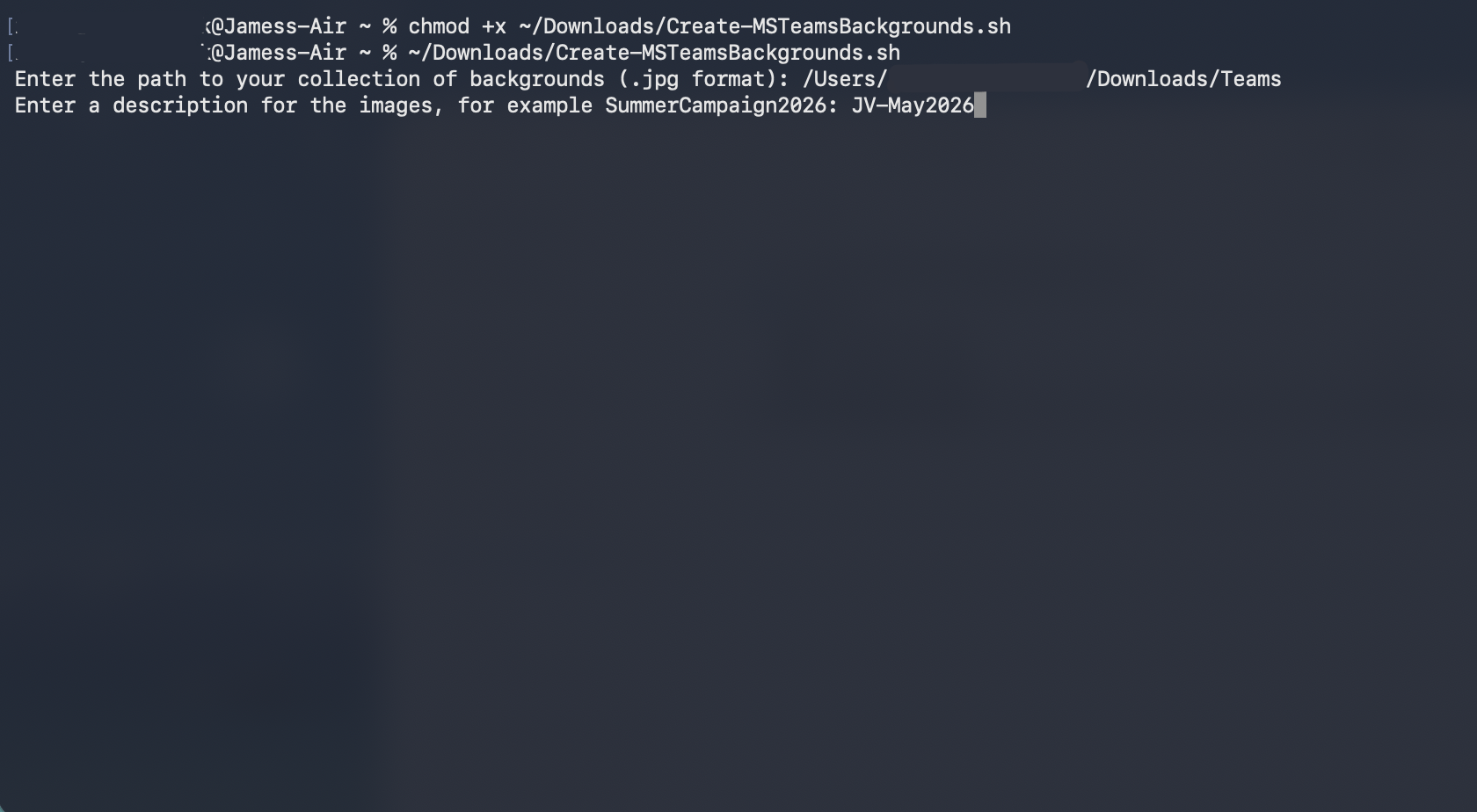
The script will check to ensure that image files exist. It will attempt to convert non-JPG files. After which, it will resize the images and rename them accordingly. These will then be wrapped up into a .PKG for uploading into Intune.
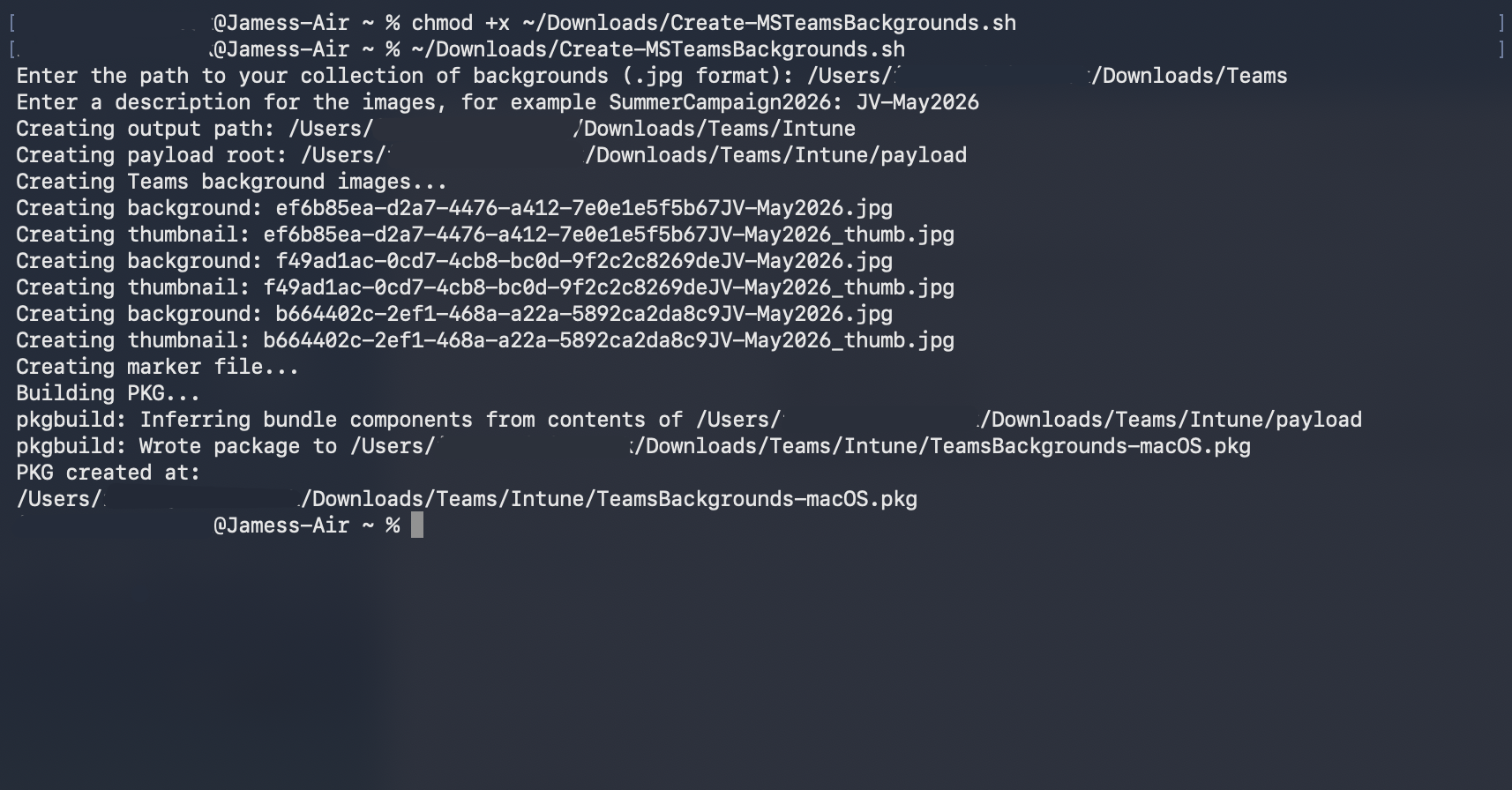
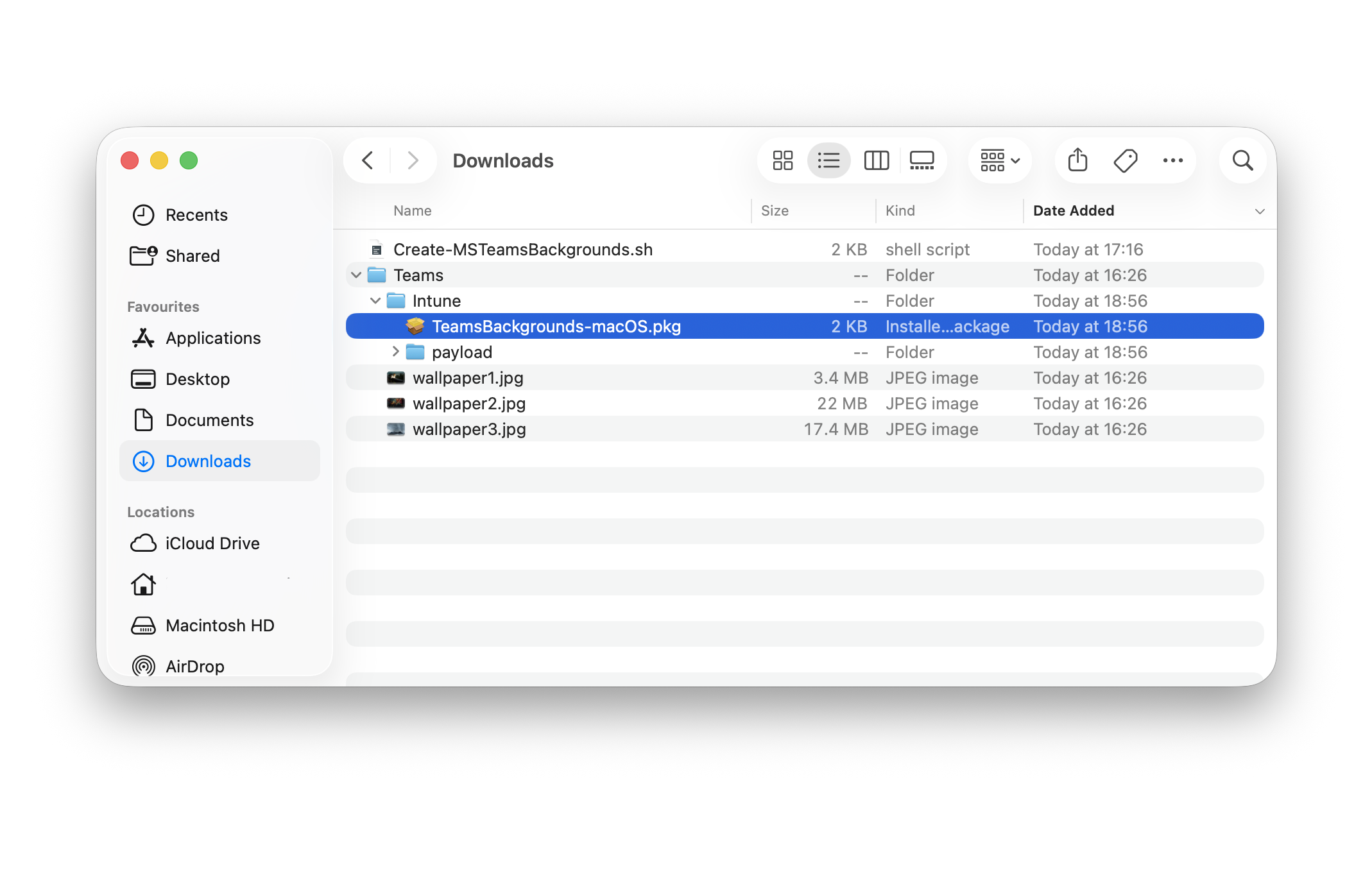
Your working directory should look like this, or similar.
Head over to Intune, and set about creating a new macOS Application. I’ll save you the details of exactly how. But when asked, point to the created .pkg file and provide meaningful name and descriptions. Provide an icon file to give your users the best user experience.
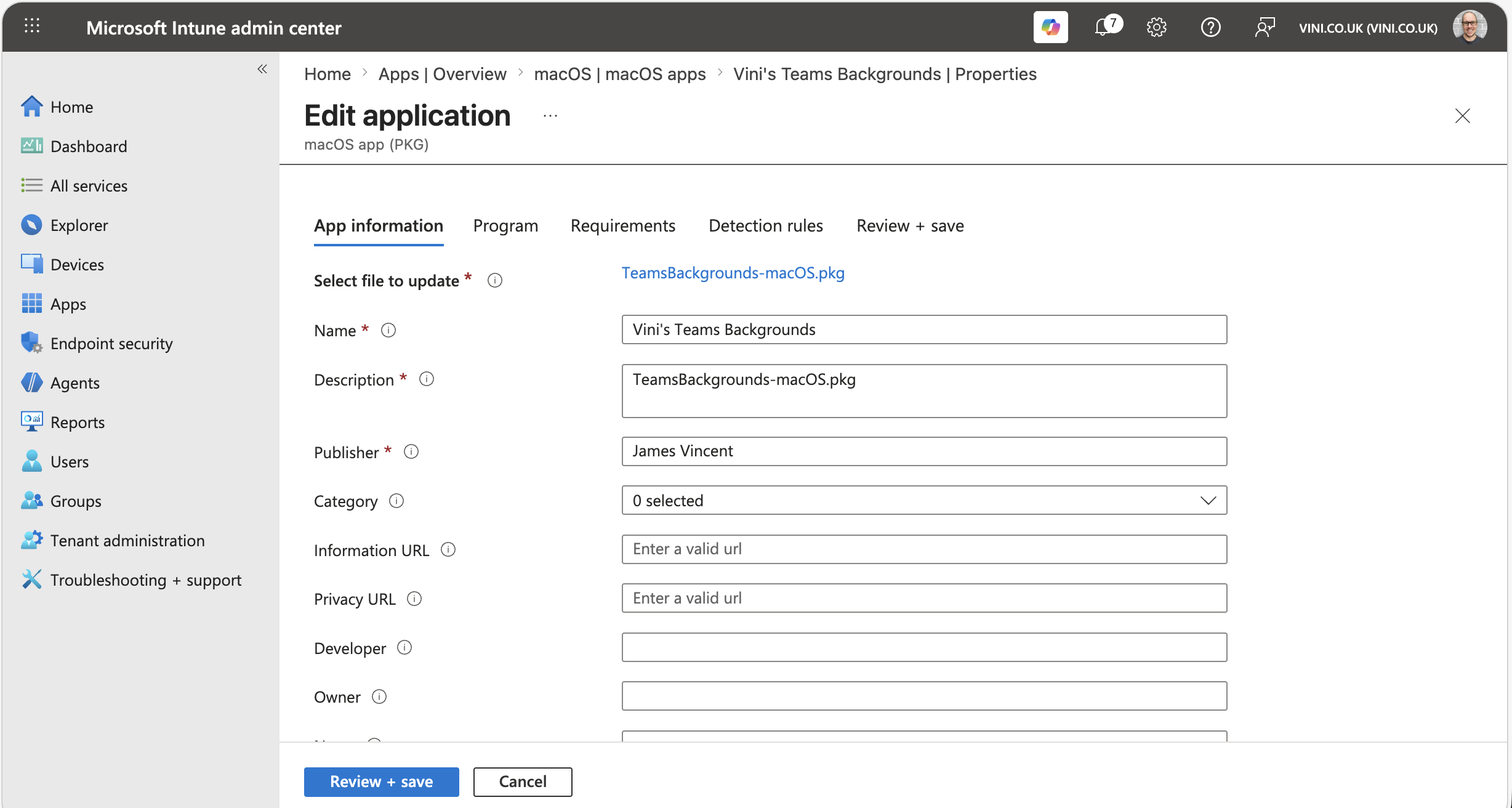
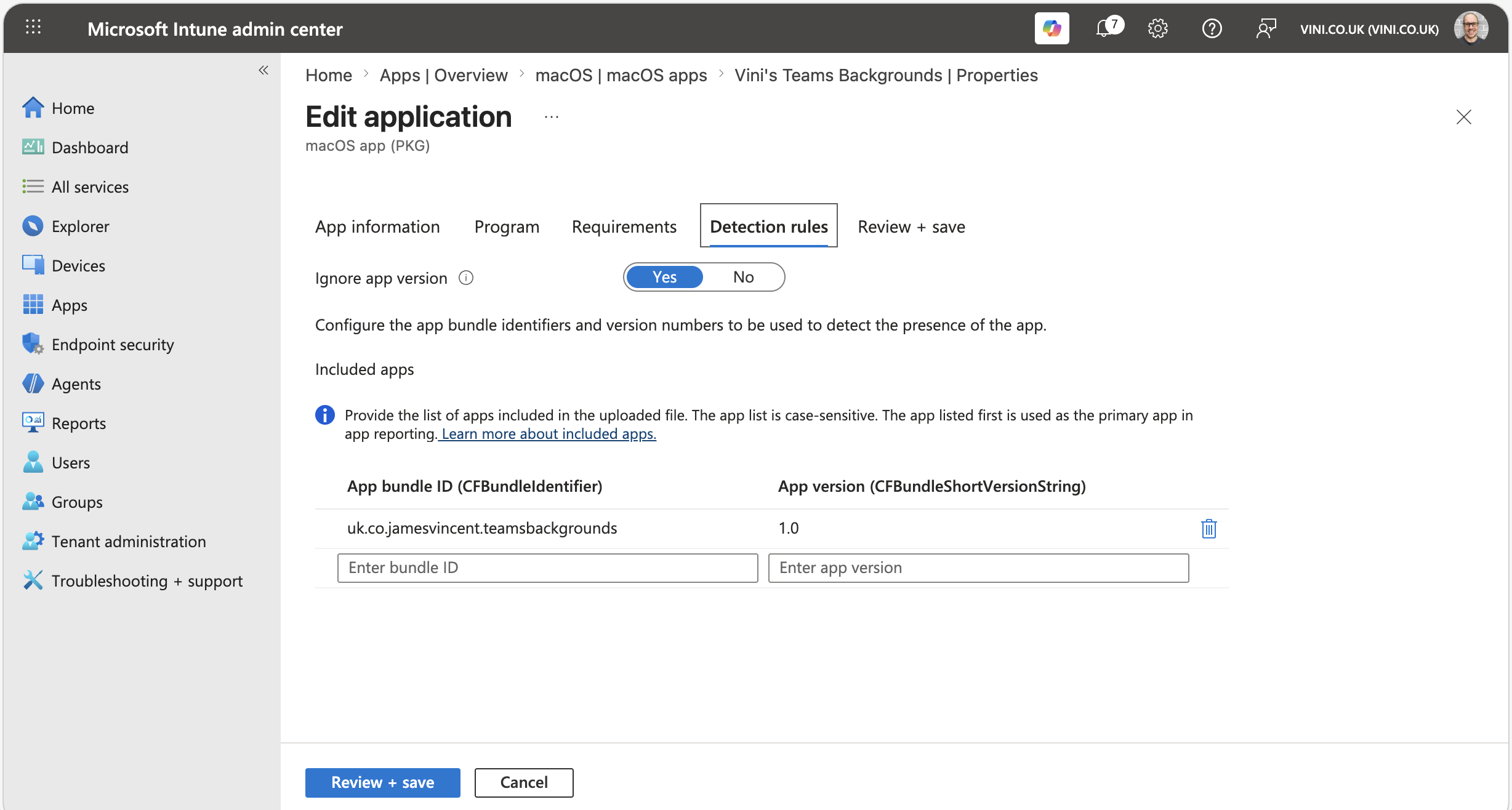
The detection rule can likely be left alone, but double check it.
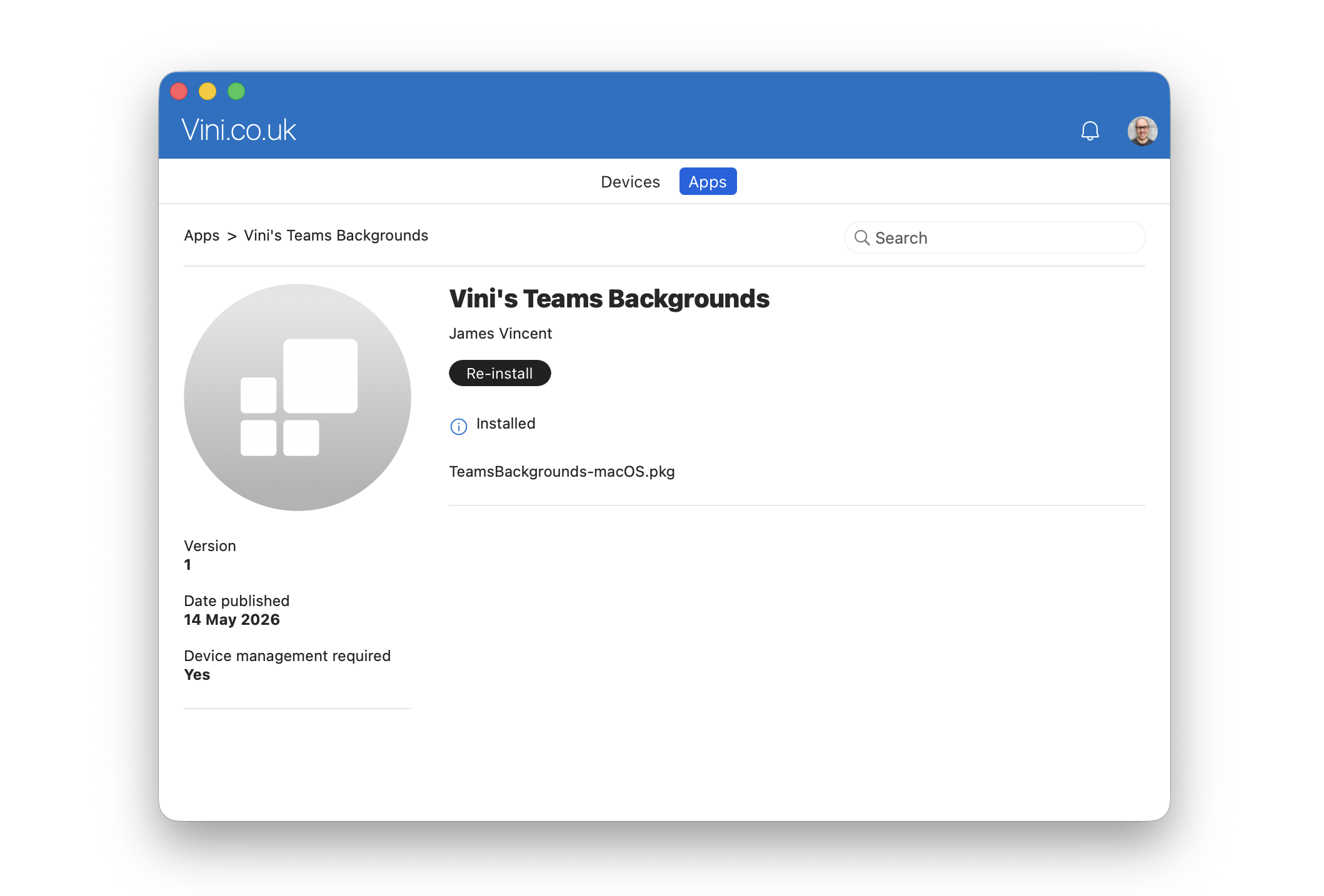
Assign the application accordingly, and sit back and wait – if you’ve assigned it as required that is. Company Portal will let you know when it’s installed.
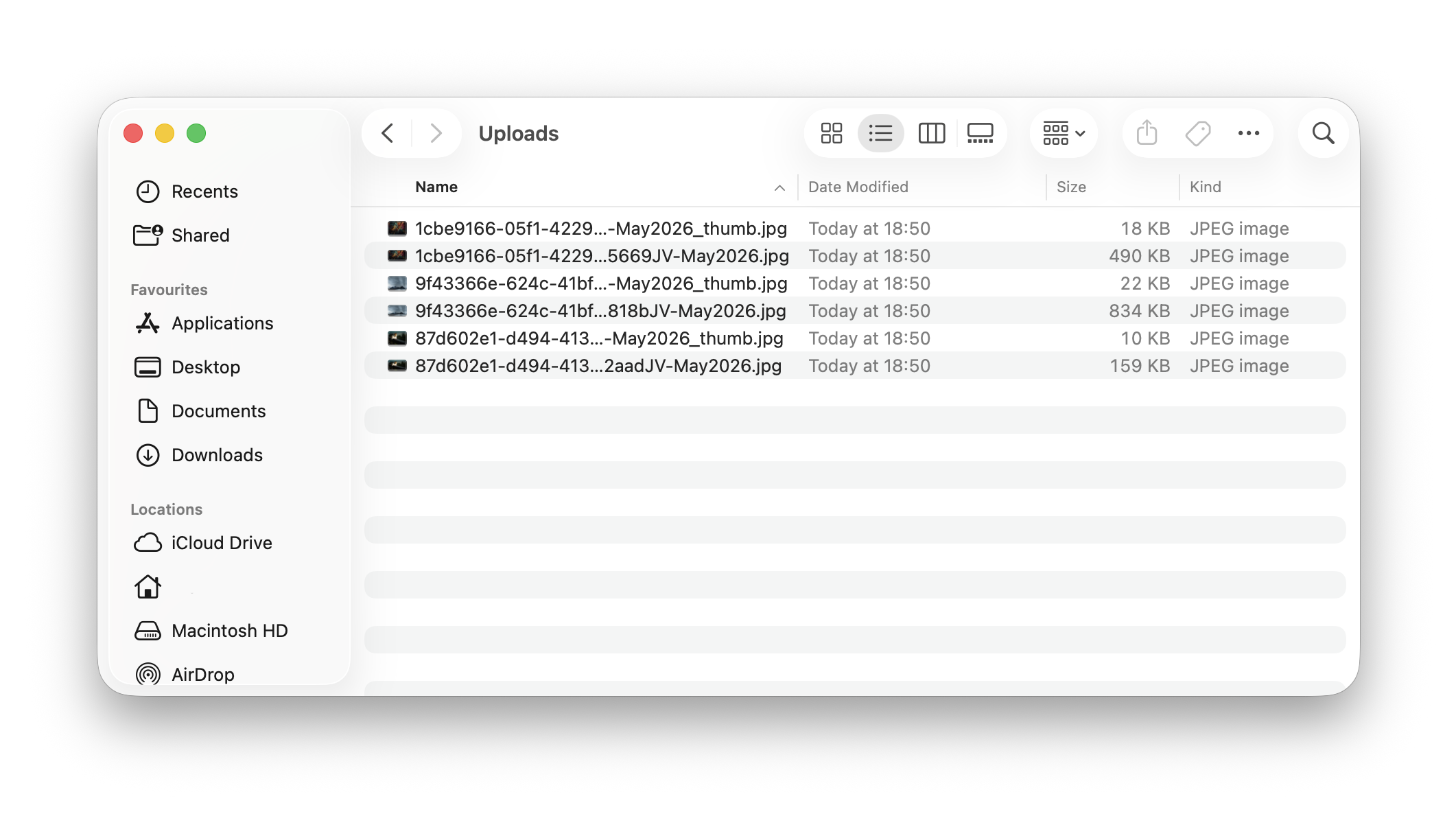
You can verify installation by browsing to; $HOME/Library/Containers/com.microsoft.teams2/Data/Library/Application Support/Microsoft/MSTeams/Backgrounds/Uploads where you should find that the images you wanted to deploy, now live.
Jumping over to Teams, and firing up a test call. We can check under Video effect and settings, to see if our images exist. And what do we see… our images, complete with Description on hover.
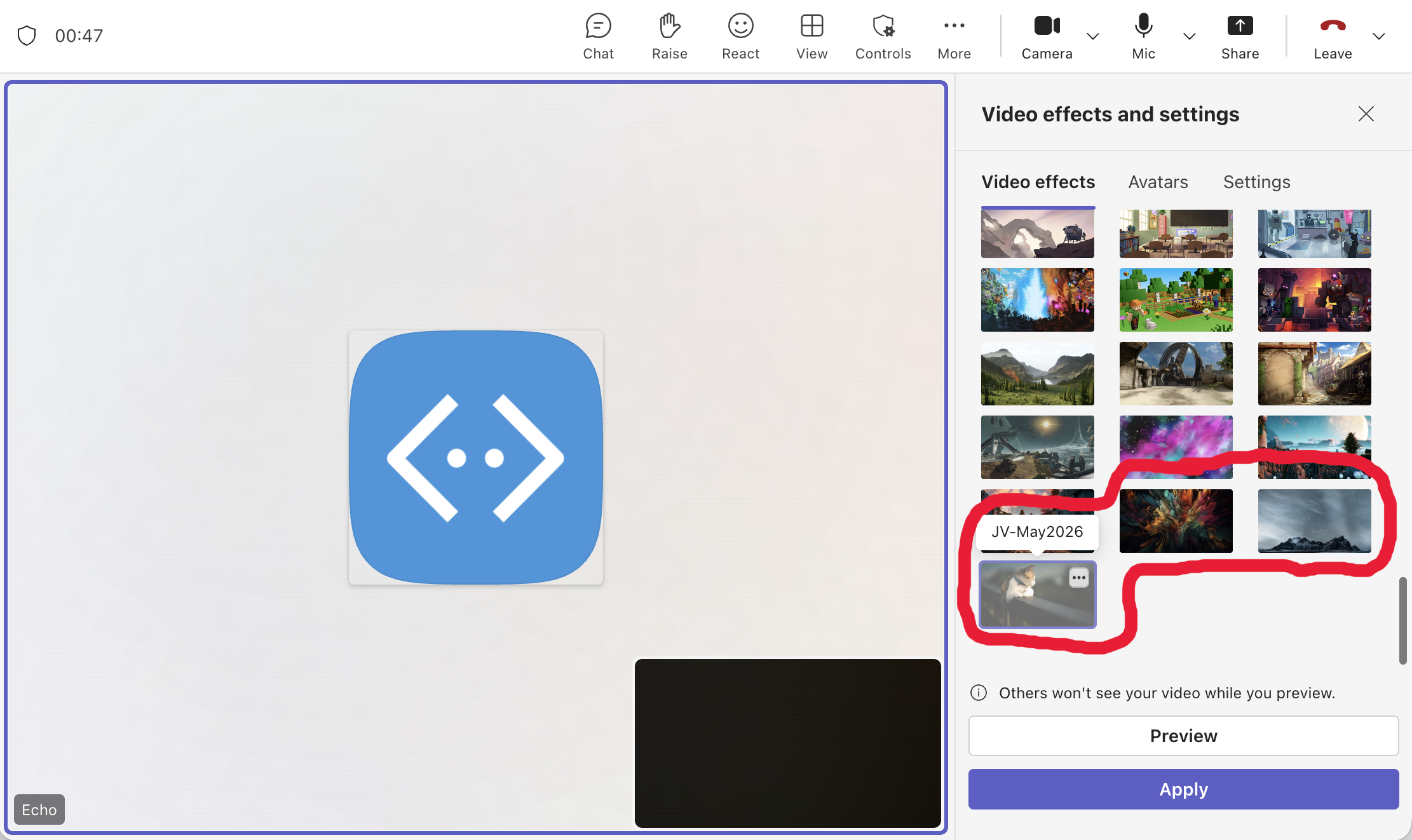
Happy days.
Remove the package receipt
If you want macOS to forget a package (without removing its files), which you might need/want to do if pushing new images or wanting to reinstall the package. You might need to run the following command line;
sudo pkgutil --forget uk.co.jamesvincent.teamsbackgrounds
This removes the package’s receipt from the system so it no longer appears as installed.
Uninstallation Script
Below is a script that will perform an uninstallation for you. When I say uninstallation, you simply need to remove the images from the MSTeams/Backgrounds/Uploads folder – so that’s really all this script is doing.
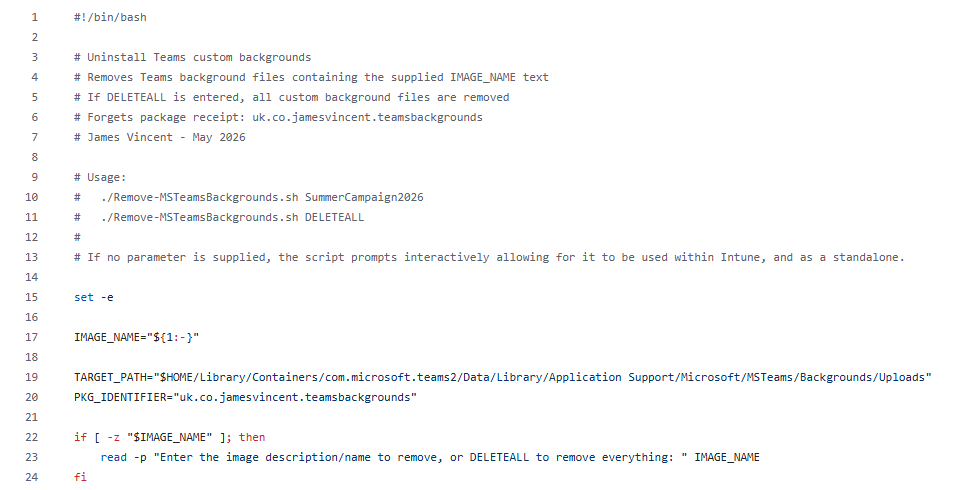
Running the script locally, will result in a prompt being displayed, in which you can enter free text. The free text you enter should be that of the Description you gave when installing. The script will then remove the images containing this text.
Using my example above, I originally called my images JV-May2026, as seen in the final image. This may resemble ALL the images I’ve deployed, or might resemble a particular campaign. To remove all images containing the May2026 descriptor, I would enter May2026 into the prompt, or parse it as a parameter — ./Remove-MSTeamsBackgrounds.sh May2026
Alternatively, not entering anything after the filename, for example ./Remove-MSTeamsBackgrounds.sh will remove ALL the images. You might find this approach easier, allowing you to start a complete fresh.

Leave a Reply