Updated 17th May 2026 – v2.0 of the script has been uploaded. It’s almost fully rewritten and now includes “uninstall” support. The whole process still works, confirmed with Microsoft Teams version 26106.1906.4665.7308. MacOS users, switch over to this article for your How To.
For the third time in as many weeks I’ve come across folks needing or wanting to deploy custom/branded/corporate background images to Microsoft Teams… It used to be simple, but now in order to utilise native methods, your users need to have a Teams Premium license.
I first had a need for this personally a few weeks ago, and since then, two clients I’ve worked with have had the same request. Three requests in three weeks made me think it was probably worth scribbling something down to help others, so here we are.
Previously, with old old Teams, you could drop background images in a specific directory, and they’d appear for selection. Easy peasy, but with “new” (now old) Teams, backgrounds require a few things to be “compatible”. They need to conform to specific resolution (sizing) and they need to have a filename which contains a GUID. When you manually upload an image through the Teams console, this is handled for you. Likewise, when using the Teams Admin Console to deploy images, this too is handled for you. But we’re assuming we don’t have the licenses to deploy en-masse, and we definitely don’t want thousands of users to be manually uploading a heap of images.
So, how might we do it, without the prerequisite of a Teams Premium license? Well, there’s always a million and one ways to achieve “the outcome”, and this outcome is no different. Of course, PowerShell will help here.
I’ve cobbled together a series of functions, commands, and modules to generate a .intunewin file which you can upload into Intune for deployment to your environment. The script is provided with no warranties and no support.
The script will;
- Check to see if the ResizeImageModule is present, if not, Install it
- Prompt you to define a path in which you have your custom backgrounds located
- Ensure this folder is empty, apart from the images you wish to push out.
- Note: v2.0 has limited support for converting images to JPG, for best results start with JPGs.
- Note: The script will create an “Intune” subfolder within this path, in which the materials for deployment will be created.
- Prompt you to supply a description for the Image, this is the “Title” Teams will display when hovering over the image to select it for use.
The script will then perform a few checks, download the Win32App Creator utility and wrap everything up into a .intunewin file and provide you with instructions for you to upload to Intune for deployment.
How to
First of all, create yourself a working directory, on a PC that isn’t restricted in the scripts it can execute and files it can download. Whilst the script isn’t doing anything untoward, if you’re unable to launch it due to execution policy restrictions, can’t download the Win32 App Wrapper or don’t have permission to write to directories, you’re going to struggle.
In this example we create c:\Temp\Teams – ensure your .jpg files are added here.
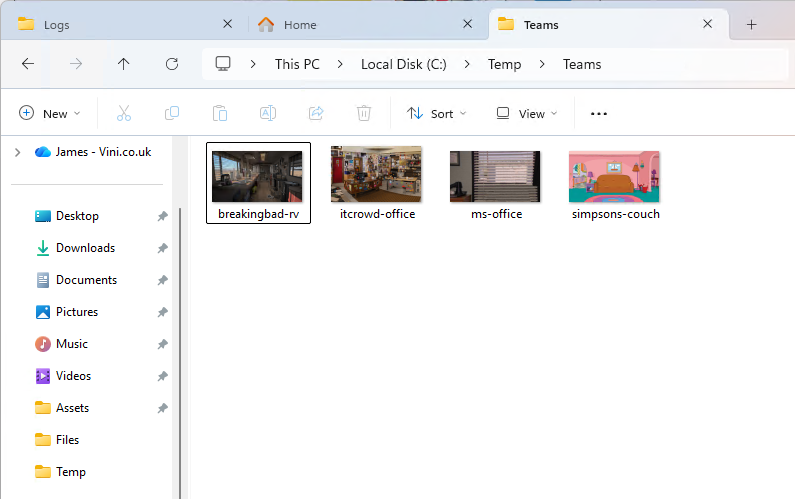
Then head over to GitHub and download the script; Intune/MSTeamsBackgrounds/Win/Create-MSTeamsBackgrounds.ps1, save this script into c:\Temp or somewhere outside of the working directory that you have created.
Open PowerShell and execute the script. Accept any prompts relating to the ResizeImageModule needing to be installed, enter the path to your freshly created working directory (C:\Temp\Teams), and provide a description for the images (James Vincent Test). Then sit back and wait for ~60 seconds.
Version 2.0 of the original script, created/modified in May 2026 now accepts command line input for the location and description. Example usage is;
.\Create-MSTeamsBackgrounds.ps1 -ImageLocation ‘C:\Temp\Teams\’ -ImageName ‘Vini-May2026’
If you run it without the parameters, you will of course be prompted to enter them.
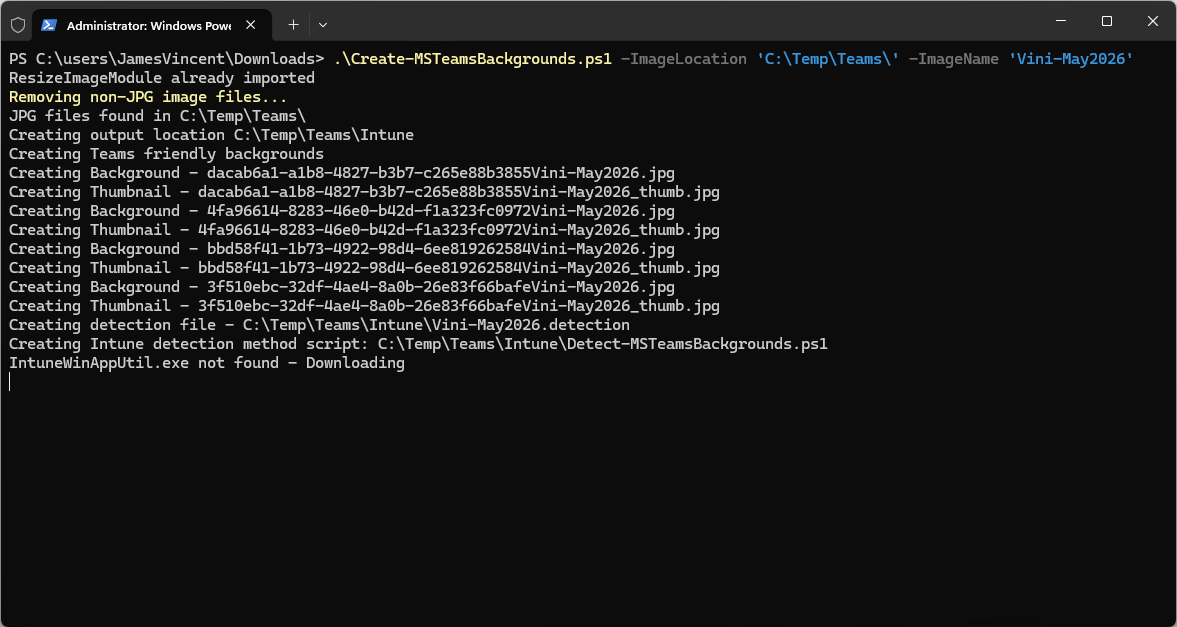
As per v1.0, the script will wrap the necessary contents into an .intunewin file for you, ready for direct upload into Intune. v2.0 will now provide you with the installation/uninstallation parameters, alongside a file you can use for detection.
Note the mention of Uninstallation 🙂
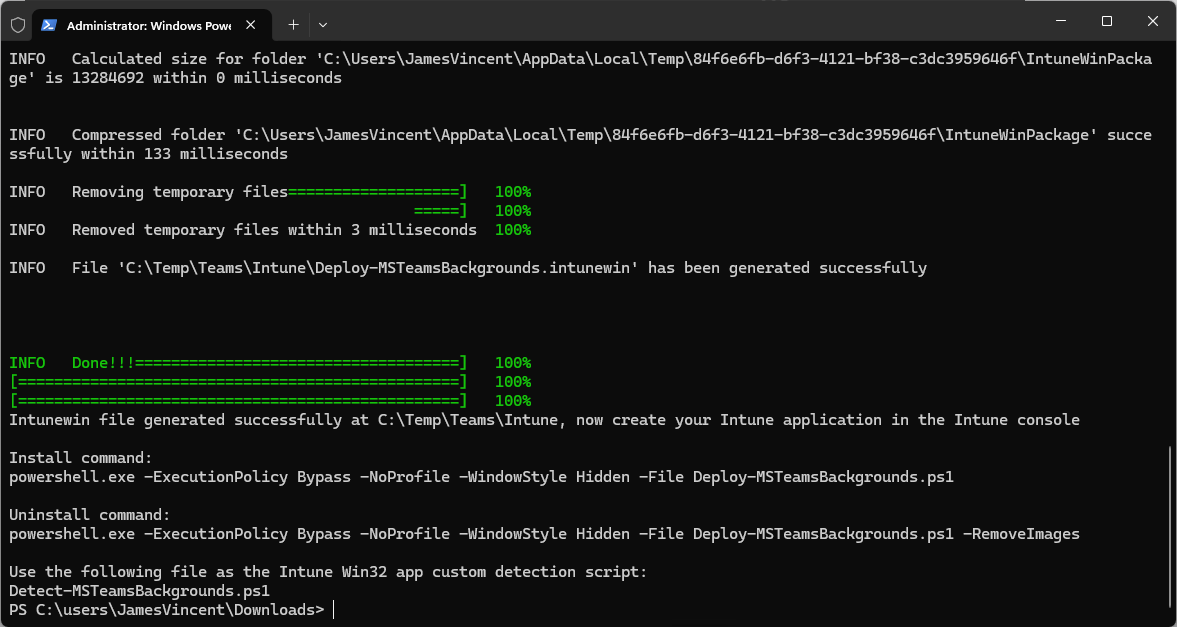
As long as we see a bunch of success messages in the resulting script, then if you check the working directory now, you should see that in the root of the directory, we have the Win32App Wrapper and a new “Intune” subfolder.
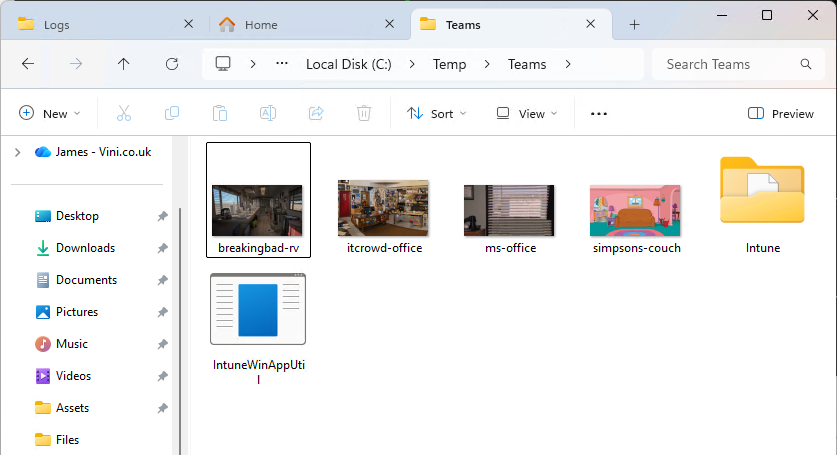
The “Intune” subfolder should contain all the collateral you need to proceed with mass deployment. In here we should find the correctly resized image files, with the supplied description appended. A newly created .ps1 file which we reference in our Intune installation command, a detection script, a detection file and the necessary .intunewin file, which is effectively a zip file containing the images, and the other files.
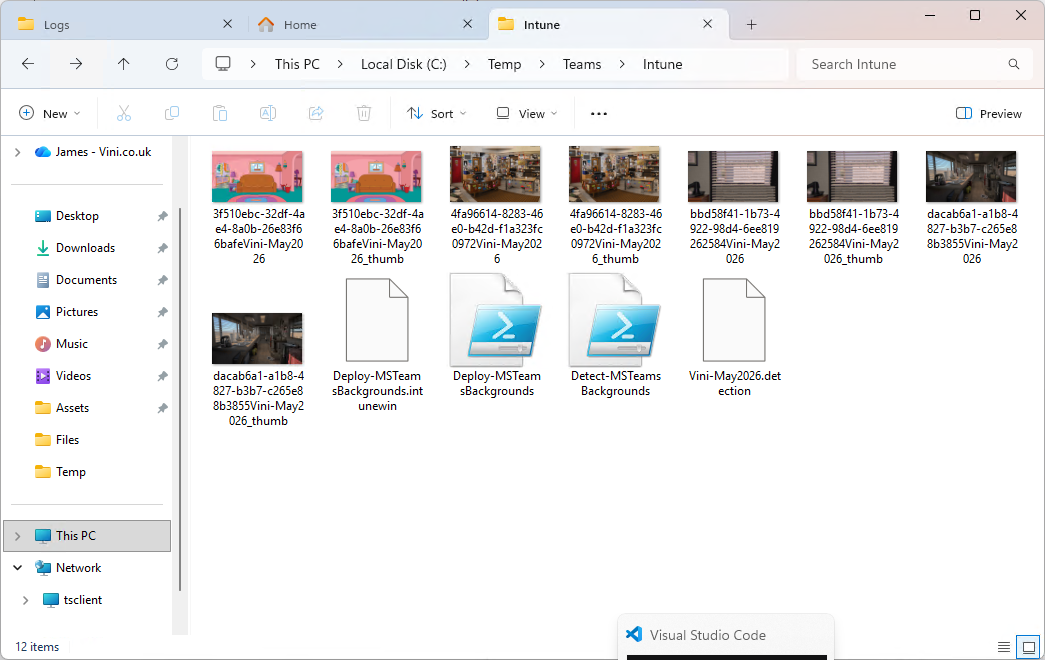
So all we need to do from here is log into Intune, and create a Win32 Application for deployment. What and how this is, is covered here — Publish and Deploy a Win32 Application to Microsoft Intune – James Vincent
This is a snapshot of what my Intune app looks like. Note, the Install behaviour is set to User.
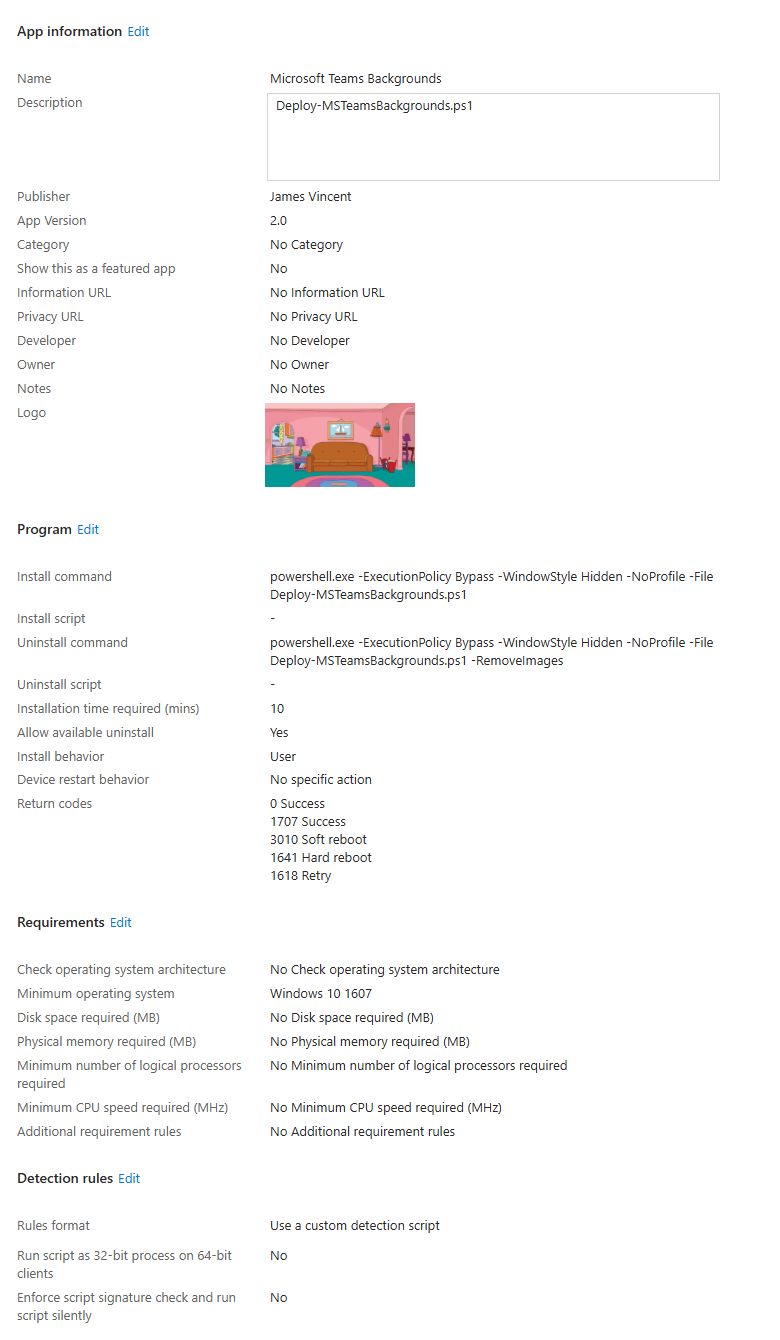
| Install parameters | |
|---|---|
| Install Command | powershell.exe -ExecutionPolicy Bypass -WindowStyle Hidden -NoProfile -File Deploy-MSTeamsBackgrounds.ps1 |
| Uninstall Command | powershell.exe -ExecutionPolicy Bypass -WindowStyle Hidden -NoProfile -File Deploy-MSTeamsBackgrounds.ps1 -RemoveImages |
Note: In v1.0 there was no option to uninstall. Essentially all that is required is something to remove the generated files from the %LocalAppData%\Packages\MSTeams_8wekyb3d8bbwe\LocalCache\Microsoft\MSTeams\Backgrounds\Uploads folder if you really wanted. In v2.0 uninstallation support is included.
For the detection method, we’re checking for the included .detection file. The supplied detection script will do this for you. The .detection file also contains reference of the images deployed in this particular payload, and the contents of the .detection file will be used when uninstalling.
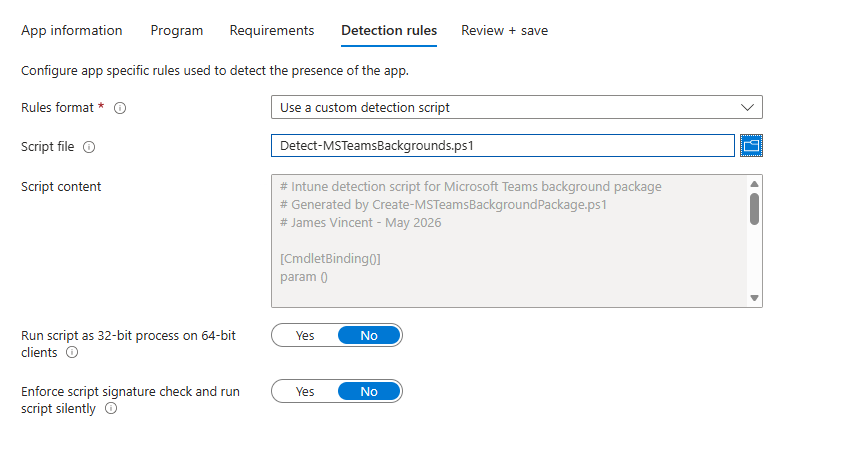
With the Intune application created, assign it as you see fit. The recommendation here would be to test it first, so in my test environment I published it as Available to a select group of users. That way, I could hop on a test device and self-serve it from within Company Portal.
Note. During install/uninstall, a PowerShell context window will briefly flash open for ~1 second.
This should be the result.
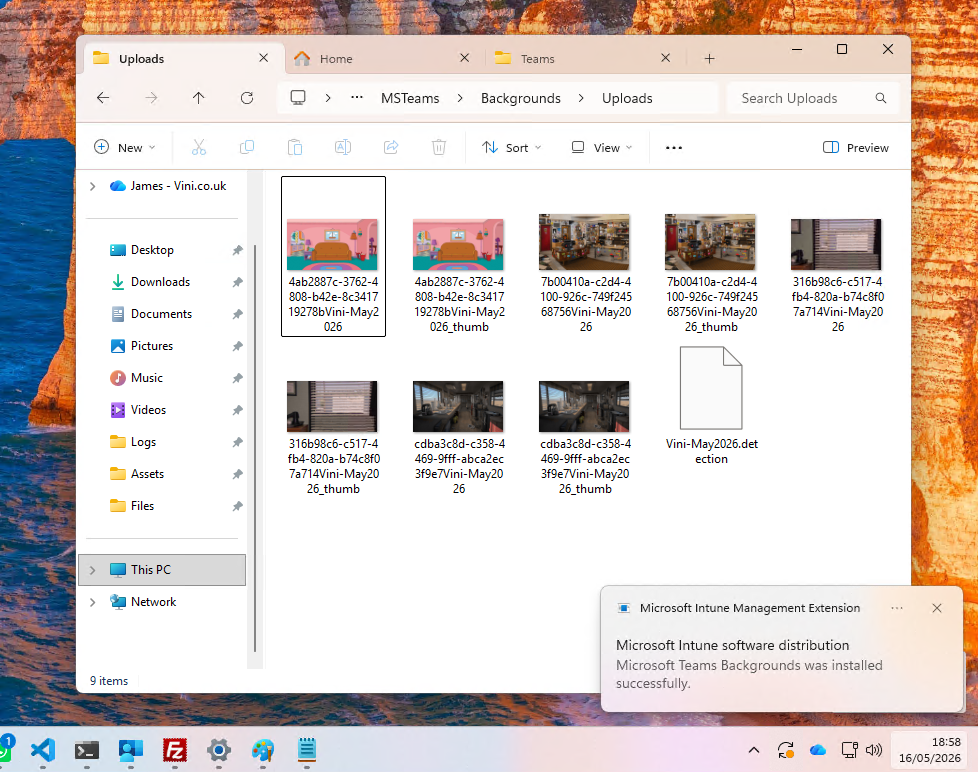
The simply open Teams and check your Custom Backgrounds…
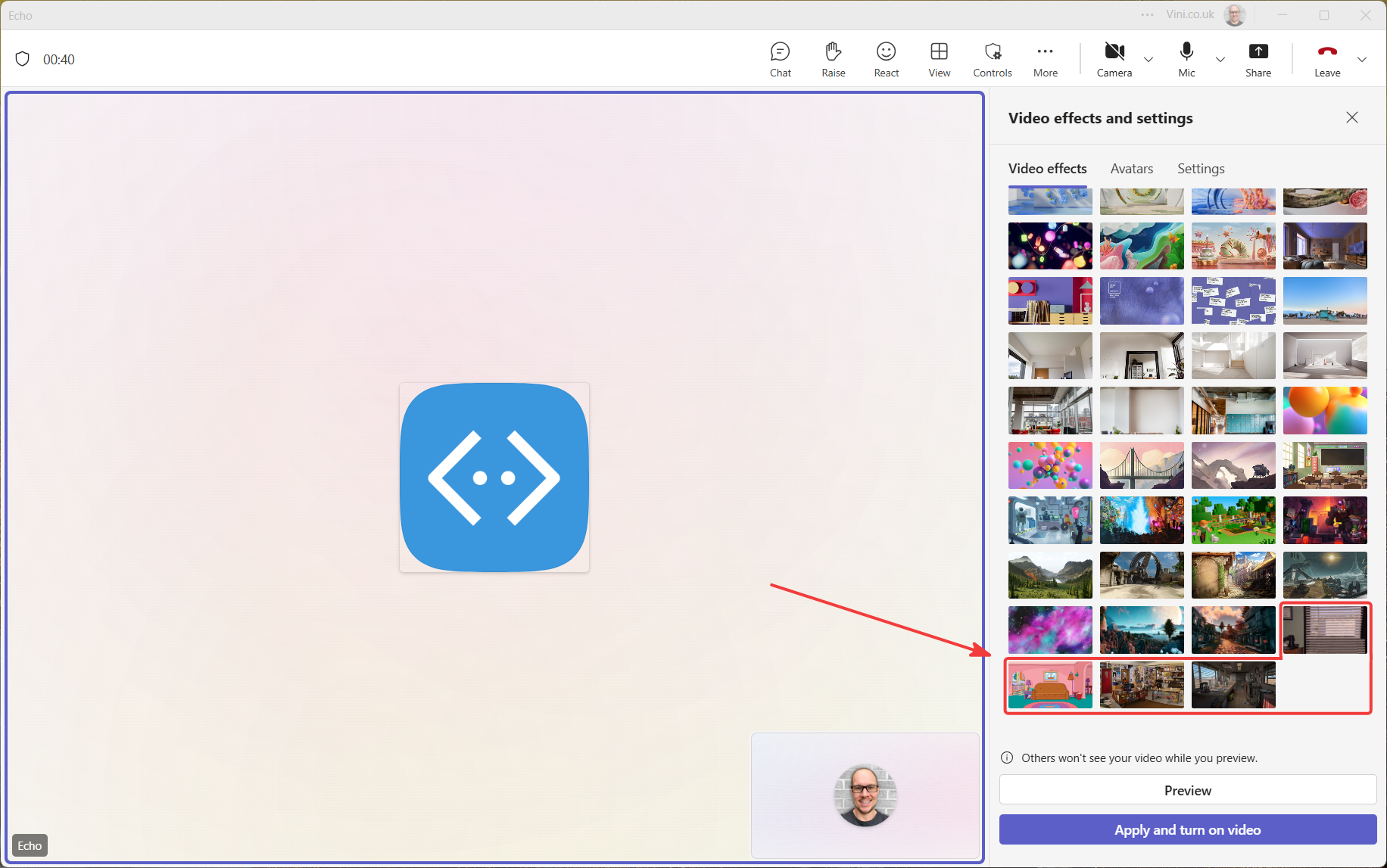
All you need to do now, is issue your users with a set of instructions on how to apply the deployed backgrounds within the Teams client.
Happy days.

Leave a Reply